Add the Social media widget to OBS
On a computer, open the Twools editor, add the "Social handle" widget and pick one of the seven layouts.
In "Accounts", add your networks, type each handle and sort them: the order of the list is the order on screen.
Click "Overlay link", copy your link and paste it into a Browser Source in your streaming software, sized to your canvas.
On your phone, open the Control Room: with Card, Banner and Rotation, the card features another network in one tap.
Features
- Twenty networks, including Twitch, YouTube, Kick, X, Instagram, TikTok, Discord and Bluesky
- Seven layouts: one network in large, or all your accounts as a list or a row
- Logos in solid official colour, tinted, or monochrome in your text colour
- Featured network changed from the Control Room
- Optional "Follow me" button under the handle with the Card layout ("Rejoins-moi" with the editor in French)
The settings
| Setting | What it changes |
|---|---|
| Layout | Seven designs: Card, Banner, List, Row, Presentation, Home screen and Rotation. |
| My networks | Twenty networks to choose from, a handle of up to 64 characters for each, in the order you set. A network without a handle is not shown. |
| Shown account | With Card, Banner and Rotation, the account the layout shows, or the one the rotation starts with. |
| Shared handle | With Row, and with Presentation set to "Logos and shared handle", the single handle next to the logos. Left empty, the first account's handle. |
| Displayed name | With Presentation, the large name above the networks, up to 80 characters, to introduce a guest. |
| Logo | Solid, with the official colour as a block; Tinted, with a see-through background and edge; Monochrome, in your text colour. |
| Network-colored background | None, Solid or Gradient, with Card, Banner and List. The monochrome logo removes it. |
From the Control Room
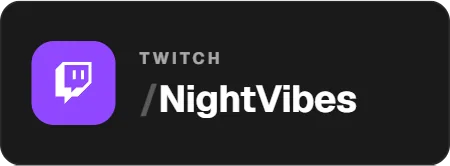
On your phone, the Social card shows what viewers see: the featured account, the one the rotation shows right now, or the number of networks on air. With Card, Banner and Rotation, one chip per account lets you feature another network; with Rotation, the rotation starts again from it. The eye shows or hides the widget, and "Edit" opens the widget in the editor. Handles and the list of networks cannot be changed from the Control Room.
Ways to use it
Your networks in a corner
List shows all your accounts at all times; Row lines up the logos with a single handle, handy when you use the same one everywhere.
Pushing one network at the right time
With the Card or Banner layout, a single account shows in large. You announce your Discord: one tap on its chip in the Control Room features it, with its animation.
Introducing a guest
The Presentation layout shows a large name with the networks below. Add a second widget for your guest, then hide it with the Control Room eye when they leave.
Compared with the most common method
A static image (PNG) with your handles
| Aspect | With Twools | The other method |
|---|---|---|
| Setup | A widget in the editor, an overlay link in a Browser Source. | An image to draw in graphics software, then an Image source in OBS. |
| Changing a handle | A field to fix in the editor: the overlay follows. | Redo the image, then replace it in OBS. |
| Featuring during the stream | One network picked from the Control Room, or a rotation every four seconds. | One image or scene per network, shown by hand. |
| Logos | Those of twenty networks, in solid official colour, tinted or monochrome. | The ones you place in the image yourself. |
| Animations | An entrance, an exit, and an animation when the featured network changes. | None, unless you add a filter or a transition in OBS. |
| Requirements | A Twools account, and streaming software that accepts a browser source (OBS, for example). | Graphics software, and OBS. |
When the other method makes sense
If your handles never change and a single visual is enough, a static image does the job: it depends on no service. The widget helps when you want to rotate your networks, feature one during the stream or change the style without redoing the image.
Social media: frequently asked questions
How do I add social media handles to OBS?
Add the "Social handle" widget in the editor, add your networks and enter your handles. Choose a layout, then paste your overlay link into an OBS browser source. This widget does not require connecting your social accounts.
Which social networks can I show?
Twenty: Twitch, YouTube, Kick, X, Instagram, TikTok, Discord, Bluesky, Threads, Facebook, Snapchat, Reddit, Telegram, WhatsApp, LinkedIn, Patreon, Ko-fi, Tipeee, Spotify and your website.
Can I show several networks at once?
Yes. The List, Row, Presentation and Home screen layouts show all your accounts. The Card and Banner layouts show a single one, in large; Rotation shows them one by one.
Can I change the displayed handle during the stream?
You change the featured network from the Control Room, with the Card, Banner and Rotation layouts, not the handle itself. Handles are set in the editor.
Can I show a full link instead of the handle?
Not for a social network: the widget shows a handle, preceded by the sign each network uses. Only the website entry ("Site web" in the editor) shows the text as you write it, your address for example. For a sentence, use the Text widget or the Banner.
Can I rotate my networks one by one?
Yes. The Rotation layout shows one network at a time and moves to the next every four seconds. In the Control Room, tapping a network restarts the rotation from it.
Are the network logos in their official colours?
Yes, by default. In "Logos and colors", the logo can be Solid, Tinted or Monochrome, in your text colour. With the Card, Banner and List layouts, the background can also take the network's colour, solid or as a gradient.