
Add the Timer widget to OBS
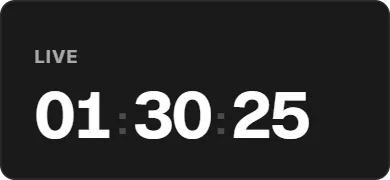
On a computer, open the Twools editor, add the Timer widget and pick one of the eight layouts.
In "Duration and title", pick Countdown or Stopwatch, set the duration, then type a title such as "STARTING SOON".
Click "Overlay link", copy your link and paste it into a Browser Source in your streaming software, sized to your canvas.
On your phone, open the Control Room: the Timer card starts it, pauses it, adds or removes 30 seconds and takes a new target.
Features
- Two modes: countdown to zero, or stopwatch with an optional stop
- Eight layouts, including a ring, a console line and a film leader
- Start, pause, back to the starting time and 30 seconds more or less from the Control Room
- Exit animation when time runs out, if you turn it on
- Duration up to 99 hours, shown in minutes or hours
The settings
| Setting | What it changes |
|---|---|
| Layout | Eight designs: Digital, Ring, Split-flap, TV banner, Sentence, Timeline, Terminal and Film. |
| Mode | Countdown, which starts from a duration and goes down to 0, or Stopwatch, which starts from 0 and counts up. |
| Duration | Hours (up to 99), minutes and seconds, or a quick duration: 1, 5, 10 or 30 minutes, or one hour. For a stopwatch, it is the limit. |
| Stop at a duration | For a stopwatch: off, it counts with no end; on, it stops at the chosen duration. |
| When time is up | Stays on screen or Leaves. The burst plays first; "Restart" or a reset brings the timer back on screen. |
| Title above the time | The title shown with the time, for example "STARTING SOON". Left empty, nothing shows. |
| Words around the time | With Sentence, the words placed around the time. Left empty, the overlay writes "Back in" for a countdown or "Live for" for a stopwatch on a widget added with the editor in English, "Retour dans" or "En direct depuis" with the editor in French. |
| Unit names | With Split-flap, a name under each group of digits once you write one; the groups you leave empty show "hours", "minutes" and "seconds" on a widget added with the editor in English, "heures", "minutes" and "secondes" with the editor in French. With no name written, the digits show on their own. |
From the Control Room
On your phone, the Timer card shows the mode as a small caption, then the time in very large type, above a single big button: Start, Pause, Resume, or Restart once time is up. Below it, −30 s and +30 s adjust the time, even while it runs, and the reset goes back to the starting time (0 for a stopwatch) after a confirmation. Tapping the target lets you type another one: "10" means ten minutes, and a running countdown restarts from the new value. The eye shows or hides the widget. Mode, title and layout are changed in the editor.
Ways to use it
Waiting screen before the stream
A ten-minute countdown titled "STARTING SOON", or the Sentence layout with your own words, such as "Back in 09:42" during a break. You start it from the Control Room when you open the scene.
A timed challenge
The Stopwatch starts from 0; turn on "Stop at a duration" to set a limit. Pausing and resuming takes one tap on your phone, without losing the elapsed time.
A subathon run by hand
The timer does not add time on its own: for each subscription, you tap +30 s in the Control Room, or type a new target. Once time is up, +30 s puts it back on pause and Resume plays that time.
Compared with the most common method
A timer plugin or script in OBS
| Aspect | With Twools | The other method |
|---|---|---|
| Setup | A widget in the editor, an overlay link in a Browser Source. | A plugin or script to install in OBS, and a Text source it keeps updated. |
| Control during the stream | From the Control Room, on a phone or a second screen connected to the Internet. | From OBS or keyboard hotkeys, on the streaming PC. |
| Style | Eight layouts, including a ring, a timeline and a film leader, plus style presets. | The options of a Text source: font, colour, outline. |
| Recovery after a reload | The start time is saved with the overlay: the source picks up where it was. | Depends on the plugin or script: some start over when OBS restarts. |
| Time added by subscriptions | None: you add or remove time by hand, from the Control Room. | Possible with some plugins or scripts connected to your platform. |
| Requirements | A Twools account, and streaming software that accepts a browser source (OBS, for example). | OBS, and the plugin or script installed on the streaming PC. |
When the other method makes sense
If every subscription or donation must add time on its own, a subathon plugin or script connected to your platform does what Twools does not. For a countdown before the stream or a timed challenge run from your phone, the Timer widget is enough.
Timer: frequently asked questions
How do I put a countdown timer on OBS?
Add the Timer widget to your overlay, pick countdown mode and set the duration. Then paste your overlay link into an OBS browser source, and start the timer from the Control Room.
Do I need an OBS plugin to show a countdown timer?
No. The timer shows in a browser source, through your overlay link, so there is nothing to install in OBS. A plugin or a script is installed in OBS and set from OBS; here you run the timer from the Control Room, on your phone or another screen. You do need a Twools account, and the overlay is built on a computer.
Can the timer work as a subathon timer?
Partly, because you run it by hand. From the Control Room you add or remove 30 seconds for each subscription, or type a new target. The timer never adds time on its own: a subscription, a donation or bits do not extend it.
Does the timer stay accurate on a long stream?
Yes. Time is computed from the start time, not added up second by second. The editor, the Control Room and OBS therefore show the same value.
What happens if OBS reloads the timer source?
The timer picks up where it was, with nothing to restart on your side: its start time is saved with your overlay, and the source works out the time again when it comes back.
Can I show a stopwatch instead of a countdown?
Yes. Pick the Stopwatch mode: it starts from 0 and counts up with no end. Turn on "Stop at a duration" to stop it at the limit you choose, up to 99 hours. The Control Room starts and pauses it like a countdown.
Can I change the countdown duration during the stream?
Yes. In the Control Room, tap the target to type another one: "10" means ten minutes, "1:30:00" an hour and a half. A countdown already running restarts from the new value without stopping. The plus and minus 30 seconds buttons adjust the time without touching the target.