
Add the Text widget to OBS
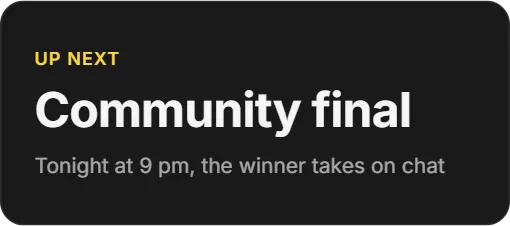
On a computer, open the Twools editor, add the Text widget and pick one of the eight layouts.
In "Text", write your message, then the kicker, secondary text or byline your layout shows.
Click "Overlay link", copy your link and paste it into a Browser Source in your streaming software, sized to your canvas.
On your phone, open the Control Room: the Text card keeps a draft, and "Send to air" puts it on screen when you decide.
Features
- Eight layouts: card, notice, list, bar, game dialogue box, news flash, teletext and lower third
- Message drafted first, sent on air when you decide
- One hundred of the most used Google Fonts
- Shadow, outline, glow and metallic effect on the text
- Kicker, second line and credit hidden one by one
The settings
| Setting | What it changes |
|---|---|
| Layout | Eight designs: Card, Announcement, List, Bar, Dialogue, News flash, Teletext and Lower third. |
| Message | The main line, on every layout. With List, it is called "Rows": one line of the message per row. |
| Kicker | The small capitalised line, placed around the message depending on the layout, up to 120 characters. With Dialogue, it is the speaker's name. |
| Secondary text and byline | A quieter line under the message (Card, Teletext) or the role under the name (Lower third), and a short line placed by the layout: your channel address or the time. |
| Icon | With Announcement, the block left of the message: megaphone, info, star, pin, or none. |
| Marker | With List, a bullet, a number or a check mark before each row. |
| Typography | One hundred of the most used Google Fonts, with a search by name, and a size from 8 to 200 pixels. |
| Text effects | Seven styles: None, Soft shadow, Drop shadow, Outline, Neon, Poster and Metal, with their colour and intensity. |
From the Control Room
On your phone, the Text card shows what is on air, then a draft you write at your own pace: nothing goes out until you send it. Under "Other lines", you also change the kicker, the secondary text or the byline, when your layout shows them. "Send to air" replaces everything at once, shows the widget if it was hidden and replays its animation; "Back to the text on air" discards the draft. The eye shows or hides the widget. Font, colours and layout are set in the editor.
Ways to use it
An announcement at the right moment
The next tournament, a giveaway, a schedule change: you write the message in the Control Room draft, then send it when the moment comes. The overlay replaces it with its animation.
Tonight's schedule
With the List layout, each line of the message becomes a row, with a bullet, a number or a check mark, under a kicker such as "SCHEDULE".
A character's line
With the Dialogue layout, the name sits on the frame and the message types out again letter by letter whenever it changes, as in a role-playing game.
Compared with the most common method
An OBS Text source (GDI+ or FreeType)
| Aspect | With Twools | The other method |
|---|---|---|
| Setup | A widget in the editor, an overlay link in a Browser Source. | A Text source added in OBS, set up in its properties. |
| Changing the message live | From the Control Room, on a phone: a draft, then a send. | In the source properties, on the streaming PC, or through a text file the source reads. |
| Formatting | Eight layouts, style presets, one hundred Google Fonts and seven effect styles. | The source options: a font installed on the PC, the colour, an outline, a background or a shadow. |
| Animations | An entrance, an exit, and an animation with each send. | None: the text changes all at once, unless you add a plugin or a scene transition. |
| Requirements | A Twools account, and streaming software that accepts a browser source (OBS, for example). | OBS only: the Text source is built in. |
When the other method makes sense
If your text almost never changes, an OBS Text source is enough: it needs no account and no link, and everything stays on your PC. The Text widget helps when you want to change your message during the stream from another device, or polish its layout.
Text: frequently asked questions
How do I add custom text to an OBS overlay?
Add the Text widget in the editor, write your message and choose its font and layout. Paste your overlay link into an OBS browser source. You can then change the message from the Control Room, on your phone.
Can I edit the text during the stream?
Yes. In the Control Room, you write the message in the draft and, under "Other lines", the kicker, secondary text or byline your layout shows. "Send to air" replaces them all at once, with the widget's animation. Font and colours are set in the editor.
Which fonts are available for the text?
The hundred most used Google Fonts, with a search by name. Size goes from 8 to 200 pixels.
Can I make the text scroll?
Not with this widget. For text that scrolls on a loop, use the Banner widget.
Can I show several texts at the same time?
Yes. You add as many Text widgets as you want, each with its own layout, font and position.
Can I prepare a message before showing it?
Yes. The Text card in the Control Room keeps a draft apart from what is on air: nothing goes out until you press "Send to air". "Back to the text on air" discards the draft if you change your mind.
How do I show a schedule on my stream?
Pick the List layout: each line of the message becomes a row, with a bullet, a number or a check mark in front. The kicker works as the title, "SCHEDULE" for example, and the byline shows at the bottom.
How do I show a guest's name and role?
Pick the Lower third layout, the one from TV studios: the message becomes the name, large on its plate, and the secondary text the role, on a smaller plate below, against a rule in the accent colour. It sits at the bottom of its box, on the left, or on the right with the alignment. A name that is too long shrinks, then ends in "…".