
1 of 3
Create your overlay link
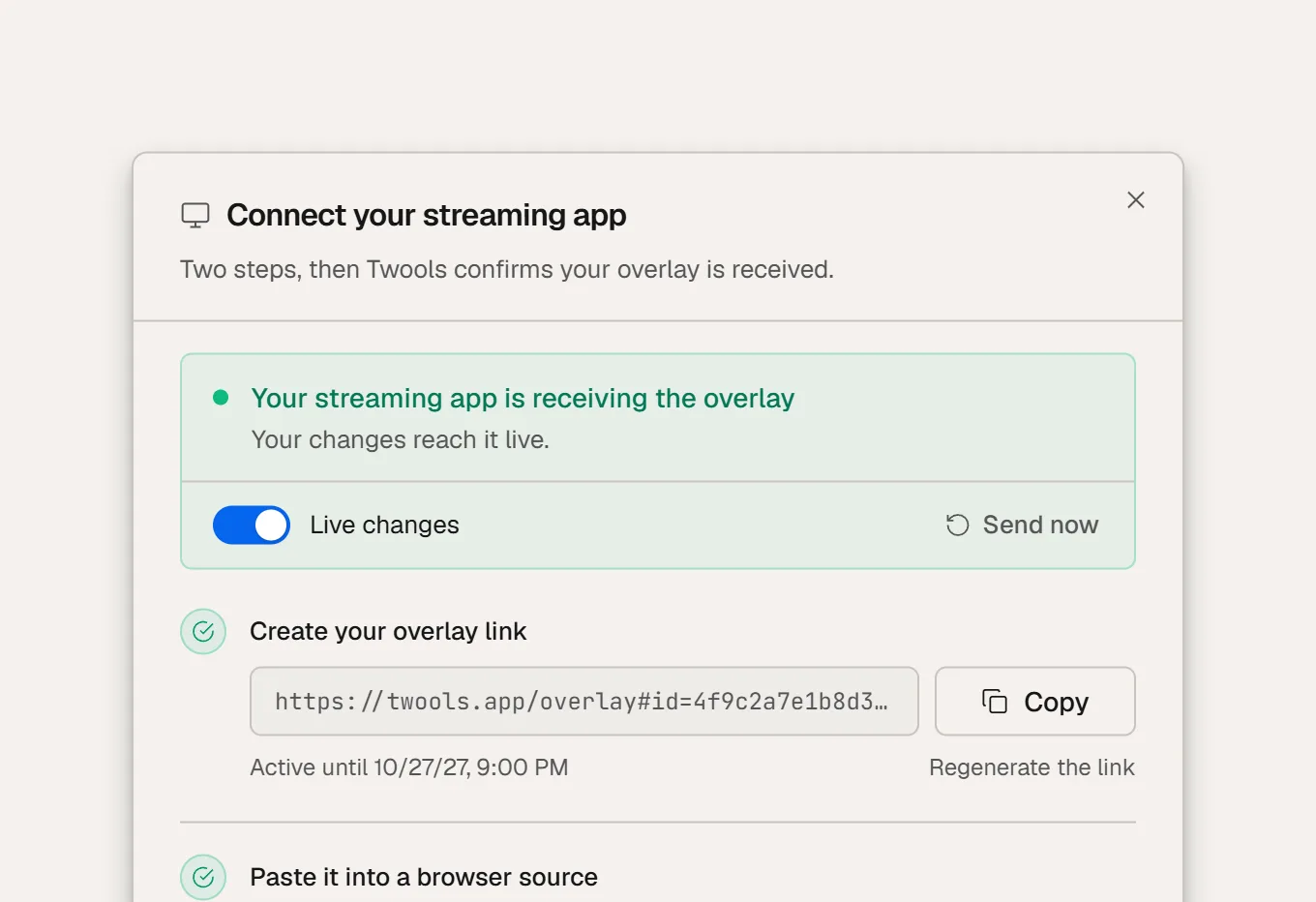
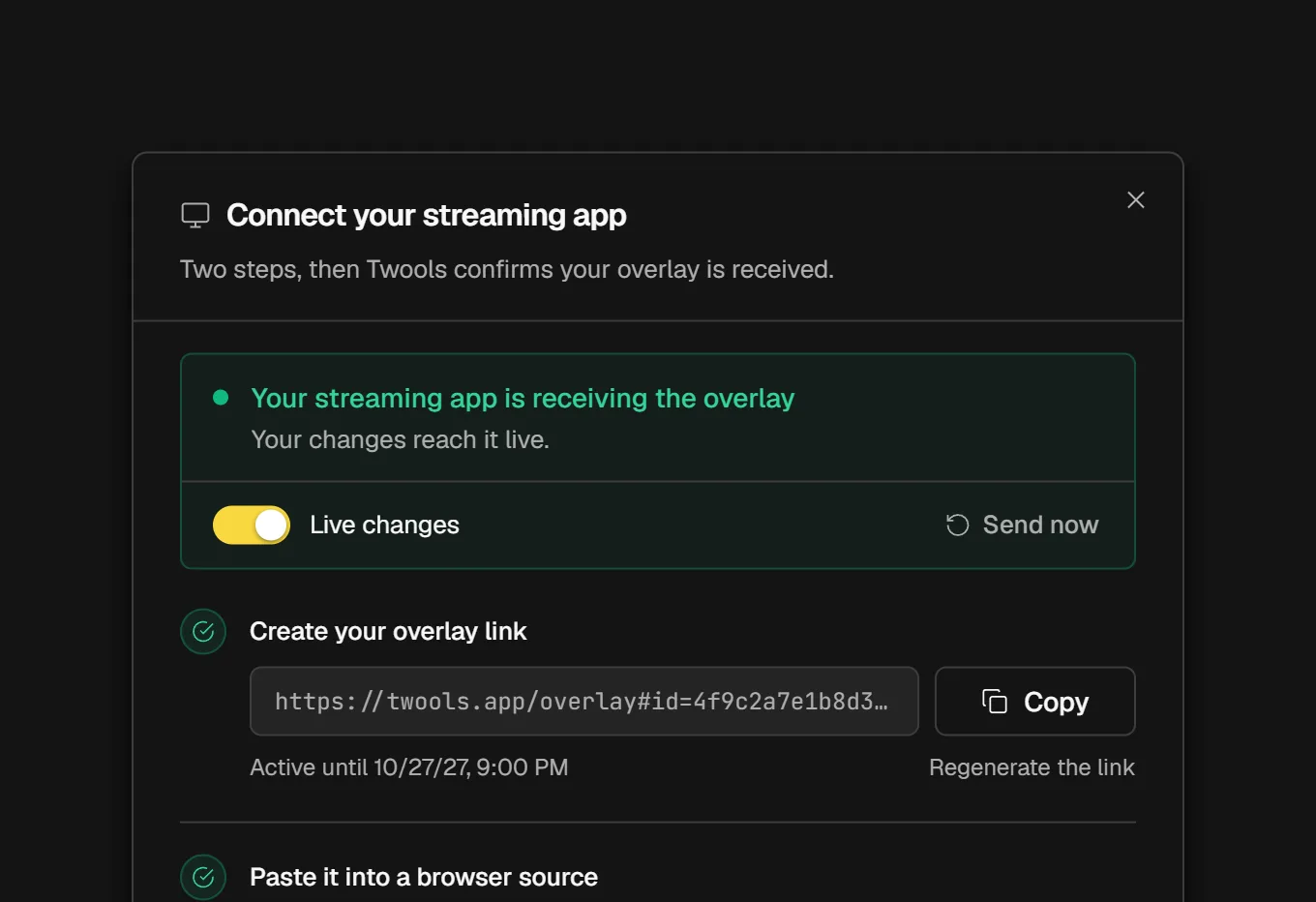
In the editor's top bar, click "Overlay link", then "Create a secure link". Click "Copy": this link is permanent, you only paste it once. Already have a link? The window finds it when it opens.
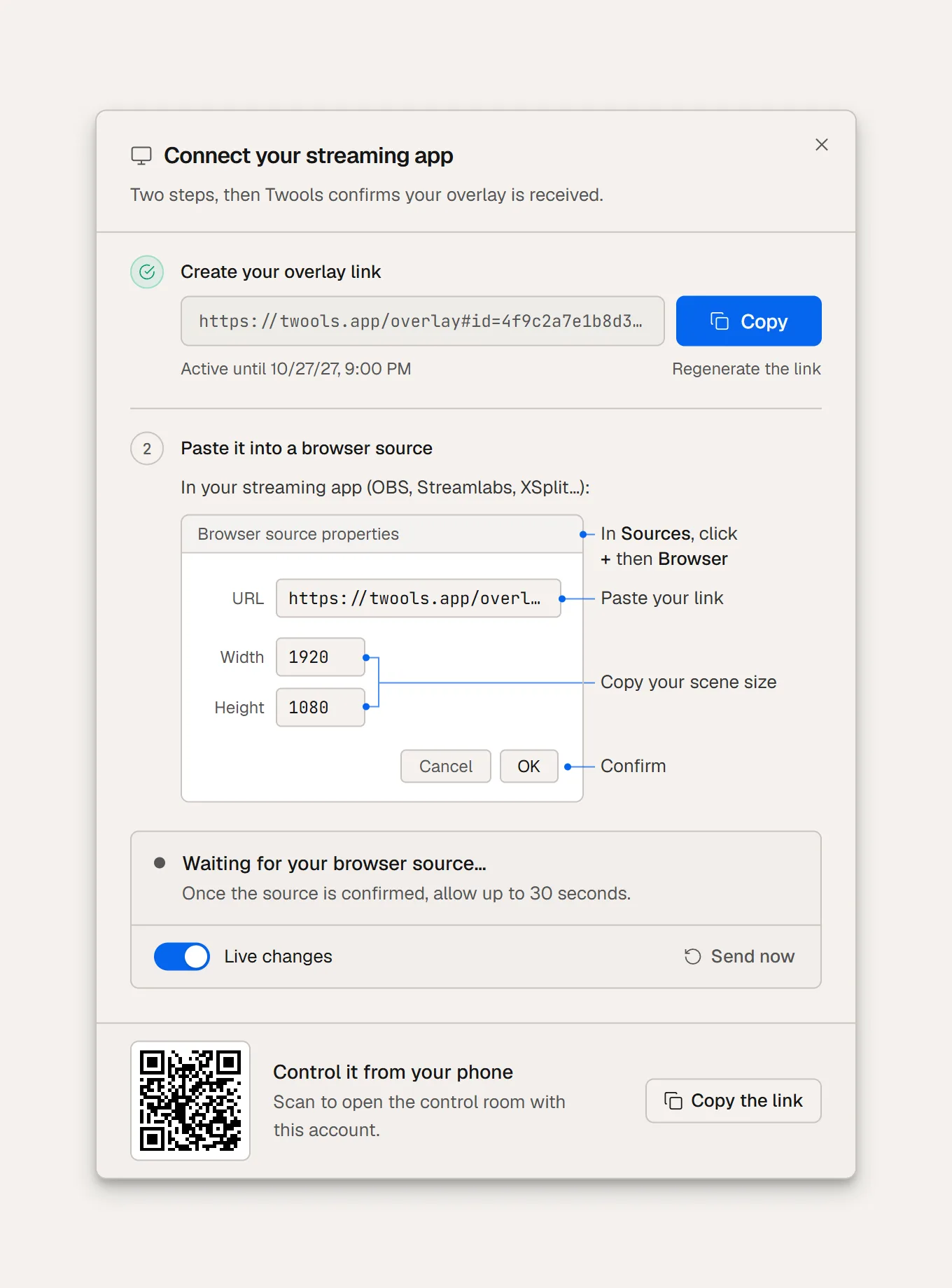
A Browser Source is a source in the streaming software that displays a web page, on a transparent background, inside the scene. Twools renders every widget of an overlay in one page, so a single overlay link, pasted into OBS Studio, Streamlabs or any software that accepts a Browser Source, is enough.
Free plan · No credit card
On this page
Nothing to install in OBS: a link to create in the editor, on a computer, and a source to add.
1 of 3
In the editor's top bar, click "Overlay link", then "Create a secure link". Click "Copy": this link is permanent, you only paste it once. Already have a link? The window finds it when it opens.
2 of 3
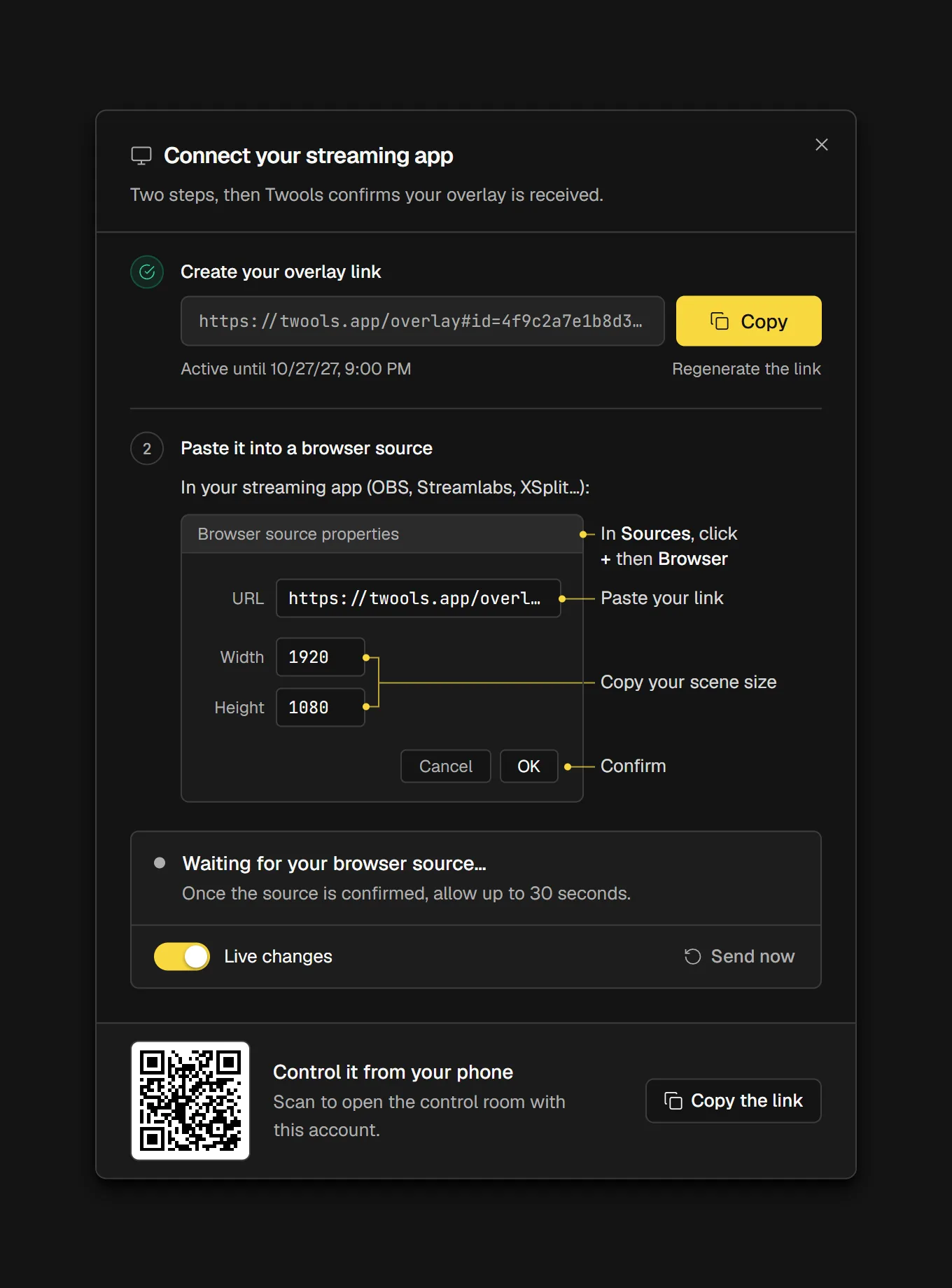
In OBS, click + in the Sources panel, then pick "Browser". Paste the link into URL. For the width and the height, copy your scene size, shown in the diagram: 1920 and 1080 in Full HD. Confirm with OK: the window's card then says "Your streaming app is receiving the overlay".

3 of 3
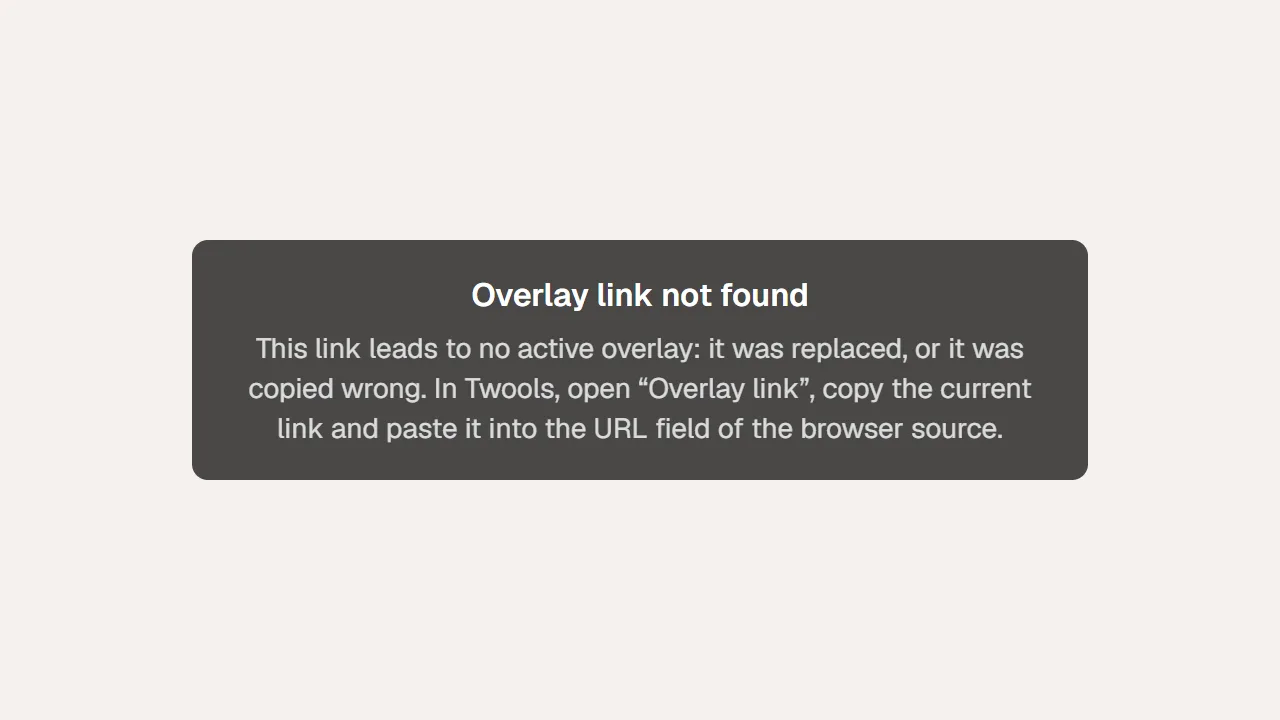
Your source's link leads to no active overlay: it was replaced with "Regenerate the link", or it was copied wrong. In "Overlay link", click "Copy", then paste the link in full into your source's URL field.
Each one has its own page, with its layouts and looks.
Yes, as with any software that accepts a Browser Source. The steps are the same: add a Browser Source and paste the overlay link into it.
This message appears when the link has been regenerated, or copied wrong. Open the editor, copy the current link from "Overlay link" and paste it into your Browser Source.
Not for the display: the overlay reads its state from the Twools servers. Twitch alerts and the YouTube counter, however, receive their data through an open Twools tab, editor or Control Room.
Build your overlay on a computer, create your overlay link, then paste it into OBS.
Free plan · No credit card