Nothing shows up in OBS
Go live · 4 min read
Your Browser Source stays empty, or your overlay is hidden, misaligned, or no longer follows your changes. The common causes come down to the link, the source or its settings. Start with what Twools tells you, then check the source point by point.
On this page
Before you start
- The Twools editor open on a computer, your overlay link already created
- Your streaming app open on the scene that holds your Browser Source
The steps
Start with the overlay link window
In the editor, click "Overlay link". If its card says "Your streaming app is receiving the overlay", the link works: look at what the source shows, steps 4 to 6. If it still says "Waiting for your browser source…" after the wait it announces, your source is not loading the link: steps 2 and 3. If it says "Changes paused", turn "Live changes" back on: without it, the card cannot confirm the reception.
The window only watches your source while the editor tab is in front.
A message shows in your source
A box replaces your overlay and says what to do. "Overlay link not found": the link was replaced with "Regenerate the link", or it was copied wrong. "Incomplete overlay link": it was cut off when pasted. "Old overlay link": it predates permanent links. In all three cases, click "Copy" in the "Overlay link" window, or "Create a secure link" if it has no active link, paste the link in full into the URL field of the source and confirm.
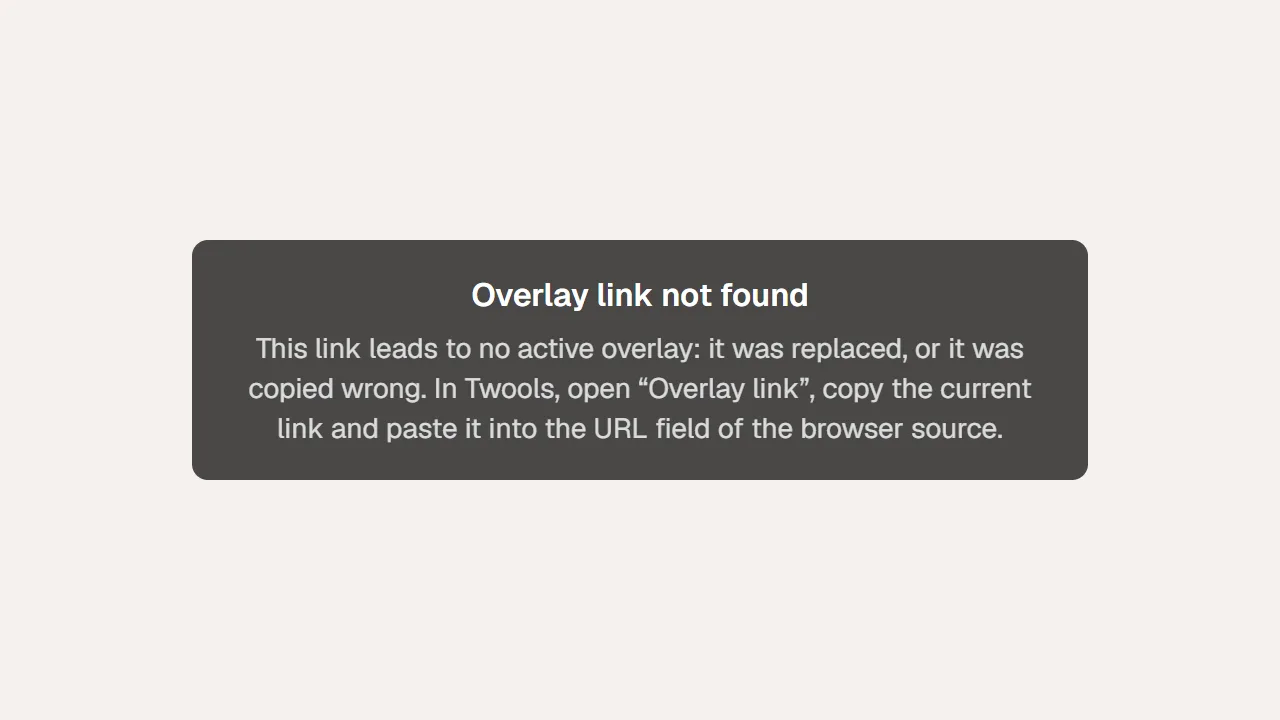
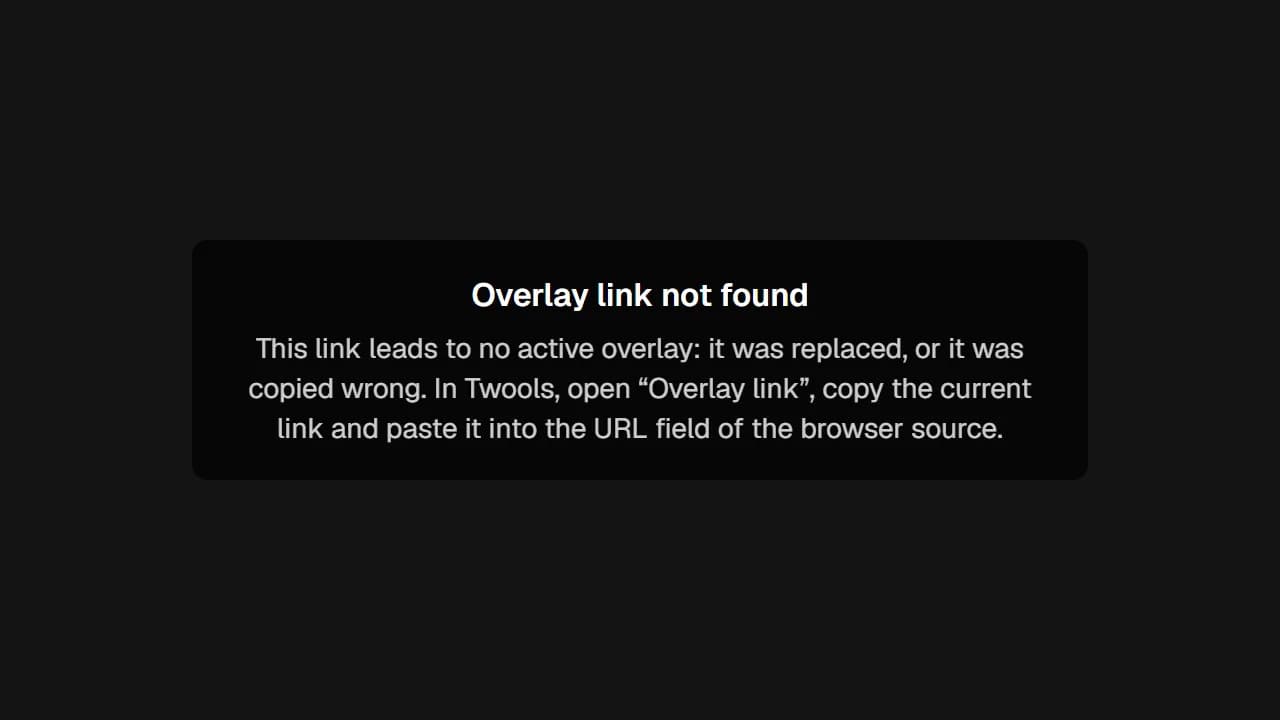
A source loading a replaced or mistyped link: the "Overlay link not found" box says what to do. The box is written in French when your OBS is in French, and in English in any other language.
Your source stays empty, with no message
While it loads, your overlay stays transparent: your audience sees your game. If it does not fill in, check that the URL field contains "#id=" followed by a long string of digits and letters. Then open the source properties with a double-click, and click "Refresh cache of current page". If the editor's preview shows your widgets, the source is probably the issue; the preview reads your browser, though, and a blocked send still shows there (step 6). The preview opens with the button shaped like an arrow leaving a square, with a small eye ("Preview in a new tab" on hover).
Your widgets are hidden behind your game
In OBS, a source higher in the list sits in front of the ones below. Drag your Browser Source to the very top of the Sources list, and check that it is visible: the eye-shaped icon next to its name.
Sources
- OverlayBrowser
- Game Capture
- Camera
Game CaptureOverlay, transparent backgroundDiagram · The order of sources sets the stacking: the overlay, at the top of the list, sits in front of the game capture. Your overlay is misaligned or too small
Give the source the size of your Twools scene, its broadcast resolution: 1920 by 1080 in Full HD (1080p), the default setting. Otherwise, Twools enlarges or shrinks your scene to fit the source, without distorting it, and centers it: your widgets change size, and position if the proportions differ. The resolution is set with the gear-shaped button on the right of the editor's top bar ("Canvas settings" on hover). In OBS, right-click the source, then Transform and "Fit to screen" fits it to the screen without distorting it.
A widget is missing, or your changes do not arrive
A widget that is off air stays dimmed in the editor and does not show in your overlay: click the eye in its small bar. Your link shows the scene open in the editor: check that it is the right one. Also read the messages at the top of the editor or the Control Room. "Action not broadcast: outside your plan": your plan does not include that widget, what you do on it no longer reaches the stream, the widgets of your plan keep working. "Change too large": reduce its content, then click "Retry sending".
Tips
- A connection drop during loading shows no message: your source stays transparent and tries again on its own.
- "Refresh cache of current page" reloads the overlay without removing the source from your scene.
Frequently asked questions
My old link still shows my overlay: is that normal?
Yes, if your source was already showing it when you regenerated your link: it keeps its last image, with no message for your audience, but no longer receives anything. The editor and the Control Room then show "Your browser source still shows the old overlay link". Paste the new link into the source.
Why does my overlay reload when I switch scenes in OBS?
In the source properties, "Shutdown source when not visible" or "Refresh browser when scene becomes active" is ticked: the source reloads every time it comes back, transparent while it loads. Untick them.
What happens if my connection drops during the stream?
Once your scene is showing, a drop does not replace it with an error message: your overlay keeps its last image, then updates again when the connection comes back.
Why is the watermark still there after I went Pro?
The watermark is decided when the source opens. Click "Refresh cache of current page" in its properties: it reloads, without the watermark once your account is Pro.
What's next
Reference page: Your widgets in an OBS Browser Source, with a single link.
Open the editor and check your link
One sentence to create, one link to go live, your phone to run it.
Free plan · No credit card