
Your scenes and saving
Get started · 6 min read
A poker night, a tournament, a break screen: each format wants its own look, and rebuilding your overlay for every show takes time. You also want to be sure nothing is lost when you close the tab. In Twools, a scene is a complete overlay: you prepare several, your overlay link shows the open one, and every move is saved to your account.
On this page
Before you start
- A Twools account and the editor open on a computer
- A scene open in the editor: on your first visit, it is an empty scene, which is saved as soon as you add a widget
The steps
Open the "Scenes" panel
In the editor's top bar, click "Scenes", next to "Widgets", or press S. The panel opens on the left and reminds you: "Your overlay link shows the open scene." With a single scene, it offers "New scene" and "Start from a copy of this one". From the second one on, it lists them under "Your scenes": your favorites first, then from the most recent to the oldest, each with a thumbnail of its layout, its number of widgets and the date it was last edited. The open scene is highlighted and marked "On screen". From seven scenes on, a search field shows above the list.
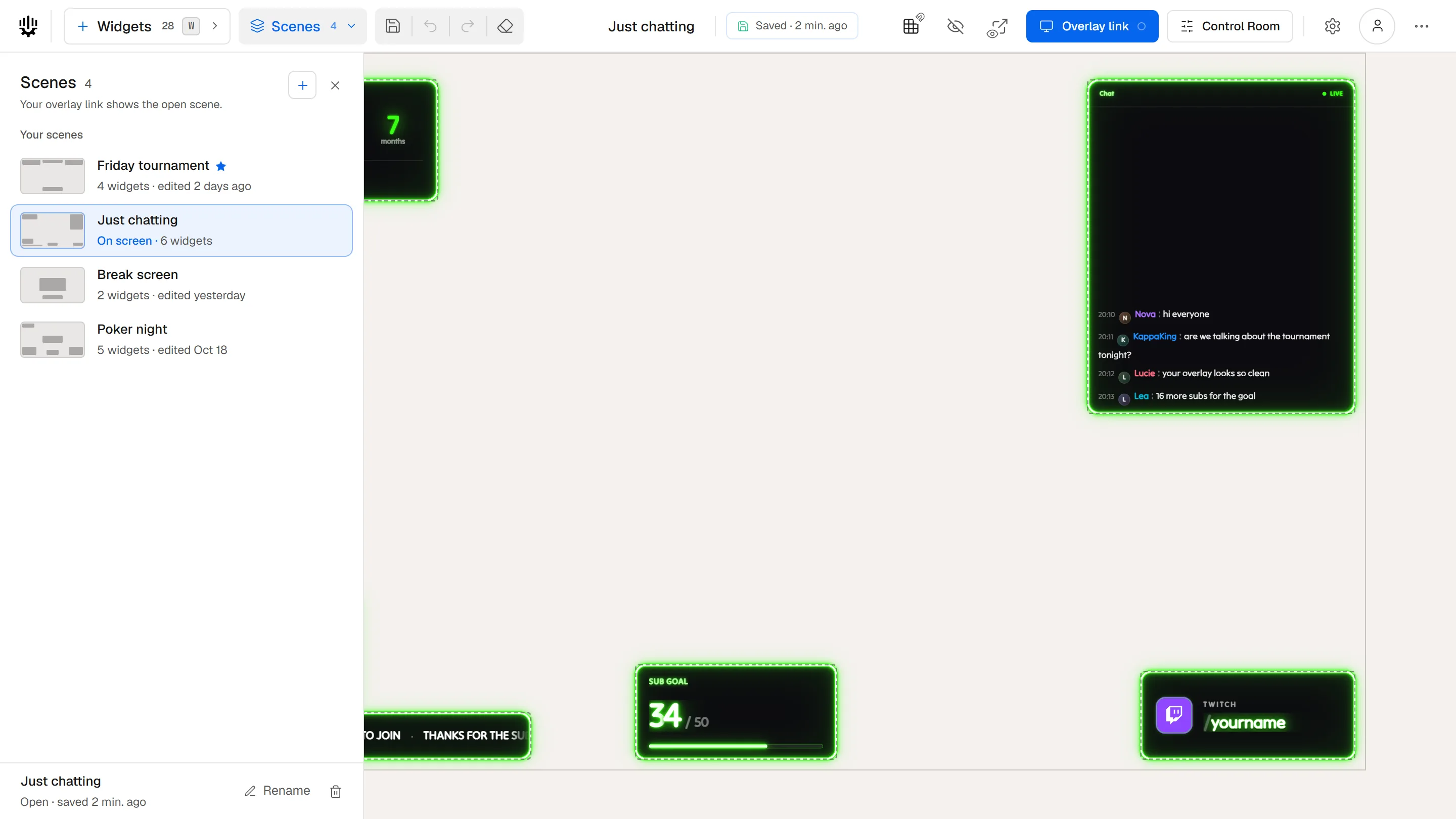
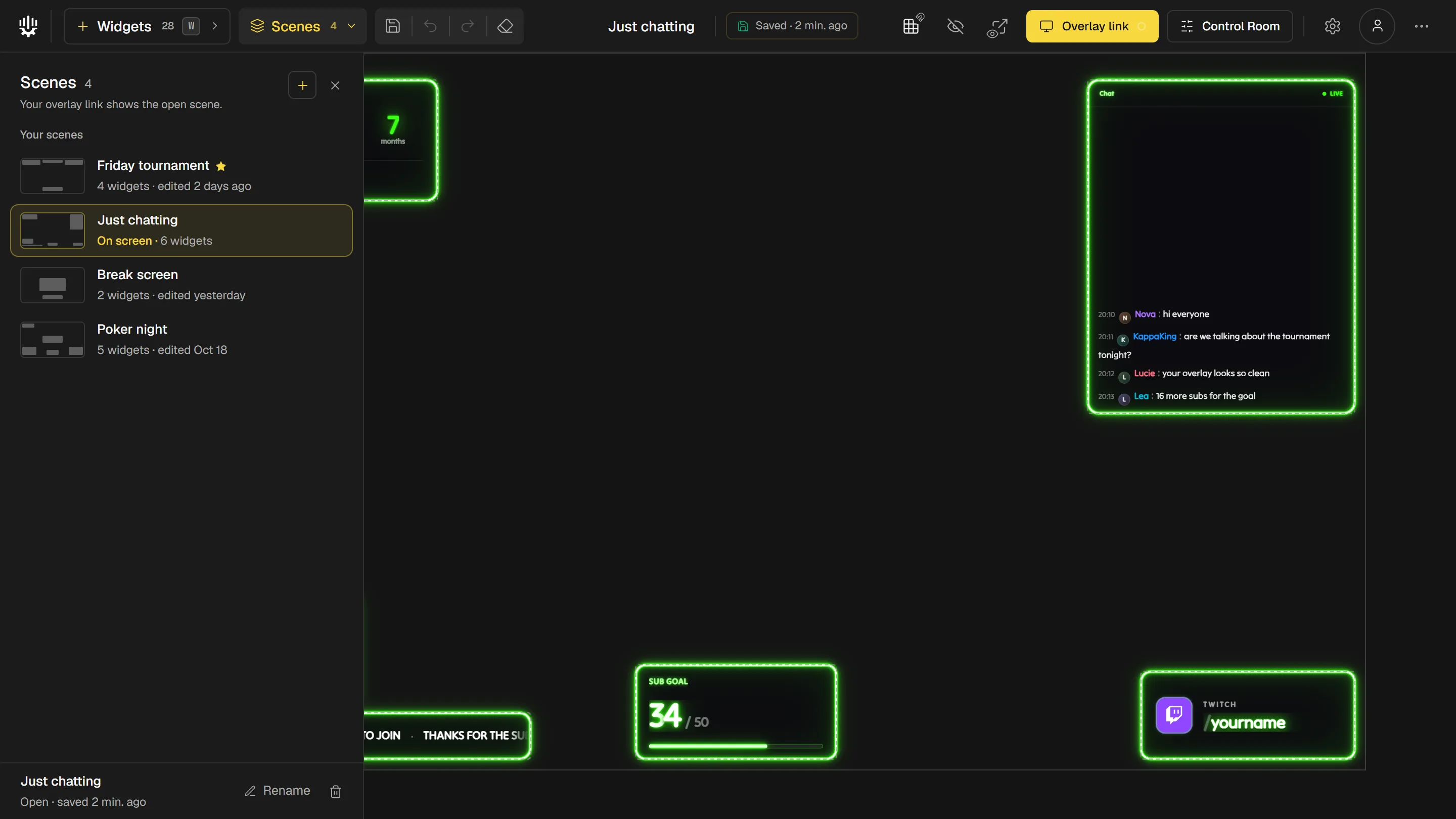
The "Scenes" panel: the open scene, highlighted and marked "On screen", among the others; at the bottom, its name and its save status. Create a scene
The + button at the top of the panel ("New scene" on hover) offers two starting points. "Empty scene" opens the "New scene?" window: your widgets stay saved in your scenes, and the canvas starts over empty. If your scene has no name yet and has widgets, the window offers to give it one so you can find it again. The new one is called "Untitled scene" and is saved as soon as you add a widget. The second line, "Copy of" followed by your scene's name, saves a duplicate under its name followed by "(copy)" and opens the copy: you edit it without touching the original.
Your overlay link shows the open scene: once you have a link and widgets on your scene, the window warns "Your overlay link will show the empty canvas." Create your new scenes outside of the stream.
Switch from one scene to another
Click a scene in the list: it opens in the editor, and the one you leave stays saved. Your account has a single overlay link, which shows the open scene: switching scenes also changes what your audience sees. While your streaming software is receiving the overlay, Twools asks you to confirm first and reminds you: "Your audience will see it right away." "Put on air" opens the scene, "Cancel" keeps yours. With no source receiving the overlay, the scene opens directly.
Ctrl+Z does not bring back the scene you left: the history starts over with each scene you open.
Rename, add to favorites or delete a scene
The open scene's name sits in the middle of the top bar: click it to change it, Enter confirms, Escape cancels. "Rename", at the bottom of the panel, opens a window to do it. For a scene in the list, hover its row and click the three-dot button that shows on the right: "Rename", "Add to favorites", which puts it at the top of the list with a star, and "Delete". Deleting asks for confirmation, "Delete permanently", and cannot be undone. Deleting the open scene, for example with the trash can at the bottom of the panel ("Delete the open scene" on hover), also empties the canvas.
What gets saved, and how to force it
You have nothing to do: every change to the open scene is saved to your account on its own. The indicator, in the middle of the top bar next to the scene's name, tells you where saving stands: "Saving…", then "Saved · 2 min. ago" for example, or "Autosave on" while nothing has been sent since you opened the editor. To save whenever you want, press Ctrl+S (Cmd+S on a Mac), click the floppy disk in the top bar ("Save (Ctrl+S)" on hover), the indicator itself, or "Save" in the menu of the three-dot button on the far right. The indicator briefly lights up, and says "Already saved" when everything already was.


The save indicator, in the middle of the top bar, and its tooltip; on the left, the floppy disk that forces a save. "Offline, retrying…" or "Failed: retry": Twools tries again on its own, and a click on "Failed: retry" starts saving again. "Widget outside your plan not saved": your scene contains a widget your plan does not include and your account cannot save; remove it or change plan, and saving resumes on its own.
Find your scenes on another computer
Your scenes are saved to your account, not to your browser. On another computer, sign in to the same account and open the editor: "Scenes" lists them, one click opens one. The list is read again each time you open the panel: a scene created or renamed elsewhere shows up without reloading the page. If you have an overlay link, the editor shows the scene your link is showing.
On a computer where you have never opened the editor, the guided tour may show on an empty scene: "Later, I'll start from a template", or Escape, closes it.
Tips
- Prepare one scene per show before the stream, then switch between them: your overlay link does not change, and neither does your source in OBS.
- The eraser in the top bar ("Clear the scene" on hover) removes, once you confirm, every widget from the open scene and from its save; Ctrl+Z brings them back.
- The top bar tucks away while you work on the canvas: move the mouse to the top of the screen to bring it back, or keep it with "Pin the top bar", in the menu of the three-dot button.
- Your favorites stay in this browser: on another computer, the list comes back without stars.
Frequently asked questions
Are my scenes saved if I close the tab?
Yes, for everything already saved: your scenes live in your account, not in the tab. Before closing, check that the indicator says "Saved", or press Ctrl+S.
Does switching scenes cut my source in OBS?
No. Your source keeps the same overlay link: it shows the scene you just opened, with nothing to paste again.
Can I recover a deleted scene?
No. The confirmation window says so: it is permanent. To keep a version before changing everything, make a copy first with the + of the "Scenes" panel.
Why does the indicator say "Widget outside your plan not saved"?
Your scene contains a widget your plan does not include, and your account cannot save it: this version of the scene is not saved. Remove that widget or change plan, and saving resumes on its own. A click on the indicator opens the plans window.
What's next
Reference page: Build your Twitch overlay, widget by widget.
Open the editor and your scenes
One sentence to create, one link to go live, your phone to run it.
Free plan · No credit card