
Compose a scene with AI
Get started · 4 min read
Facing an empty scene, 29 widgets and 64 looks, it is not always clear where to start. In Twools, you can describe your stream in one sentence: the AI picks the widgets, their places, a look and colors, then places the scene on your canvas. You keep it, adjust it or start over.
On this page
Before you start
- A Twools account and a computer
- An empty scene in the editor: the AI box only shows there
- A sentence about your stream: the game or the format, the mood, what you want on screen
The steps
Open an empty scene
The "Describe your stream" box sits at the top of the "What will you create first?" card, on an empty scene. If your scene already has widgets, open the "Scenes" panel and create a new scene: yours stays saved, but your overlay link shows the open scene, so the new one. If you had chosen "Continue with an empty canvas", click "Show starting options".
On your first visit, the guided tour shows first, "Create your first scene": "Or describe your stream" closes it and puts the cursor in the AI box.
Describe your stream in one sentence
Write what you want: the game or the format, the mood, the colors, and where you want your widgets, for example "my chat on the right". The examples under the box fill the field without sending anything. Click "Compose my scene", or press Enter; Shift+Enter starts a new line. On Essential, the box also shows how many requests you have left this month.
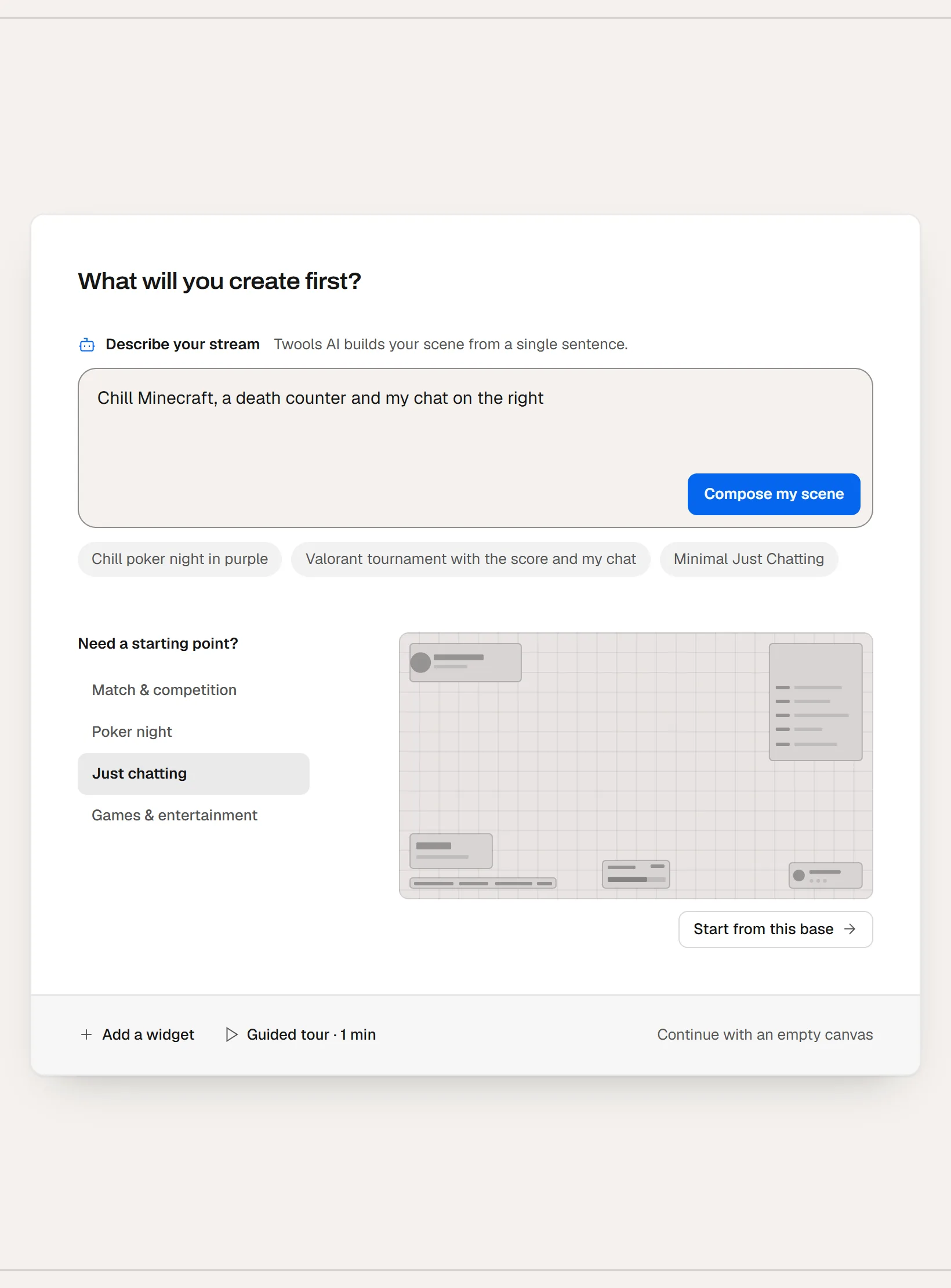
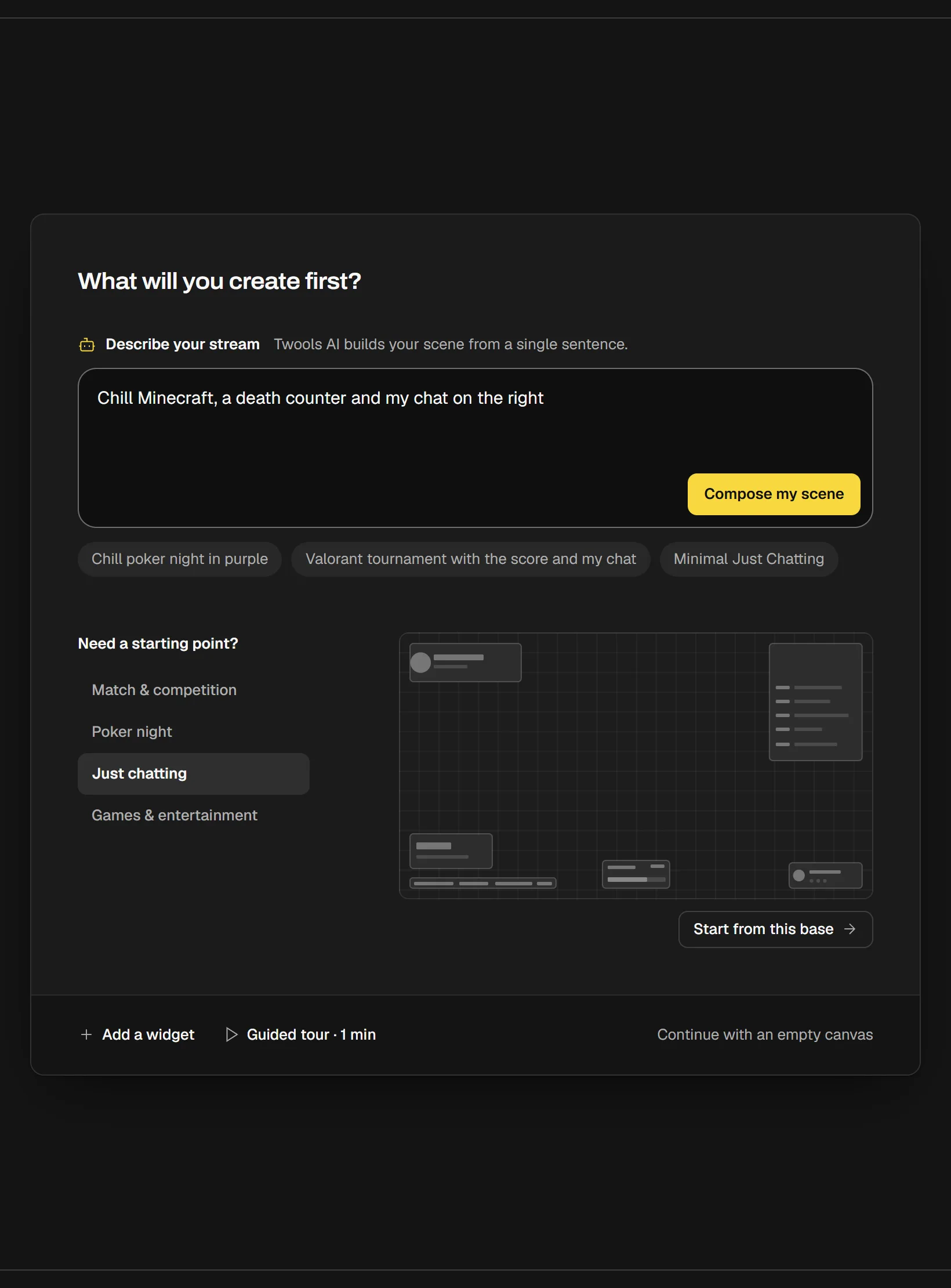
The "Describe your stream" box with a request written in: "Compose my scene" sends it, the examples below fill the field. Let the AI compose
The card shows the scene being composed: its name, then each widget with its place. "Cancel" gives you back the field with your sentence, and a canceled request is not counted. If your scene is already on air, because your streaming software is receiving the overlay, Twools warns you before sending: "Compose live" starts the composition, and your audience will see the widgets arrive.
Keep, adjust or start over
Once the scene is placed, a bar opens under the canvas: "The AI placed your scene", your request, and a sentence from the AI saying what it placed and, if needed, what you still need to connect. "Keep the scene" closes the bar. "Adjust…" opens "Ask AI" on the whole scene, for a precise change, and counts as one request. "Start over" removes the scene and gives your sentence back: sent as is, it brings a different scene, with another look and other colors, except what your sentence asks for. As long as you have not touched it, Ctrl+Z also removes the scene.
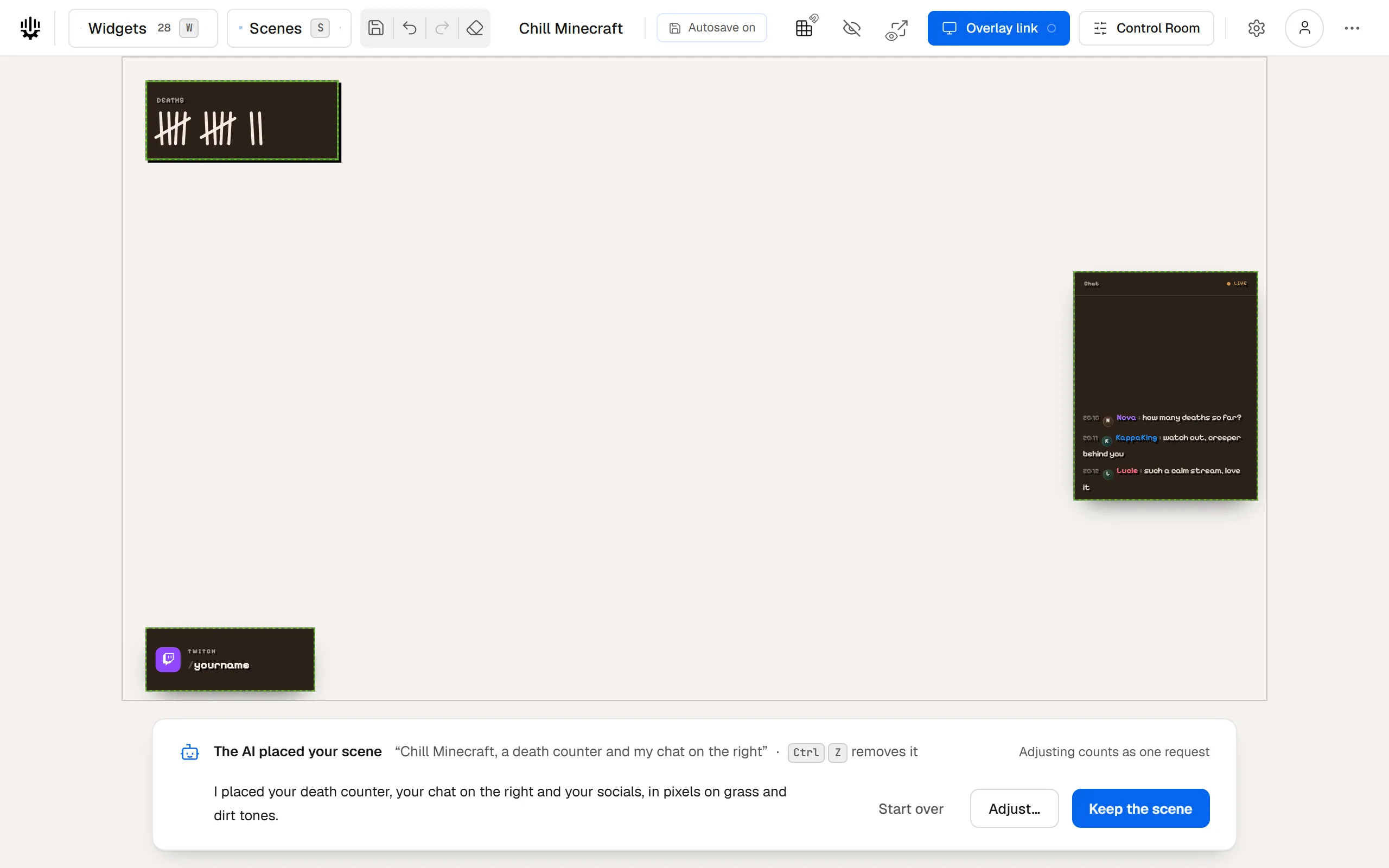
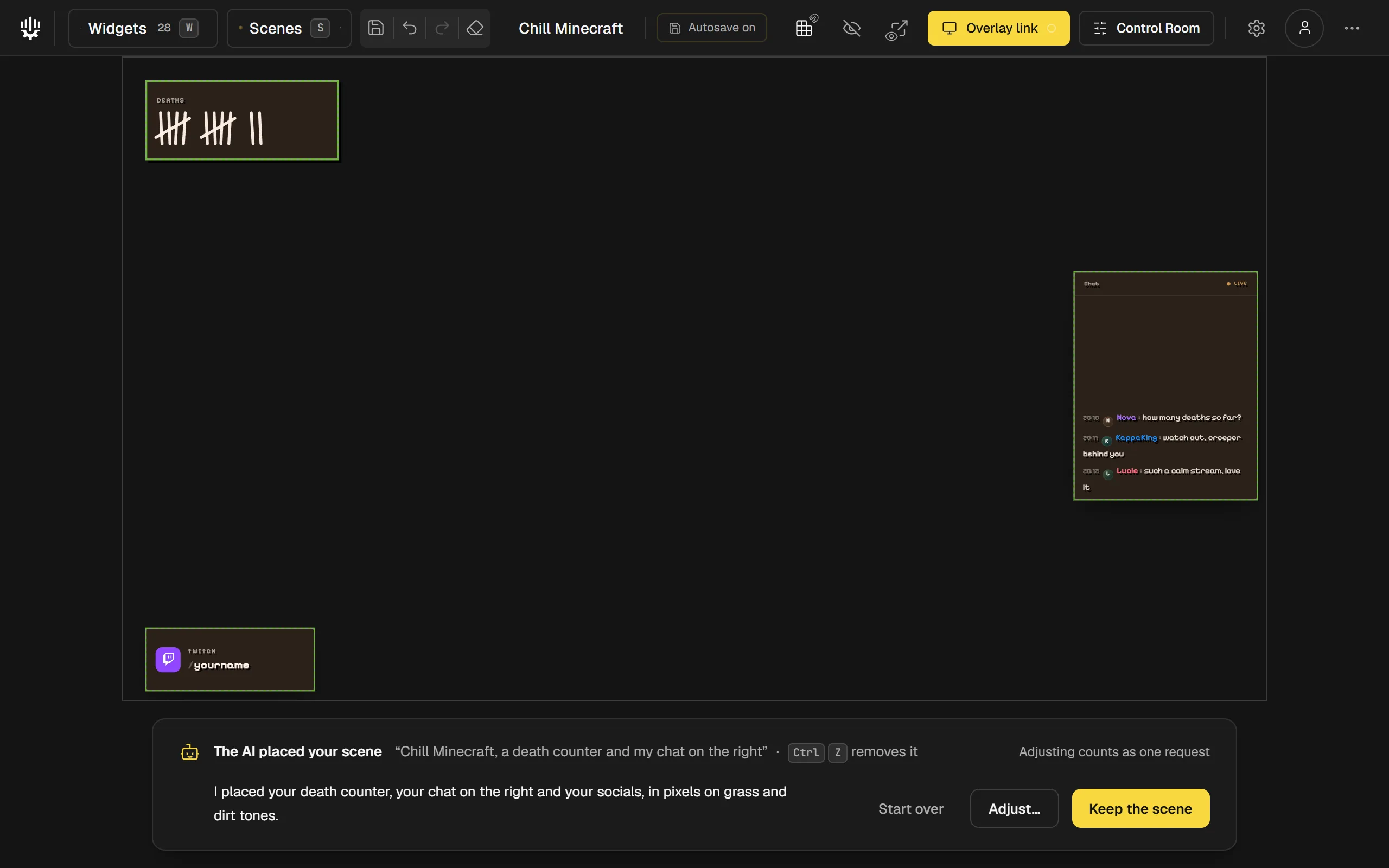
A scene composed by the AI, placed: the bar under the canvas recalls the request and offers "Start over", "Adjust…" and "Keep the scene". Touch up your scene later
Once the scene is kept, the "Ask the AI" button under the canvas reopens the AI on the whole scene. For a single widget, hover it and click "Ask AI" in its bar, or press I. Each touch-up counts as one request, and "Undo the touch-up" reverts it. Everything also stays editable by hand: these are widgets like any other.
Tips
- Name what matters to you: a game, a format (Just Chatting, tournament, break screen), a color, a place on screen. The AI draws a universe, a mood and colors from your sentence.
- If your sentence is vague, the AI still composes a complete scene and says in its sentence what it assumed: read it before keeping the scene.
- The AI makes up fictional names instead of a real team, player or brand. Your own handle and socials are kept as you wrote them.
Frequently asked questions
How many AI requests do I get each month?
It depends on your plan: the pricing page gives the number for each plan, and the free plan has none outside the Pro trial. On Essential, what you have left shows in the box, next to "Compose my scene". When everything is used, the box says so and gives the date they come back: the counter resets on the 1st of each month.
What counts as a request?
Composing a scene counts as one request, and so do "Adjust…" and each touch-up. A request canceled during the composition does not count, and choosing between the version for your plan and the complete scene does not count as a new request. After "Start over", the next scene counts as a new request.
What happens if the scene uses widgets my plan does not include?
The AI prefers the widgets of your plan. If your scene still has some above it, Twools lets you choose before placing it: "Place the Essential version", where each widget becomes its equivalent in your plan or is removed, or the complete scene with "Try Pro for 7 days, no card". When the trial is no longer available, it is "Go Pro", which opens the pricing page in a new tab. If nothing would be left in your plan, there is no version for your plan. None of these choices counts as a new request.
Can the AI rebuild a whole existing scene?
No: on a scene that has widgets, it touches up. If your request describes a whole scene, Twools tells you and offers "Compose a new scene": an empty scene opens in the "Scenes" panel with your request written in, ready to send, and yours stays as it is. That request is not counted.
Why can't I see "Describe your stream"?
The box only shows on an empty scene, and only while the AI service is open. On your first visit, the guided tour "Create your first scene" comes first: choose "Or describe your stream", or "Later, I'll start from a template". Without the service, the card keeps the starting bases and "Add a widget": you can build your scene yourself.
What's next
Reference page: Build your Twitch overlay, widget by widget.
Useful widgets for this guide
Compose your scene
One sentence to create, one link to go live, your phone to run it.
Free plan · No credit card