
Run a quiz with your chat
Run your stream · 6 min read
Asking your chat a question is easy; counting the answers as they scroll by is not, and your audience sees neither the timer nor the result. With the Twools Quiz widget, the question shows in your overlay, your Twitch chat votes by typing a letter, and you run each round from the Control Room.
On this page
Before you start
- An overlay in the Twools editor, on a computer, showing in your streaming software through your overlay link
- Your Twitch account: the quiz reads the chat of its channel, and only Twitch chat
- The Control Room open during the stream, on your phone or a second screen
The steps
Add the quiz and connect Twitch
In the editor, click "Widgets" and open the "Games and draws" category. The Quiz widget is included in Twools Essential and in Twools Pro. On the free plan, the "Widgets" drawer writes "Essential" under its name: a click opens the plans window. Drag "Quiz" onto the stage or click it, then open its panel (the pencil in its small bar, or a double-click) and its "Questions" screen. Its first part, "The chat", offers "Connect Twitch": that account is how Twools finds your channel. Once connected, it shows "Chat connected" and your channel name.
Without a connected account, the quiz starts but counts no votes.
Write your questions
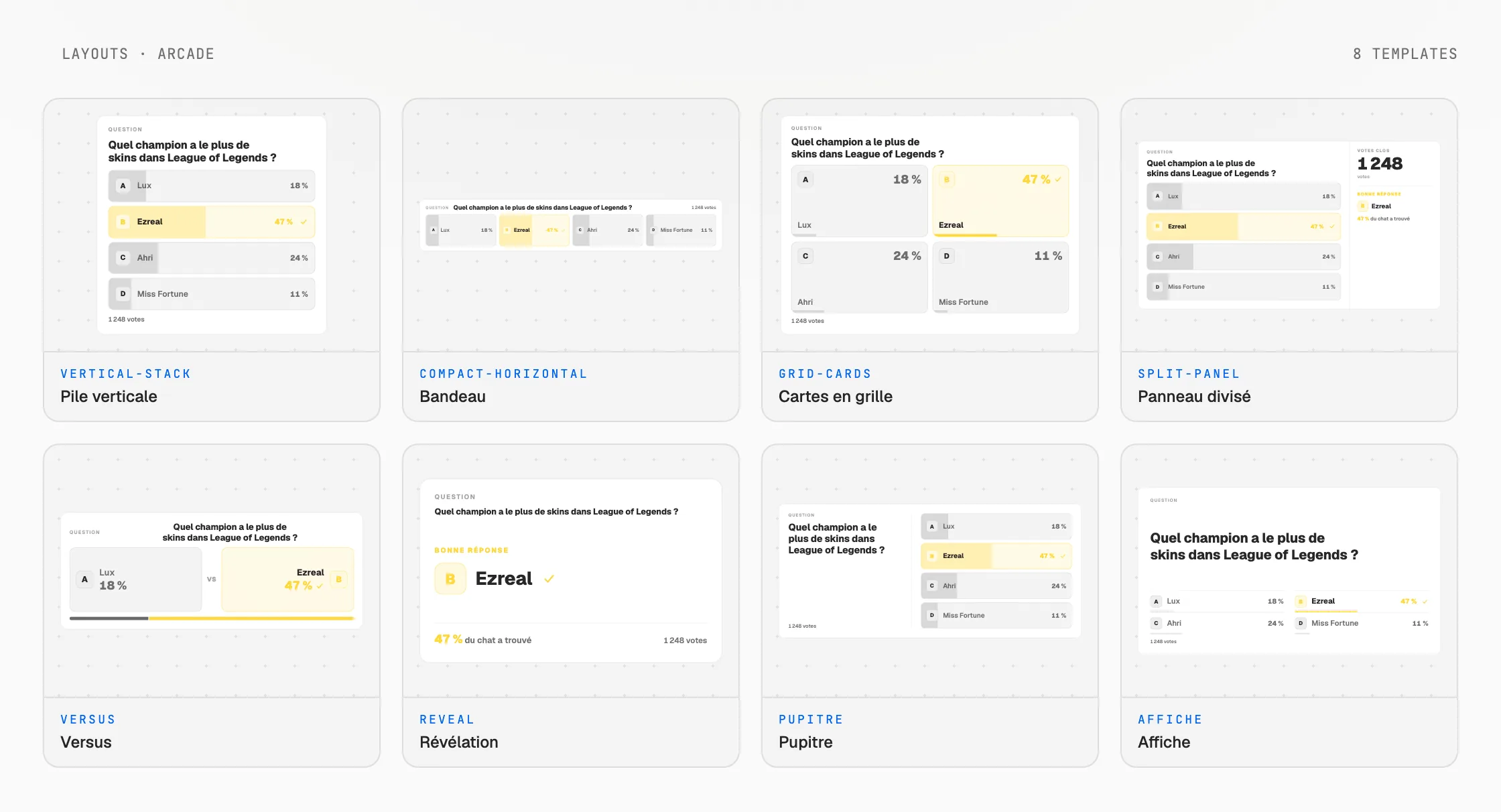
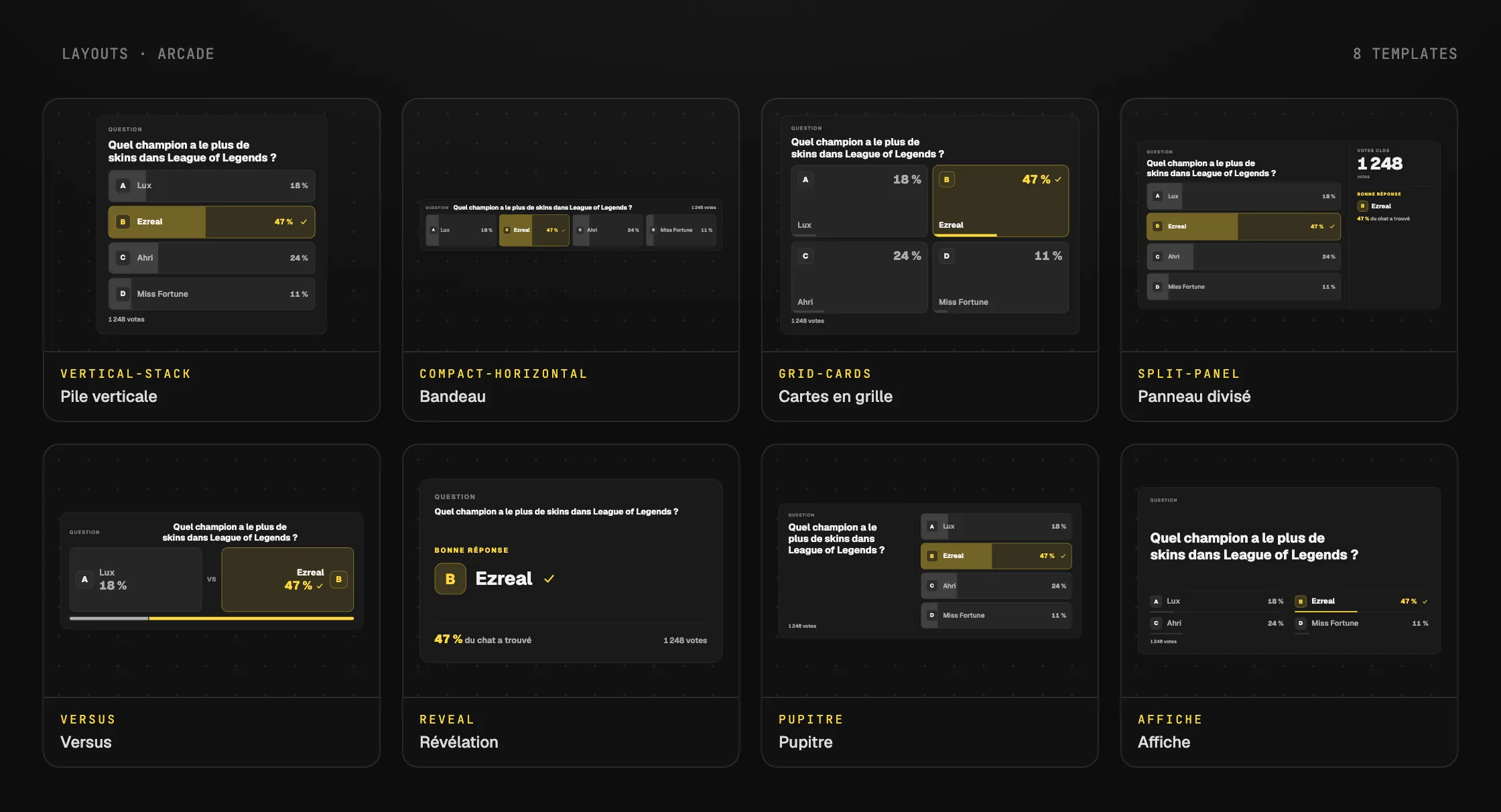
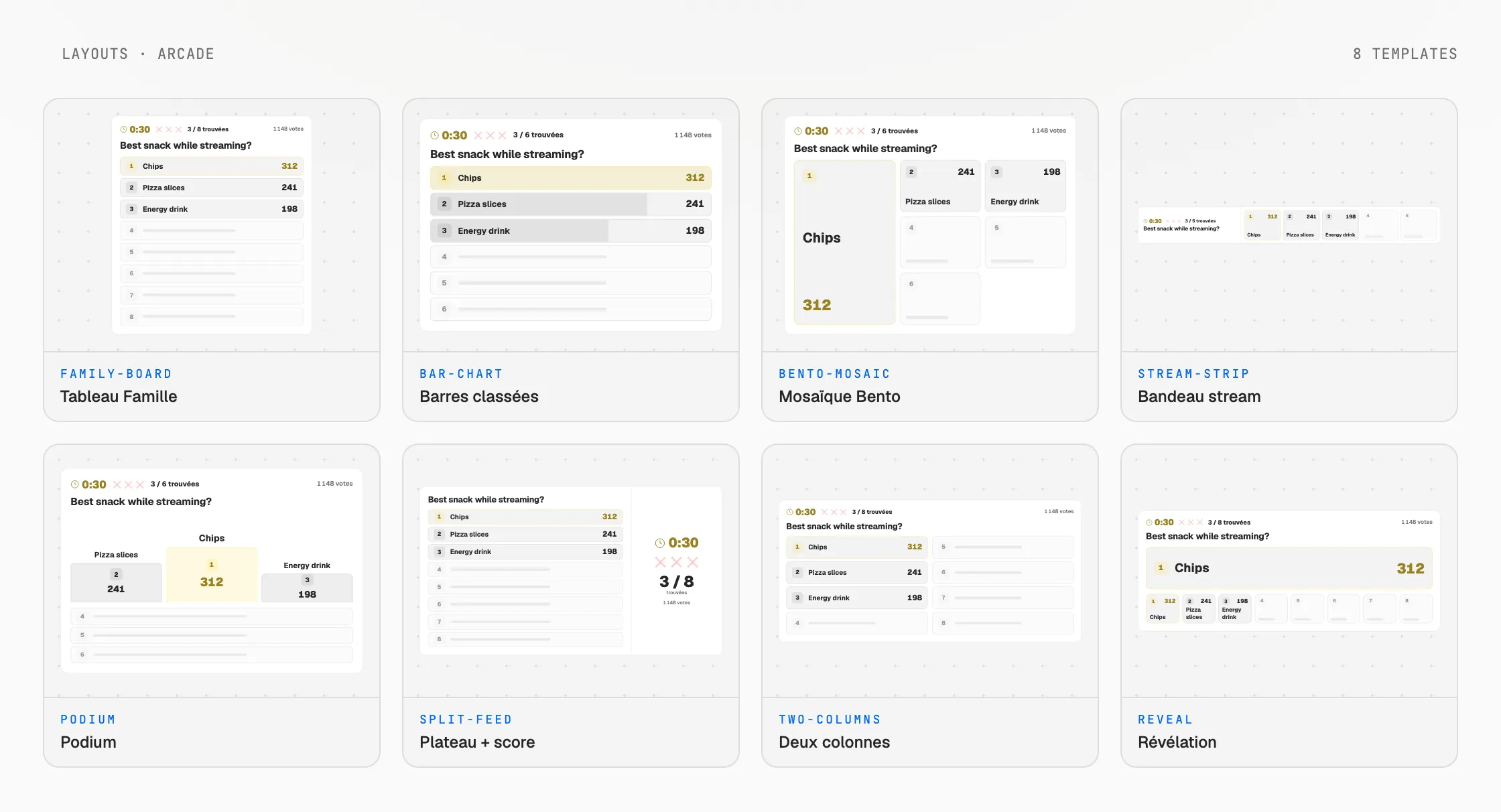
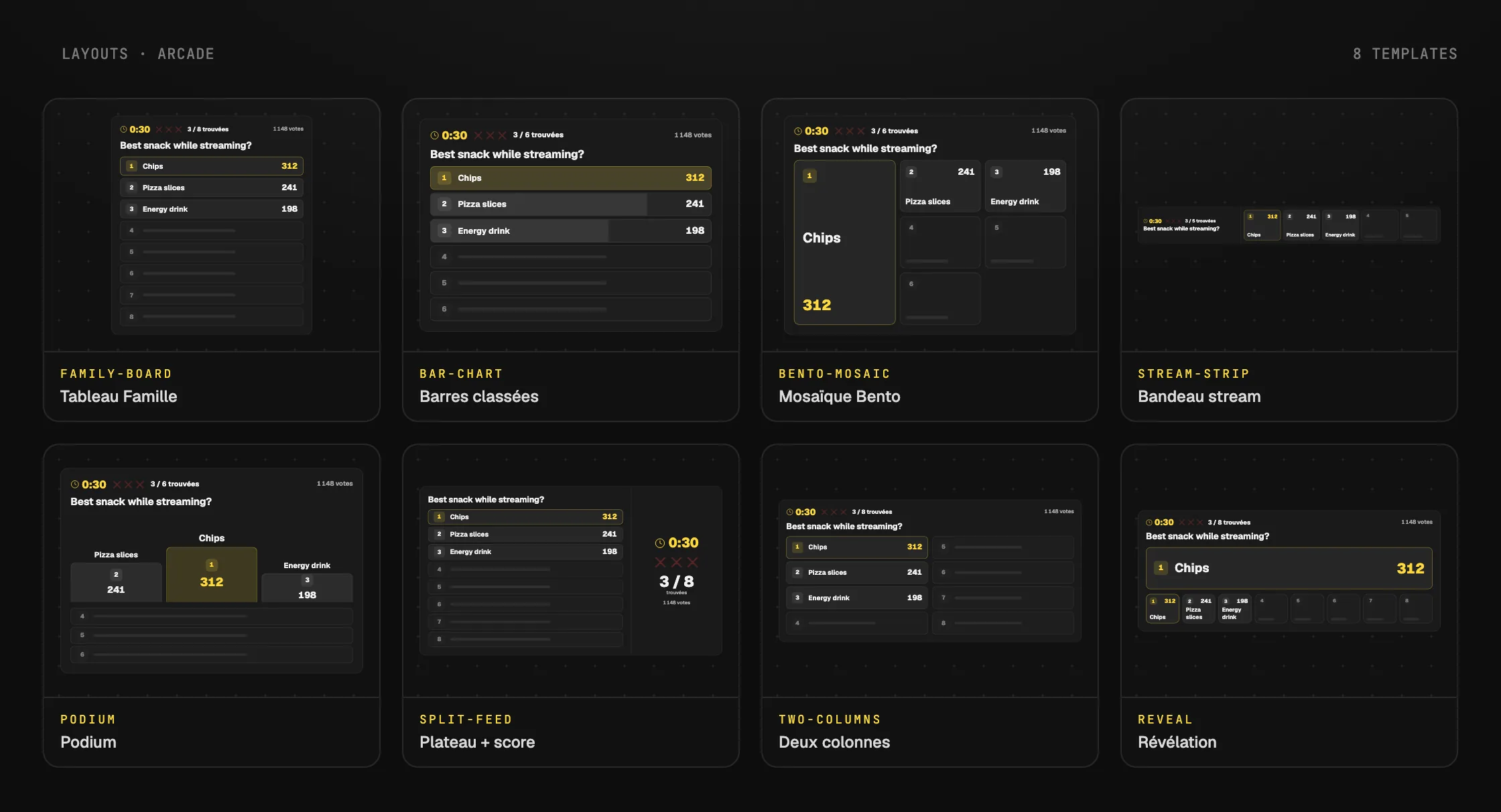
Under "The questions", each row gives its status: "Ready", "Sample" for the sample question of a new quiz, or what is missing, such as "No statement" or "No correct one". Click a question to write its "Statement" and its answers below, and tick the right one. The counter next to "Answers" says how many the layout shows: from 2 with Versus to 10 with Pile verticale, the default (the editor shows layout names in French). "Add a question" adds up to 30, and the Control Room starts them in list order.
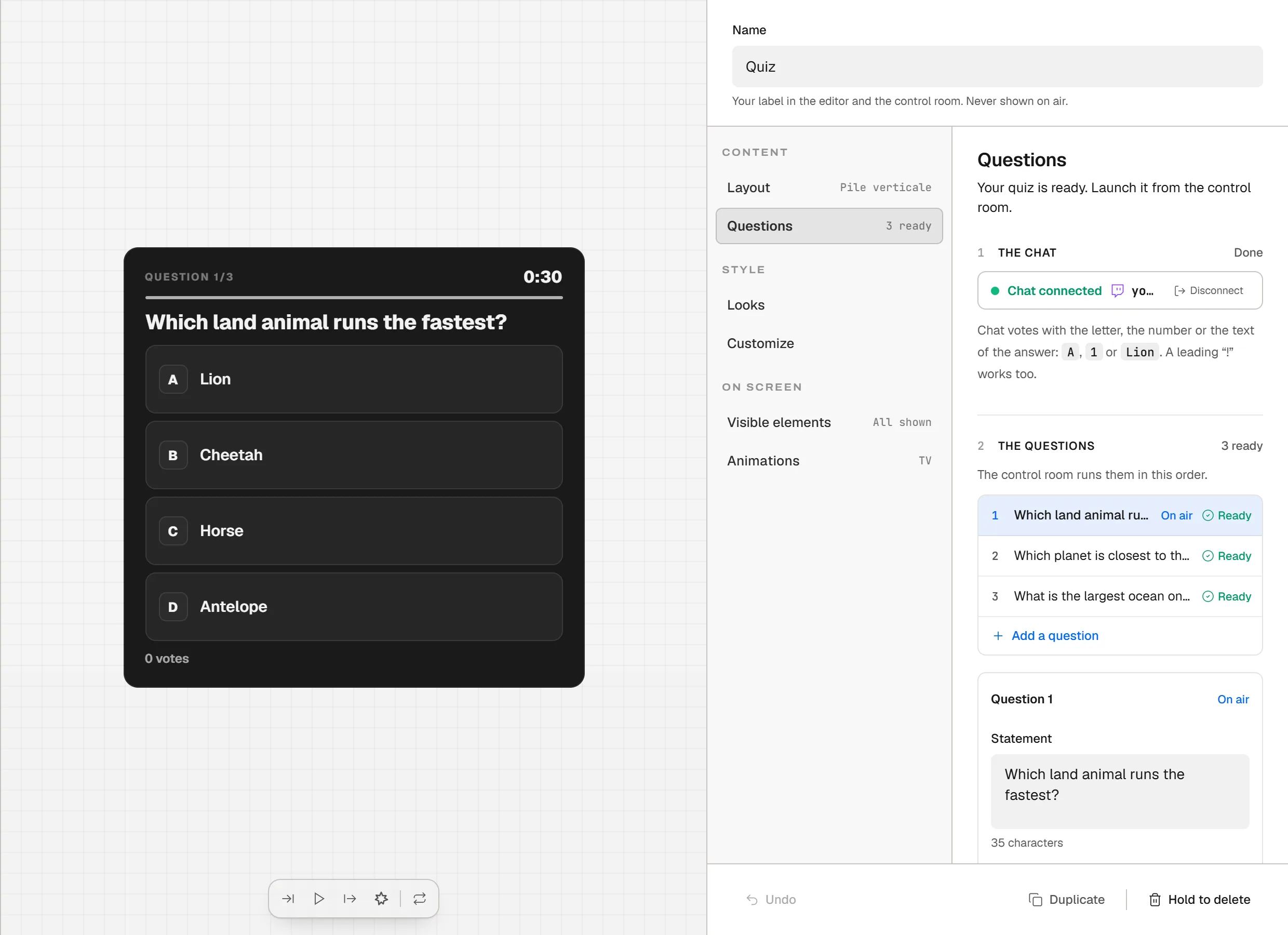
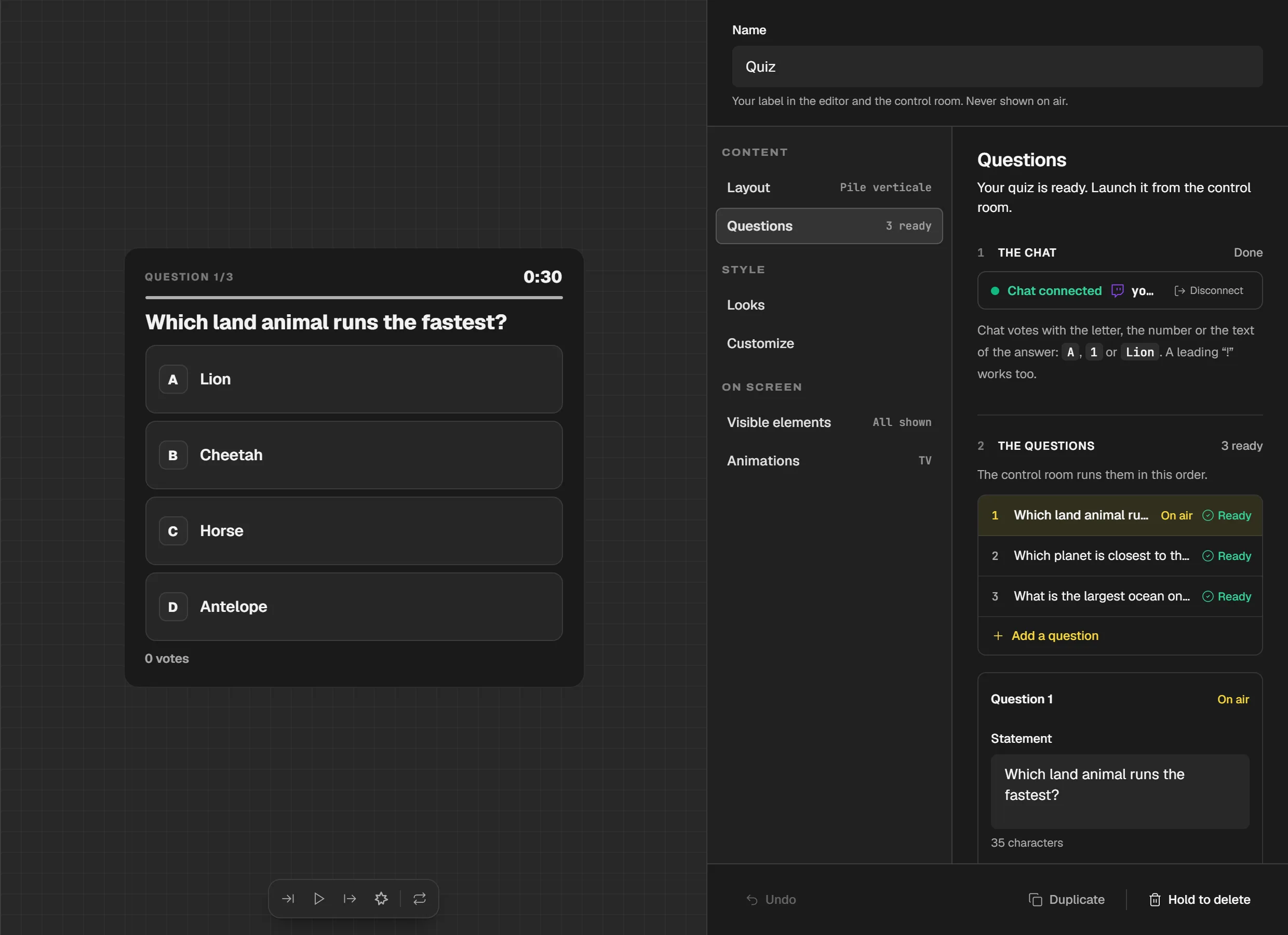
The "Questions" screen: the connected chat, three ready questions and question 1 open below. Set the answer time and the reveal
"Game rules", further down, applies to every question. "Answer time" goes from 5 to 600 seconds, 30 by default, or "unlimited": the round then lasts until you stop it. Changed during a round, it applies from the next question. "Reveal the correct answer automatically", on by default, marks the solution as soon as results show; turn it off to reveal it yourself from the Control Room.
Start the vote from the Control Room
"Open the control room", at the bottom of the "Questions" screen, or "Control Room", in the editor's top bar, opens the Control Room in a new tab; on your phone, scan the QR code in the "Overlay link" window. Tap "Start the vote": the vote opens, and a quiz that was off air comes back on air. During the round, the card counts the votes and already shows each answer's share; "+ 10 s" and "+ 30 s" extend a time limit, "Stop" closes the vote.
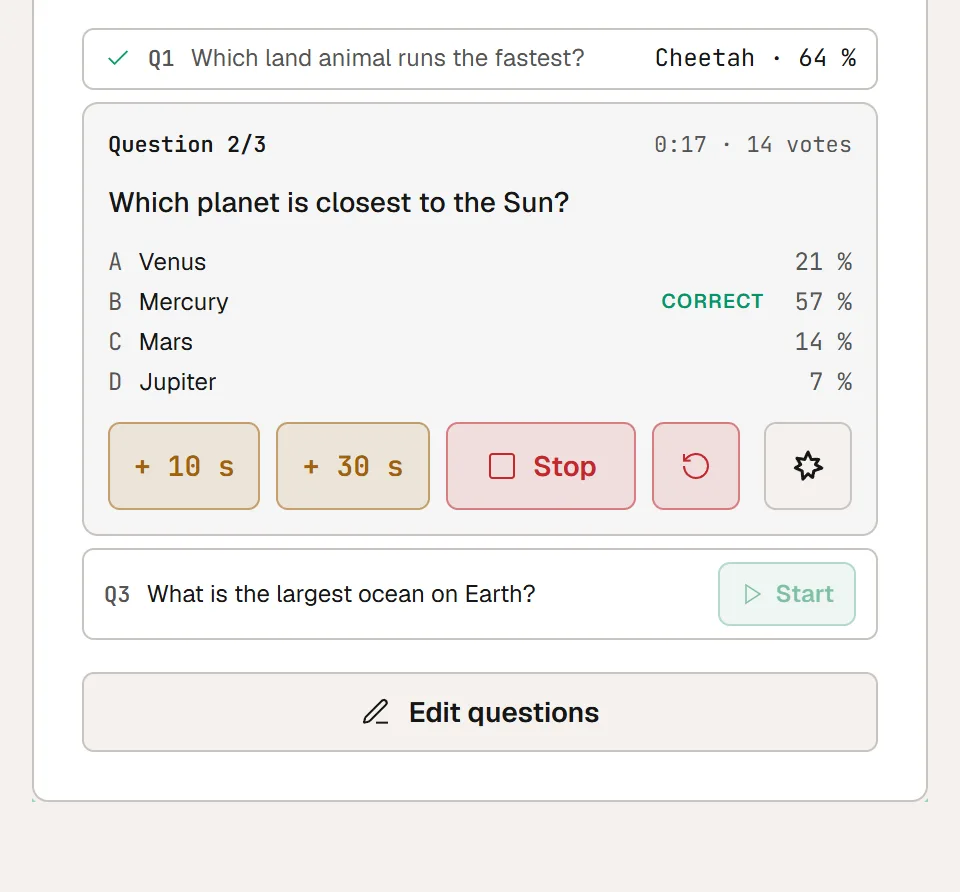
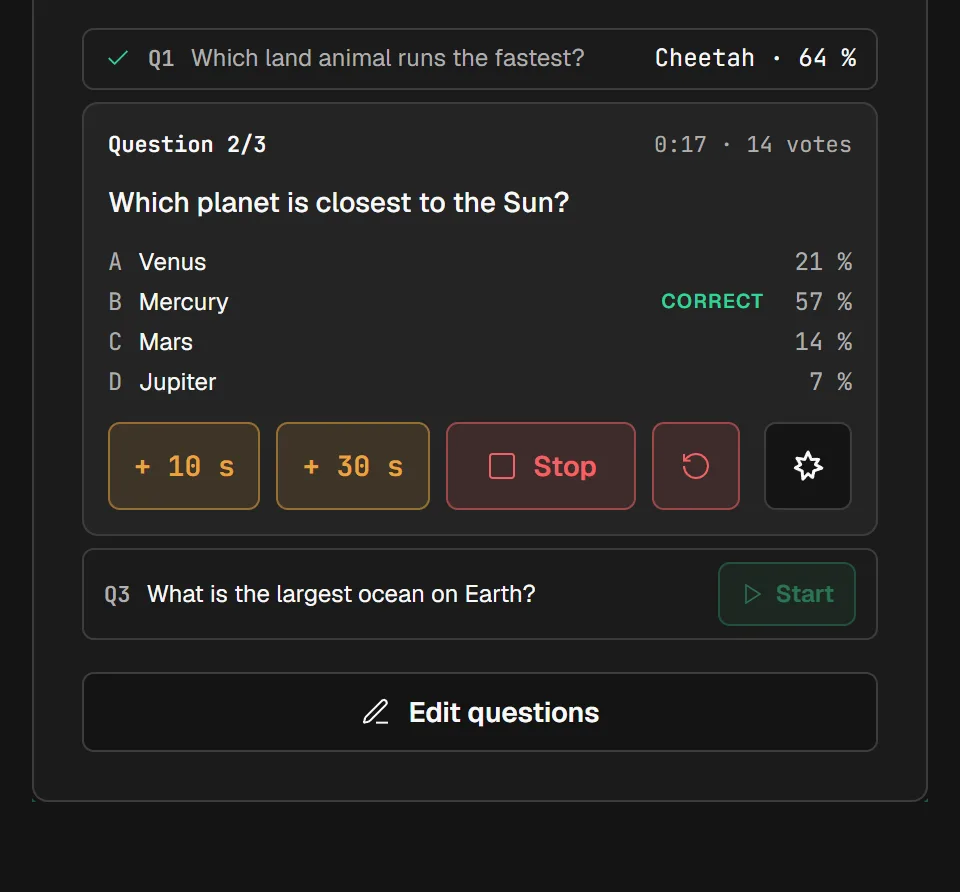
The quiz card during a round: the timer, the votes and each answer's share; your audience only sees the percentages with the results. "Start the vote" stays grayed out if the question has no statement, fewer than two answers or a blank answer: the card says what is missing.
What your chat has to type
A viewer sends, alone in the message, the answer's letter (a or A), its number or its exact text; "!b" and "!vote b" count too, "i say B" does not. Each viewer has one vote: their last choice replaces the previous one. Only messages that arrive during the round count, and not a letter the layout does not show.
Reveal the answer and move on
When the timer ends, or after "Stop", the results show on their own: with Pile verticale, a bar and a percentage for each answer, and the right one checked if the automatic reveal is on. The card's button then reads "Hide the answer", or "Reveal the answer" if you turned the reveal off: it removes or marks the solution on air, for this round only. "Start", on the next question, puts it on air and opens its vote in one move.
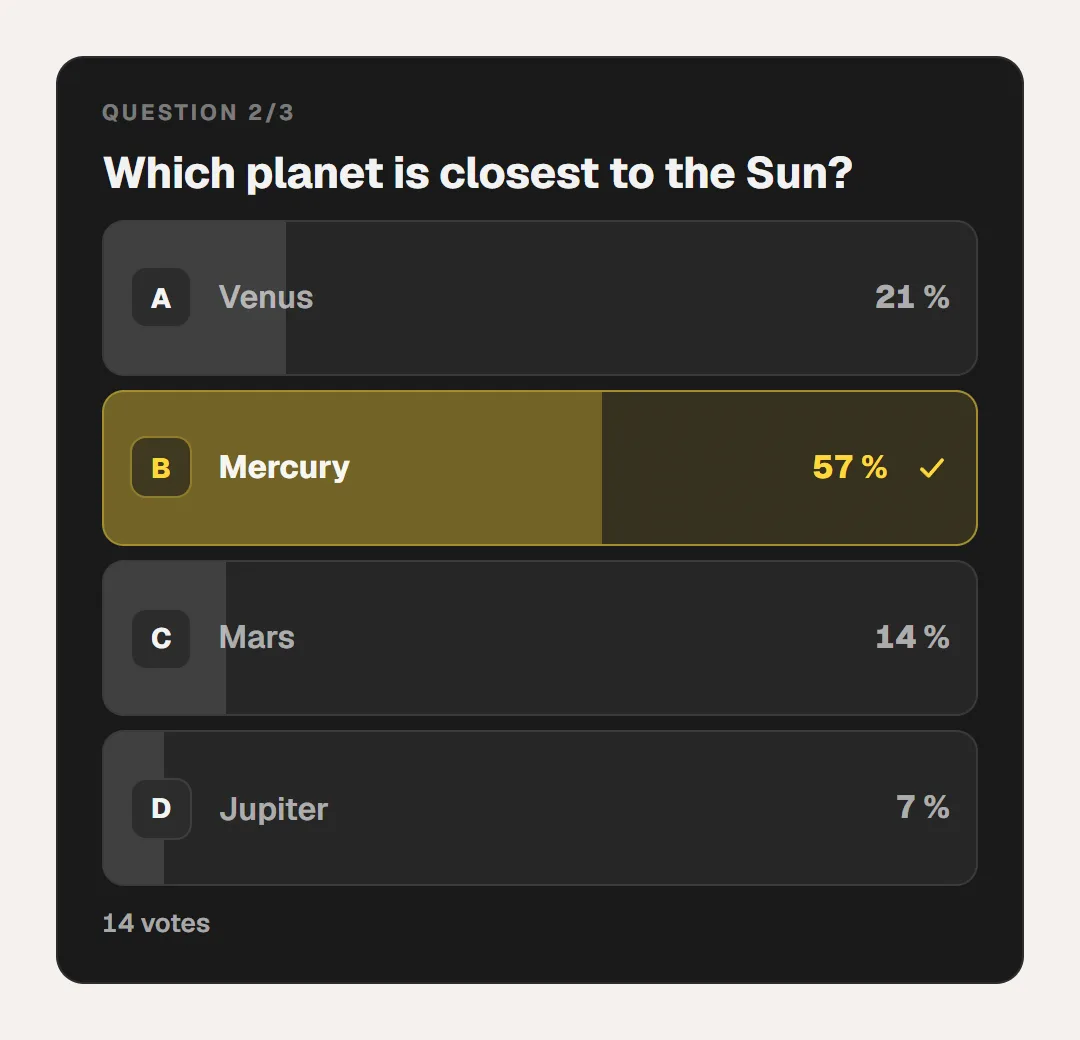
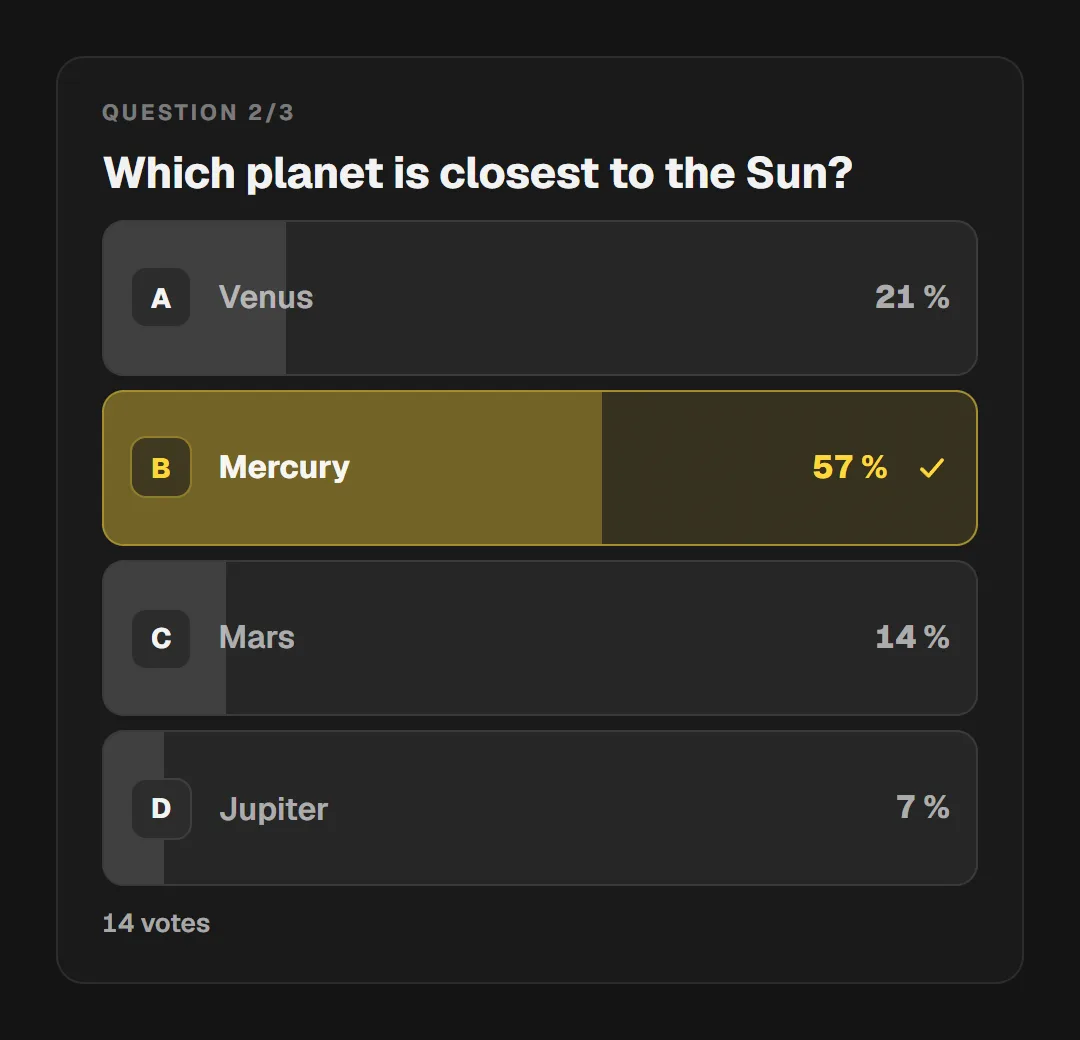
The quiz on air after the round: each answer has its percentage, the right one is revealed. "Start" stays grayed out during a round, or while the next question is not ready. To skip one, open "Edit questions", click the question, then "Put on air".
Tips
- A quiz added by hand starts off air: keep it that way until it is time to play, since on air it already shows the question before the vote.
- To rehearse with no audience, hide the quiz with the eye on its card, then tap "Preview a result": sample votes fill the question. The circular arrow, pressed twice in a row, clears them.
Frequently asked questions
Why is my quiz not counting any votes?
Look at "The chat" in the "Questions" screen: without a connected Twitch account, no vote counts. If it shows "Twitch channel not found", disconnect and reconnect your account, for example in the "Widgets" drawer, "Community" category.
Why does the Control Room show fewer votes than the overlay?
Your overlay, the editor and the Control Room each read your chat and count their own votes. A Control Room opened after the round started can miss the first ones, and its card says so; the result it keeps for the question comes from that tally.
Does the quiz keep a leaderboard of viewers?
No. It counts the votes for each question, not points for each viewer. The Control Room card keeps, for each question played, the most voted answer and its percentage, until "Restart the quiz".
Can I edit a question during the stream?
Yes, except the one on air during its round: it stays locked until the vote ends. The others can be edited in the "Questions" screen, or in "Edit questions", from the Control Room.
Is the quiz included in the free plan?
The Quiz widget is included in Twools Essential and in Twools Pro. On the free plan, the "Widgets" drawer writes "Essential" under its name: a click opens the plans window.
What's next
Reference page: Run your overlay from your phone.
Useful widgets for this guide
Prepare your first quiz
One sentence to create, one link to go live, your phone to run it.
Free plan · No credit card