Animate your widgets
Style · 5 min read
A widget that pops up at once barely gets noticed, and a number that changes without moving goes unseen. Setting every motion by hand would take long. In Twools, a motion style sets a widget's entrance, change and exit in one click; on top of it you add a highlight, to play from the Control Room, and a continuous motion.
On this page
Before you start
- A widget on your overlay, in the editor on a computer
- That widget's panel open: the pencil in its small bar, or a double-click on it
The steps
Open the Animations screen
In the panel's column of screens, click "Animations": the row gives the name of the active style. The screen shows your widget in miniature, then a timeline of its life on air, on two tracks. The Style track holds In, the change and Out; the change takes the widget's own name, "Every value" on a counter, "Every second" on a timer, "Every message" on the chat. The Effects track, "On top", holds "Continuous" and "Highlight". Click a track to open its settings below. "Play the sequence" plays the entrance, the change, the highlight and the exit in the miniature, as when the screen opens.
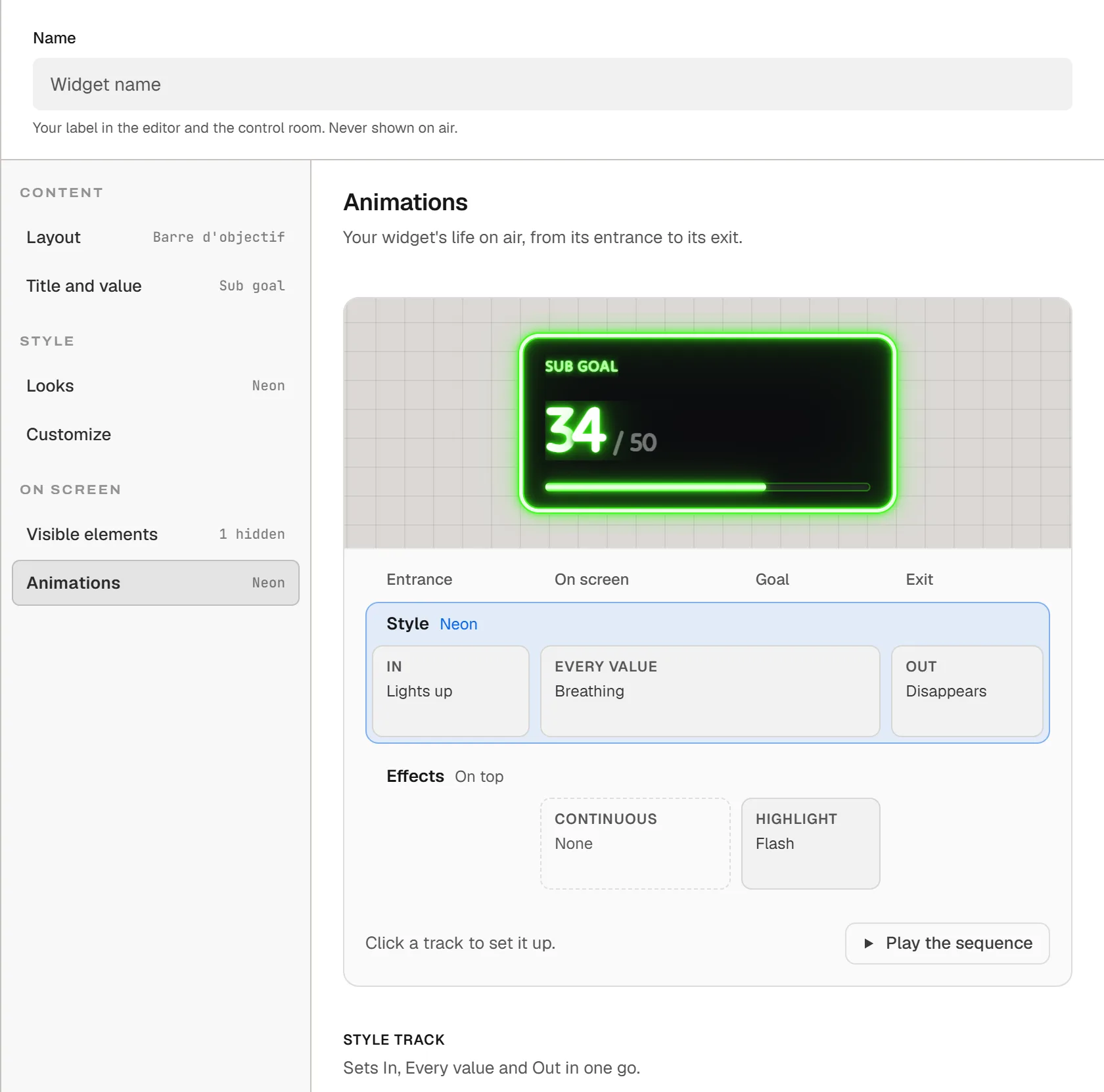
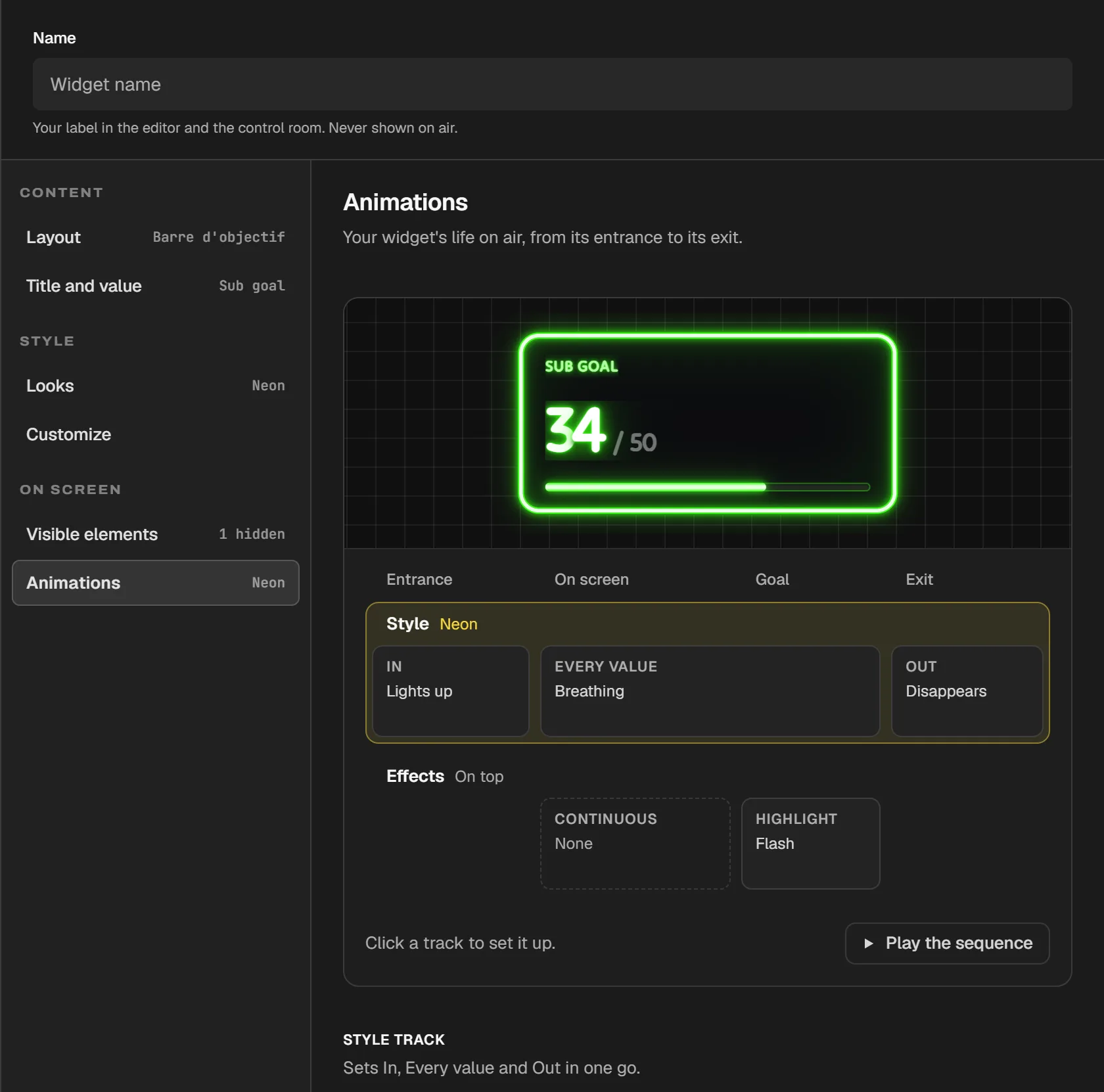
The "Animations" screen of a counter (sub goal) in the Neon look: the miniature, then the timeline, with the Neon style on the Style track and the Flash highlight on the Effects track. Choose a motion style
The Style track offers twelve styles, from TV and Subtle to Typewriter and Curtain: each one sets In, the change and Out in one go. Hover a card: the miniature plays its entrance and the timeline shows its answers, without saving anything. Move the mouse away and the preview goes back to your style; with the keyboard, a card that gets the focus gives the same try. Click to choose: the style is saved and the miniature plays it again. At first, the checked card is the one the widget's look suggests, TV if it has none; as long as you keep it, the style follows the look. Another style, chosen by you, stays in place if you change looks.
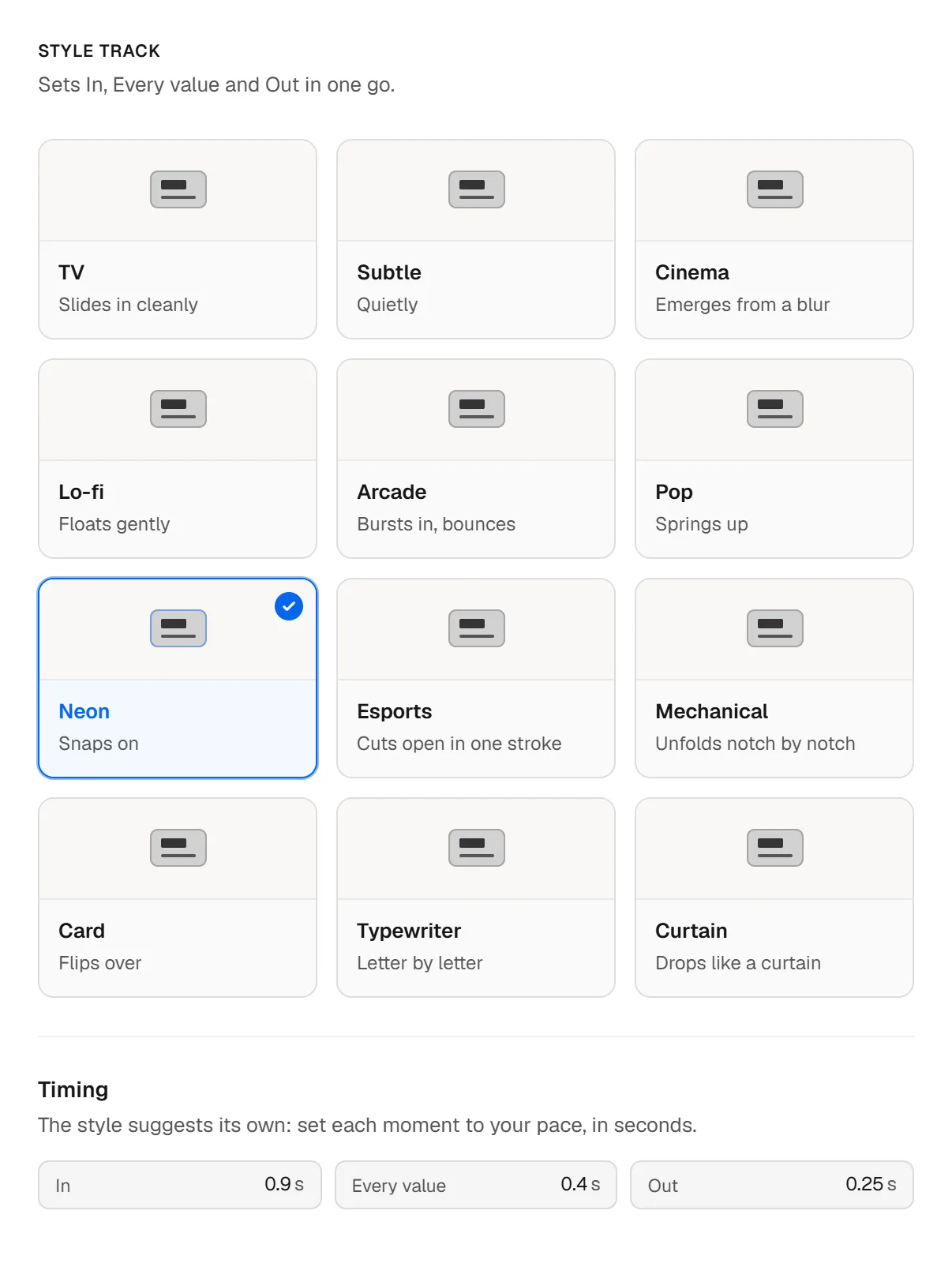
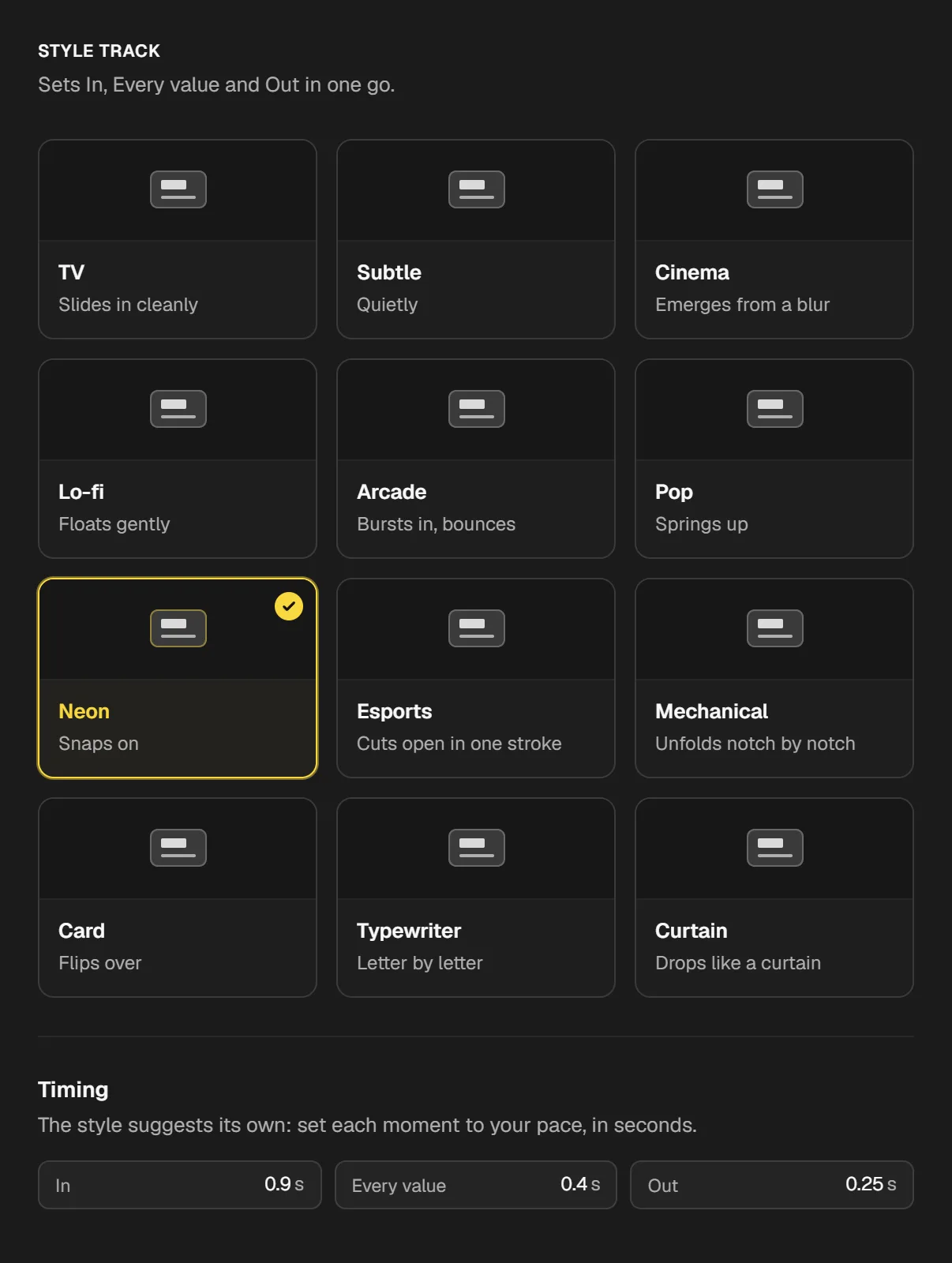
The Style track: the twelve styles, Neon checked, then the timing of the entrance, the change and the exit. Set the duration of each moment
Under the cards, "Timing" shows the style's durations, in seconds, one field per moment. Drag across a field to the right or the left, type a value then Enter, or use the up and down arrows; Shift goes faster. After each change, the moment plays again in the miniature. The change stays under one second: a timer changes every second. A changed duration brings up "Style timing", which gives back the style's durations. Choosing another style also takes its durations back.
Add a highlight and a continuous motion
Click the Effects track: what it holds plays on top of the style, and changing styles keeps your highlight and your continuous motion. "Highlight" plays once: Flash, Shake, Pulse, Bounce or Glitch, or "None". Its sentence says when: from the Control Room, and on some widgets at a set moment, such as "at 00:00" on a timer. Its "Duration" field works like the others. "Continuous" keeps going while the widget is on screen: Float, which drifts up and down without a pause, or in passes Sheen, Surge and Glitch. For those three, "Every" sets the interval between two passes, from 3 to 60 seconds; without a setting, it is drawn at random within the range shown. Here too, hovering tries and clicking chooses.
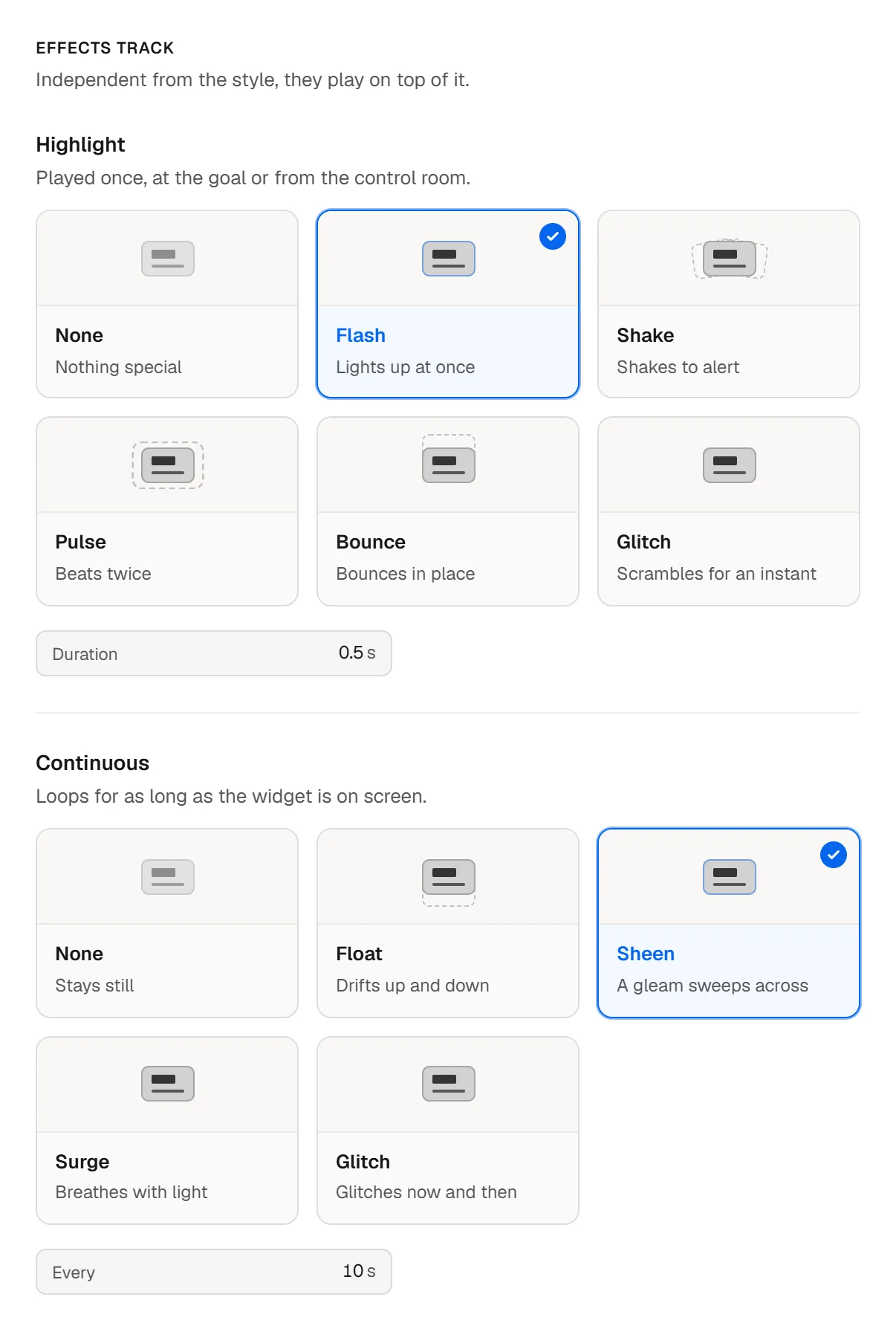
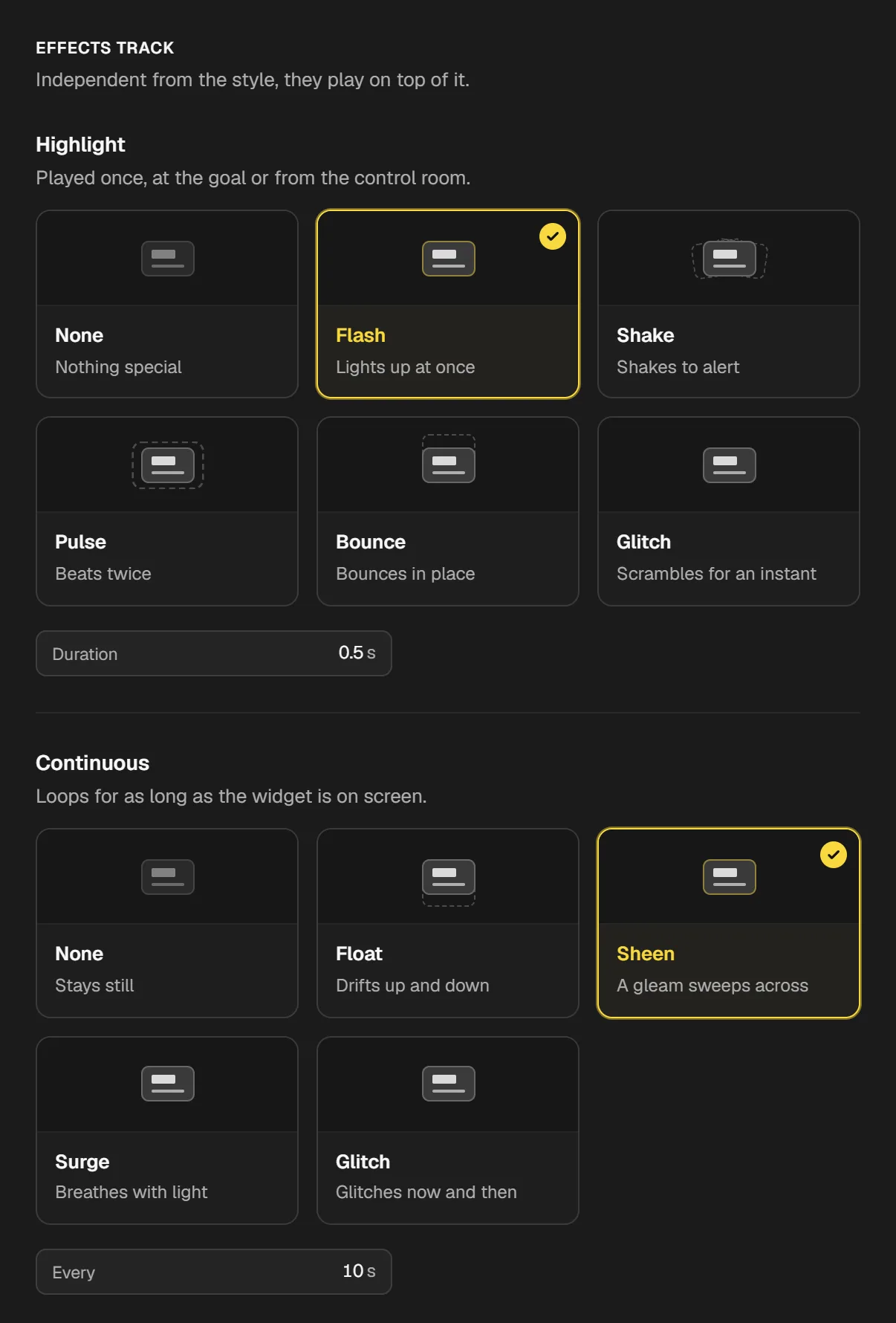
The Effects track: the Flash highlight and its duration, then the Sheen as continuous motion, every 10 seconds. What your audience sees
Tries stay in the miniature: the canvas, the Control Room and your overlay see none of them. Your choices are saved with the widget and reach your overlay. On air, In plays when the widget appears, Out when it disappears, and the change at each event the timeline names, a new value or a new message for example. In the Control Room, a card's eye plays Out before taking the widget off air, and In when it puts it back; an alert comes in with its next announcement instead. The card's star ("Play the highlight" on hover) plays the highlight on air: it is not there for a "None" highlight, and stays inactive on a widget that is off air. The continuous motion runs on its own.
Tips
- At the bottom of the live preview, on the left of the panel, a bar of icons tests the entrance, the content, the exit and the highlight ("Test entry" on hover for the first one). These tests are not sent to your streaming software.
- With the Neon look, a "Neon" block shows up under the tracks: "Ignite on appear" and "Tube life", two switches specific to that look.
Frequently asked questions
Are animations available on the free plan?
Yes. The Animations screen, its styles, the highlight and the continuous motion are open on the free plan as well as on Pro.
Does the highlight play on its own?
It plays when you press the star on the widget's card, in the Control Room. On some widgets, it also plays at a set moment: the sentence under "Highlight" says so, for example "Played once, at 00:00 or from the control room." on a timer.
Why is the highlight star missing from a Control Room card?
That widget's highlight is set to "None". Pick one in the Animations screen, on the Effects track. The Subtle style does not include one: a widget whose look suggests Subtle has no star until you pick a highlight.
Why does the miniature on the Animations screen barely move?
Your computer probably asks for less motion, an accessibility setting of the system: the editor then plays motions only as a fade, or not at all. Your overlay, in your streaming software, still plays them.
What's next
Reference page: An overlay editor, and a control room to run it live.
Useful widgets for this guide
Animate your overlay
One sentence to create, one link to go live, your phone to run it.
Free plan · No credit card