Connect your Twitch account
Connect · 4 min read
To show your chat or a follow alert, your overlay needs to know what happens on your Twitch channel, and OBS does not know it on its own. In Twools, you connect your Twitch account once, in the editor: the chat, the alerts and the sub goal all use it, and your overlay link shows them.
On this page
Before you start
- The Twools editor open on your computer, signed in to your Twools account
- Your channel's Twitch account: Twools reads the channel of the account that gives its consent
- Your overlay showing in your streaming software through your overlay link
The steps
Find the connect button
In the editor, click "Widgets" in the top bar, or press W, then open the "Community" category. As long as your account is not connected, the page shows "Twitch is not connected." under the title, with the "Connect Twitch" button. Each Twitch widget's panel also offers "Connect Twitch", and so does the Control Room banner when your scene has a widget that depends on Twitch.
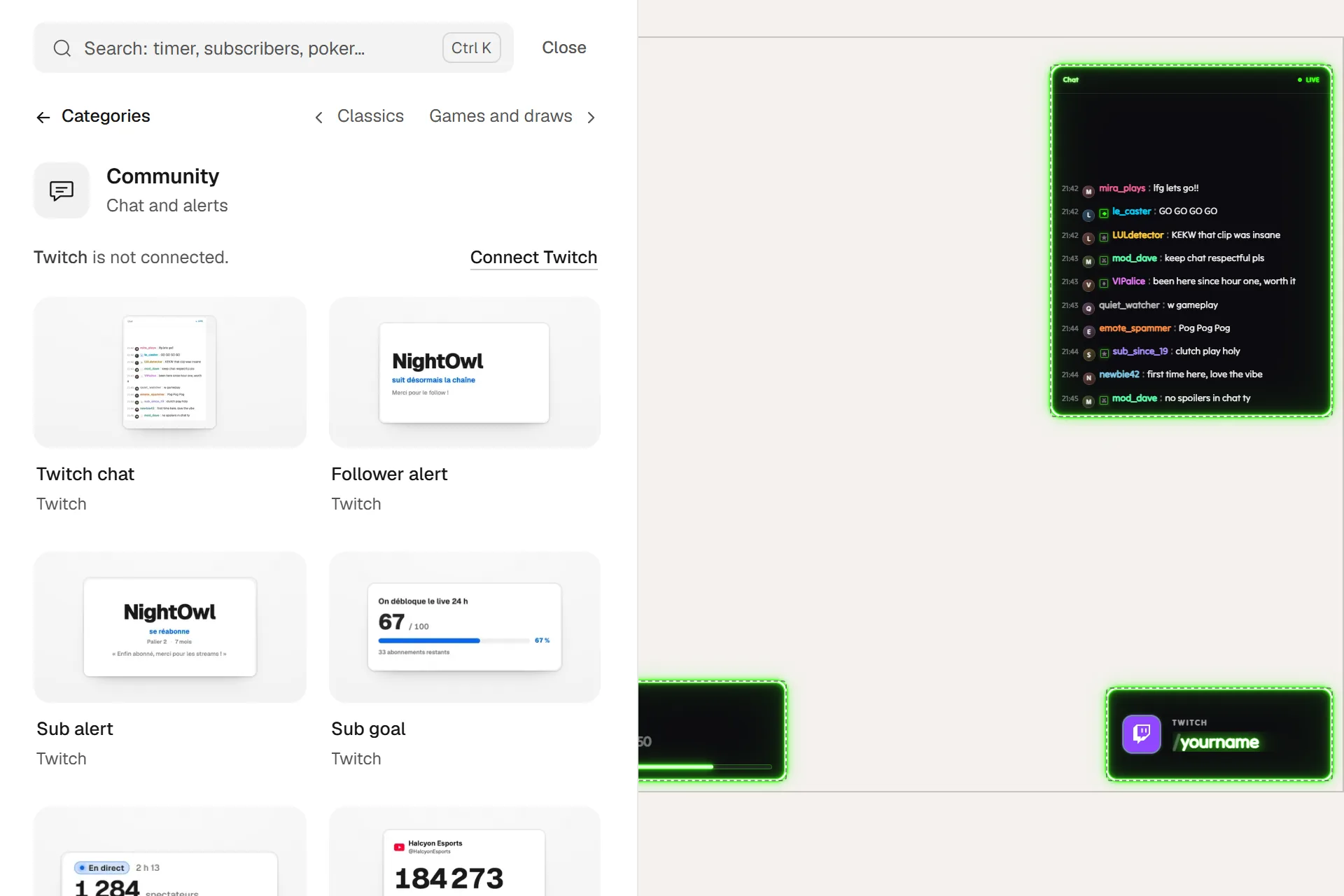
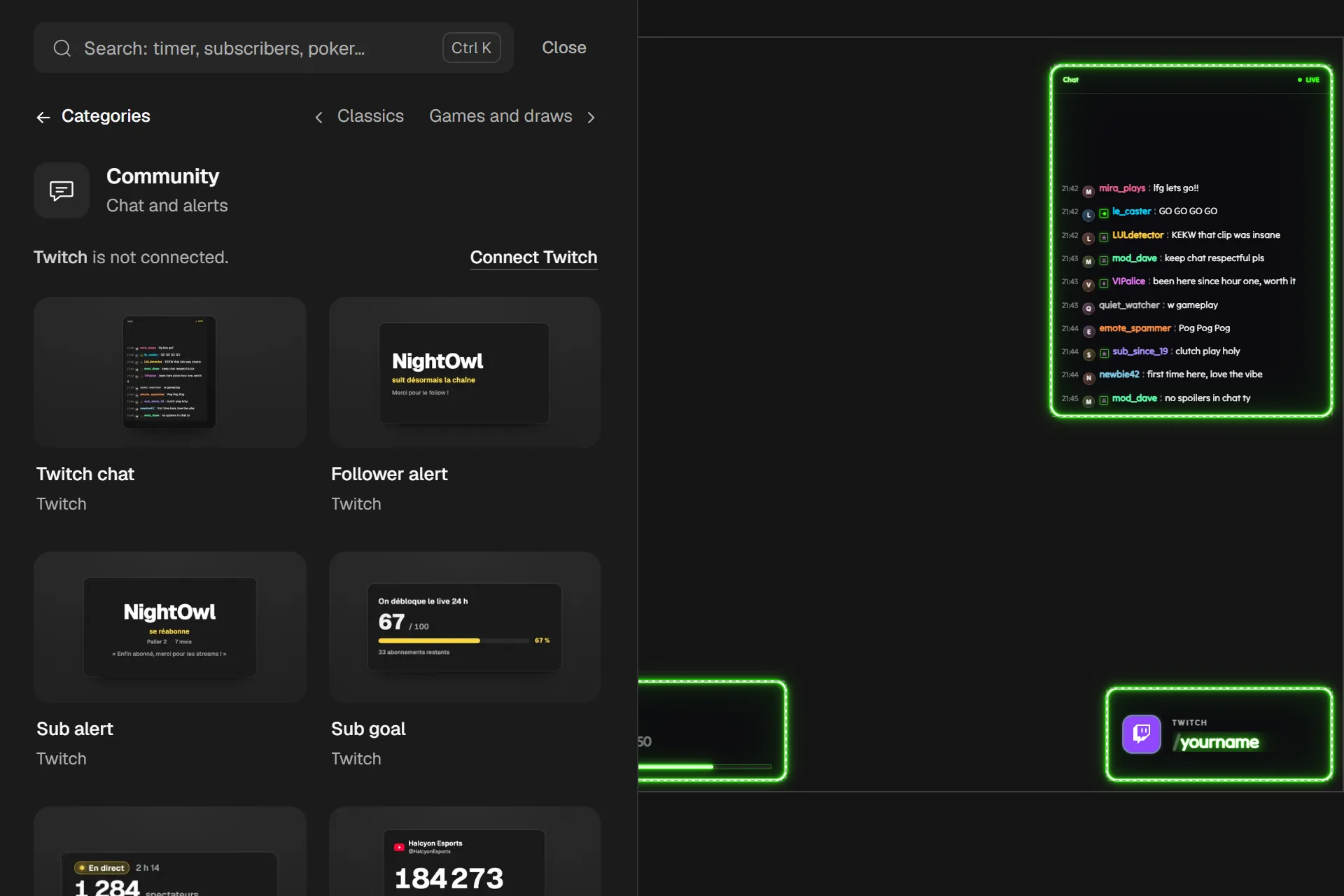
The "Widgets" drawer on "Community", account not connected: the sentence and its button, above the Twitch widgets. Give your consent on the Twitch page
The button takes you to Twitch's authorization page: sign in with your channel's account. Twools asks for four permissions, all read-only: your email address to identify you, your subscribers, your followers and your chat. It cannot post anything on your channel. Once you accept, Twitch brings you back to the page you left.
If you cancel, the page shows "Twitch connection cancelled". If a permission is missing, it shows "Twitch did not grant every permission": click "Reconnect Twitch" and accept them all.
What the connection makes work
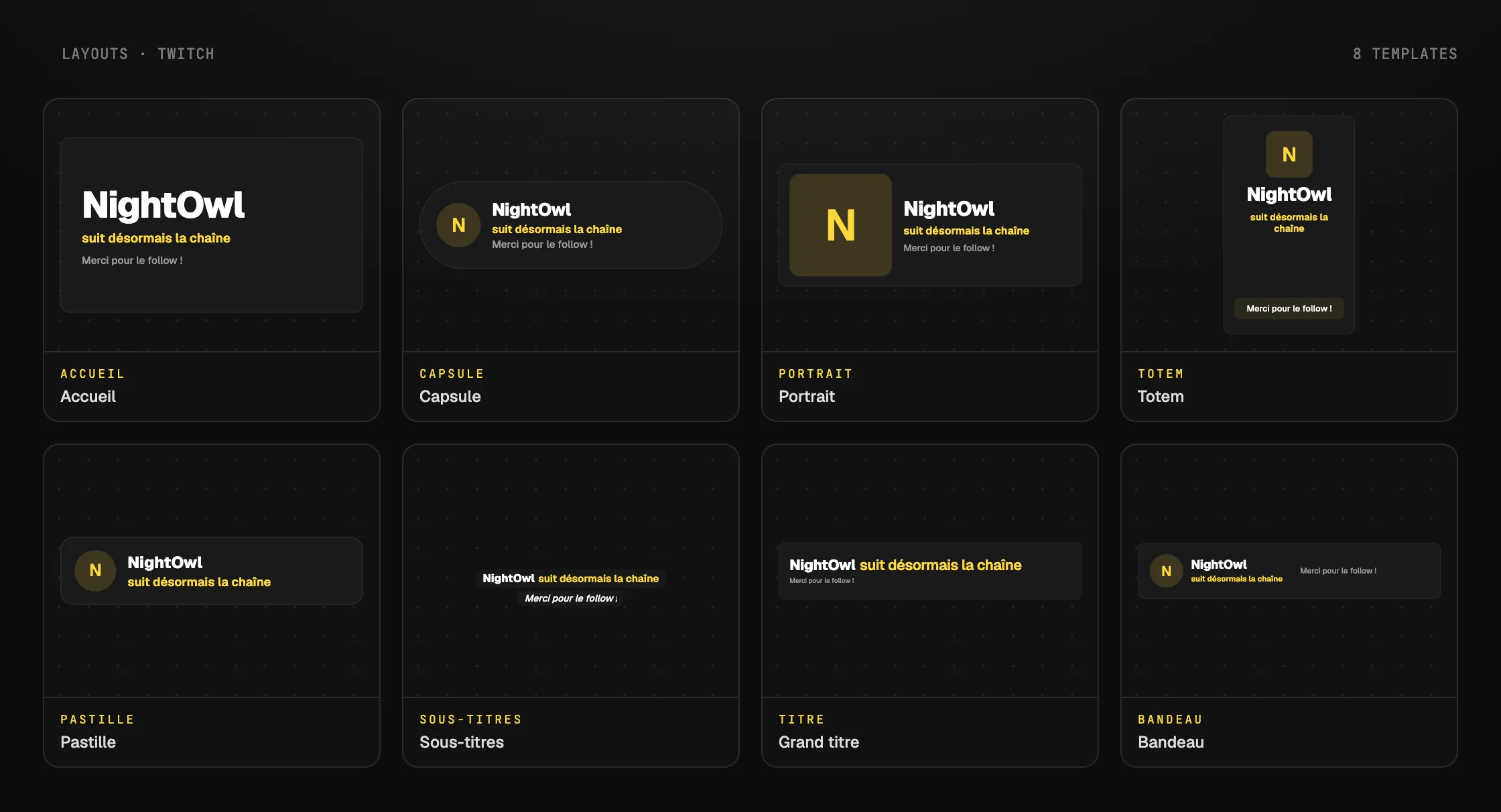
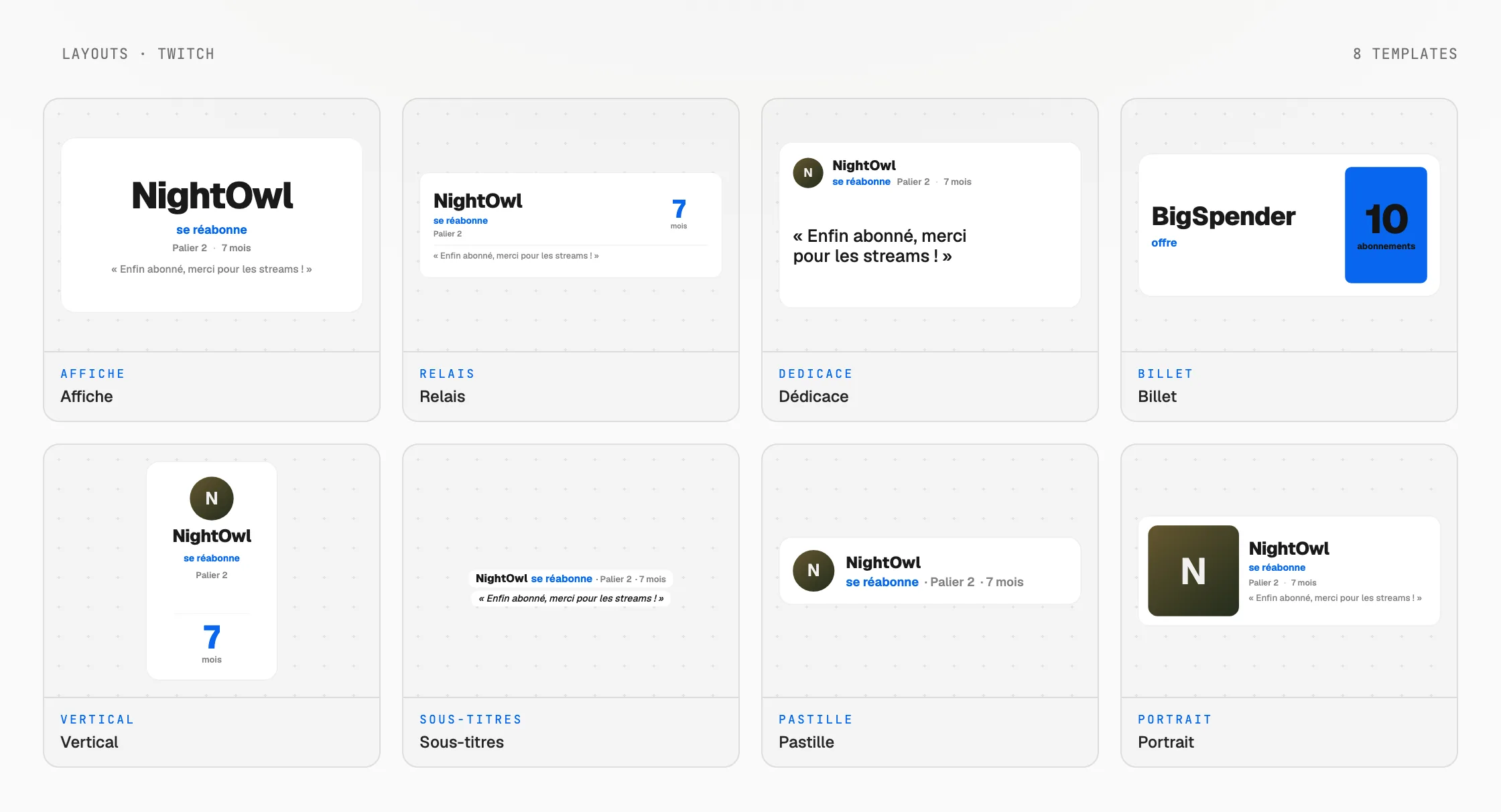
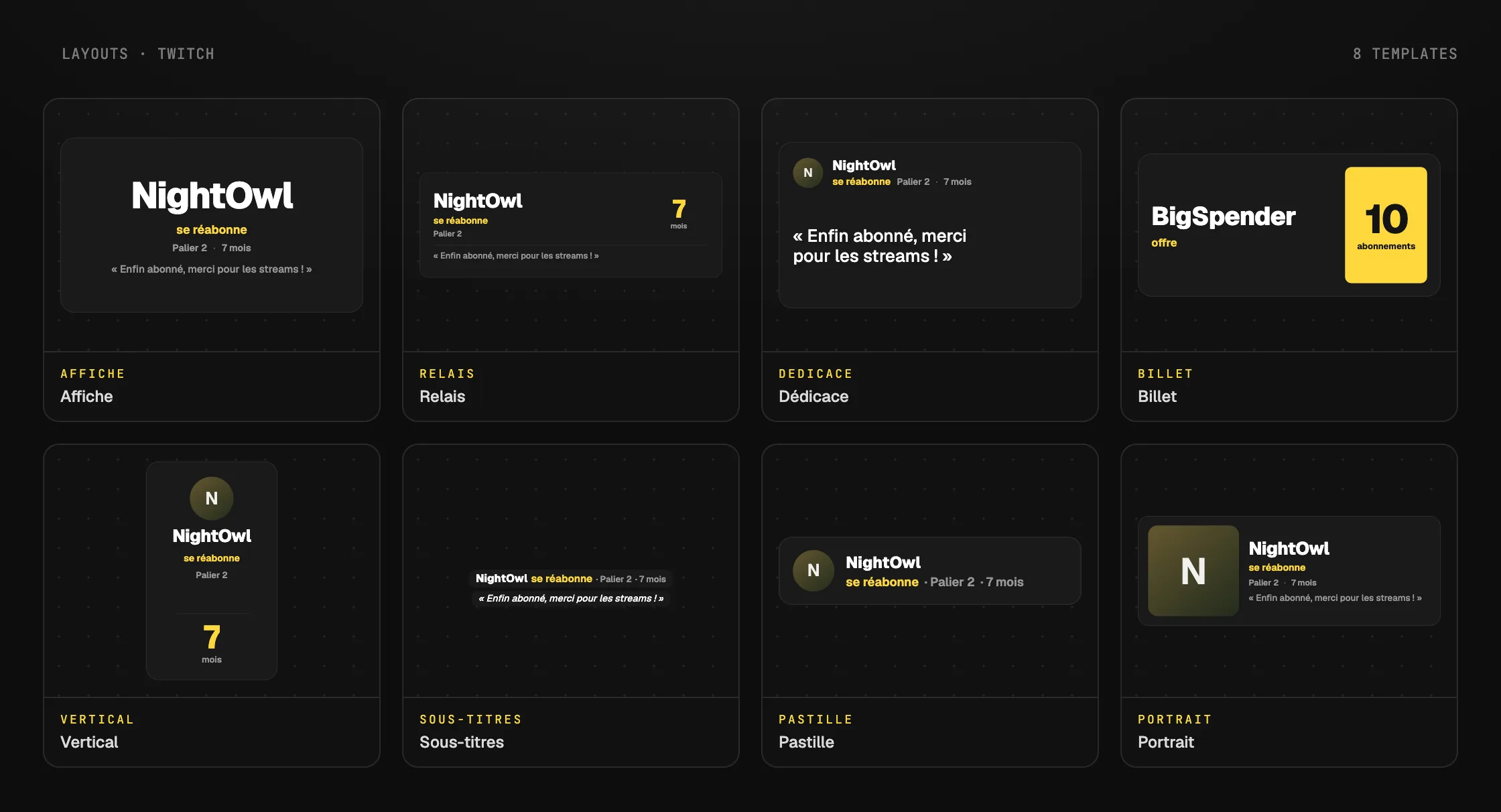
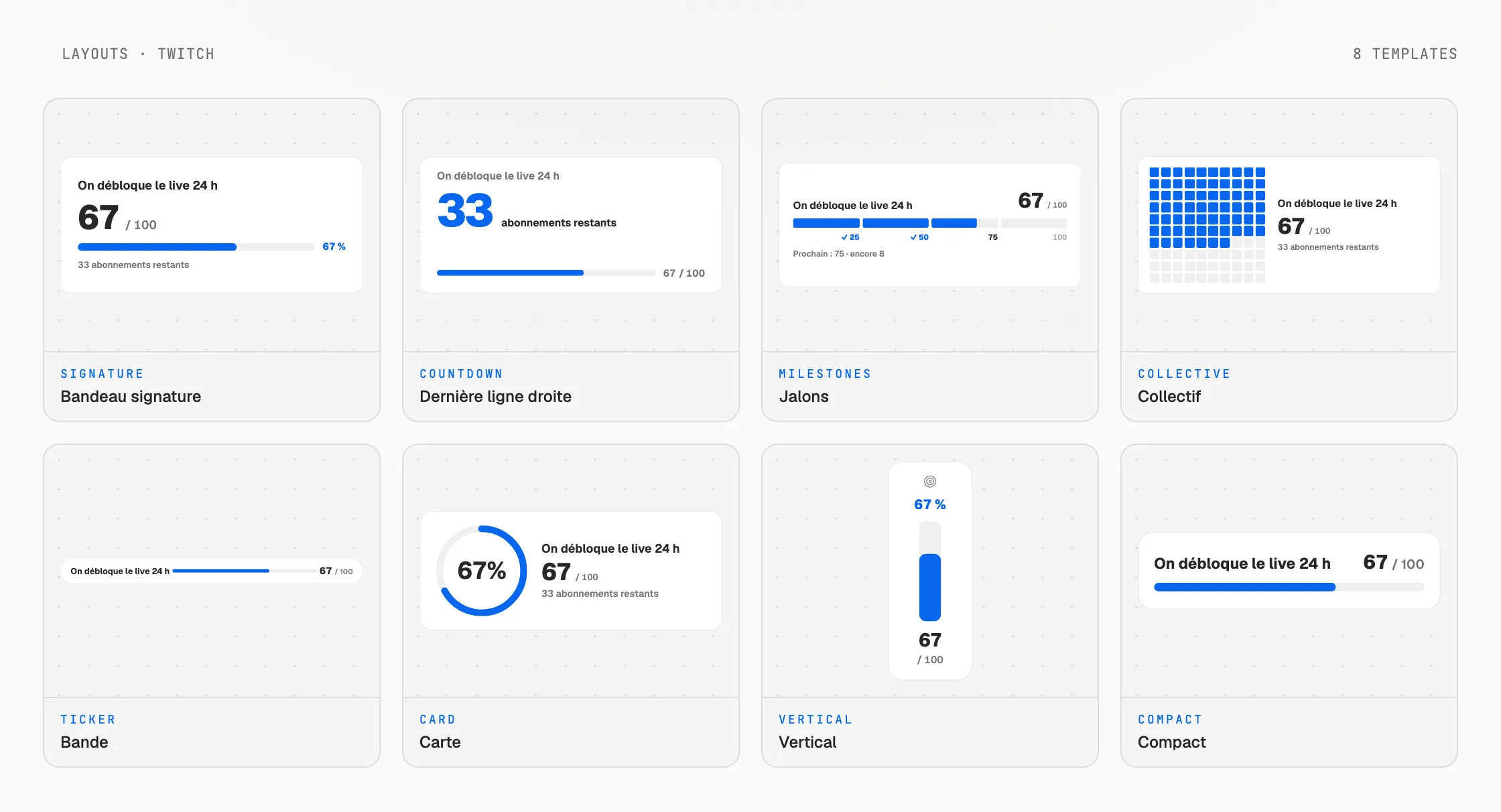
The Twitch chat widget shows your channel's messages. Each surface reads them itself by your channel name, your overlay in OBS included: OBS has nothing to connect, and Twools does not store the messages. Follow and sub alerts go out from the editor or the Control Room, open in a browser where your Twitch account is connected, and your overlay gets them from there. The sub goal follows your Twitch total while the Control Room is open. The Sub goal widget is included in Twools Essential and in Twools Pro. On the free plan, the "Widgets" drawer writes "Essential" under its name: a click opens the plans window. The quiz and "Guess the answers" count your chat's votes.
During the stream, keep the editor or the Control Room open: with everything closed, no alert goes out, and the follows from that time do not come back.
Check that your account is connected
Back in the drawer, the line turns into "Twitch:" followed by your channel name. In a Twitch widget's panel, the account line says "Chat connected" or "Twitch account connected", with the same name. Without a connection, the editor's chat shows sample messages, and your overlay shows none.
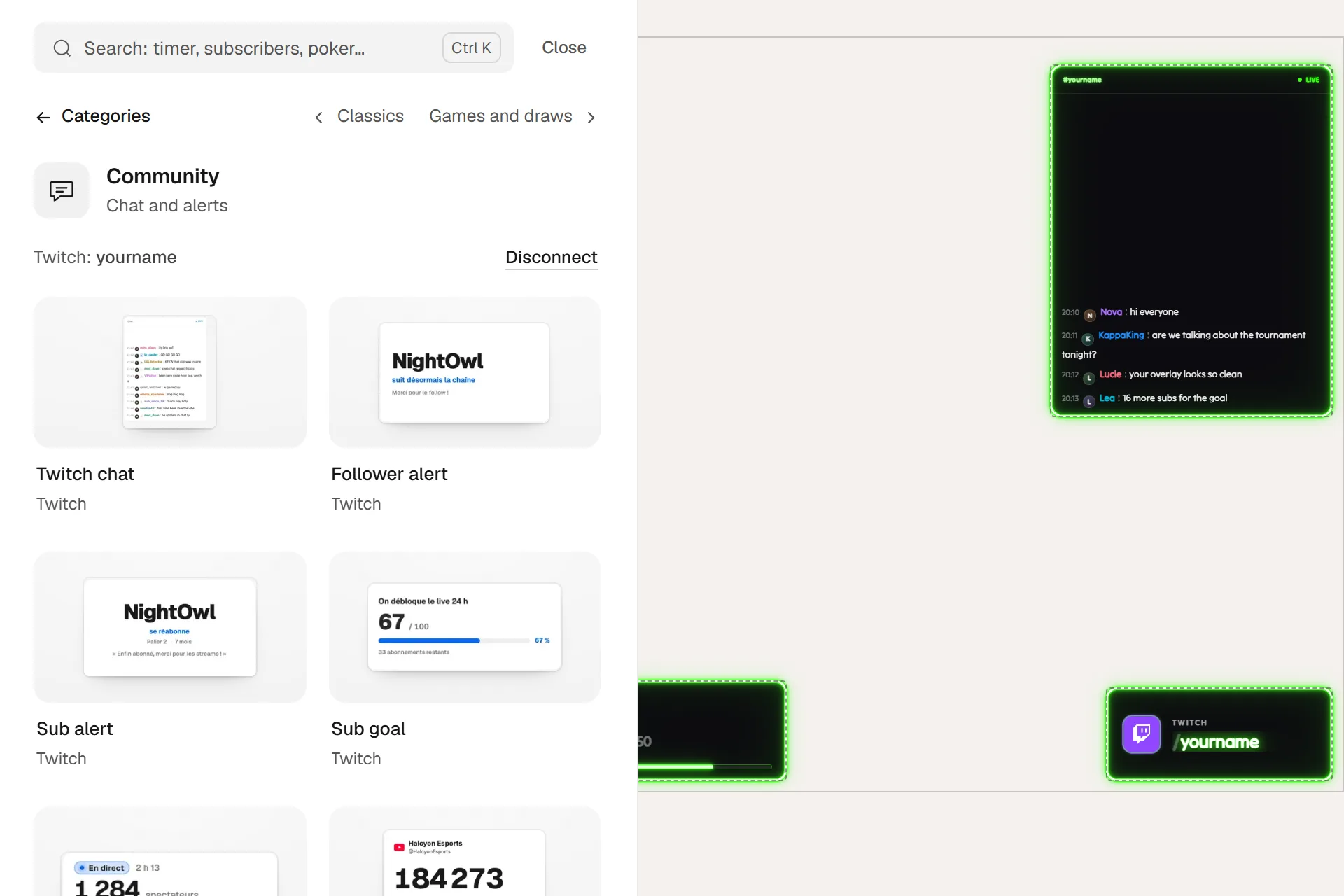
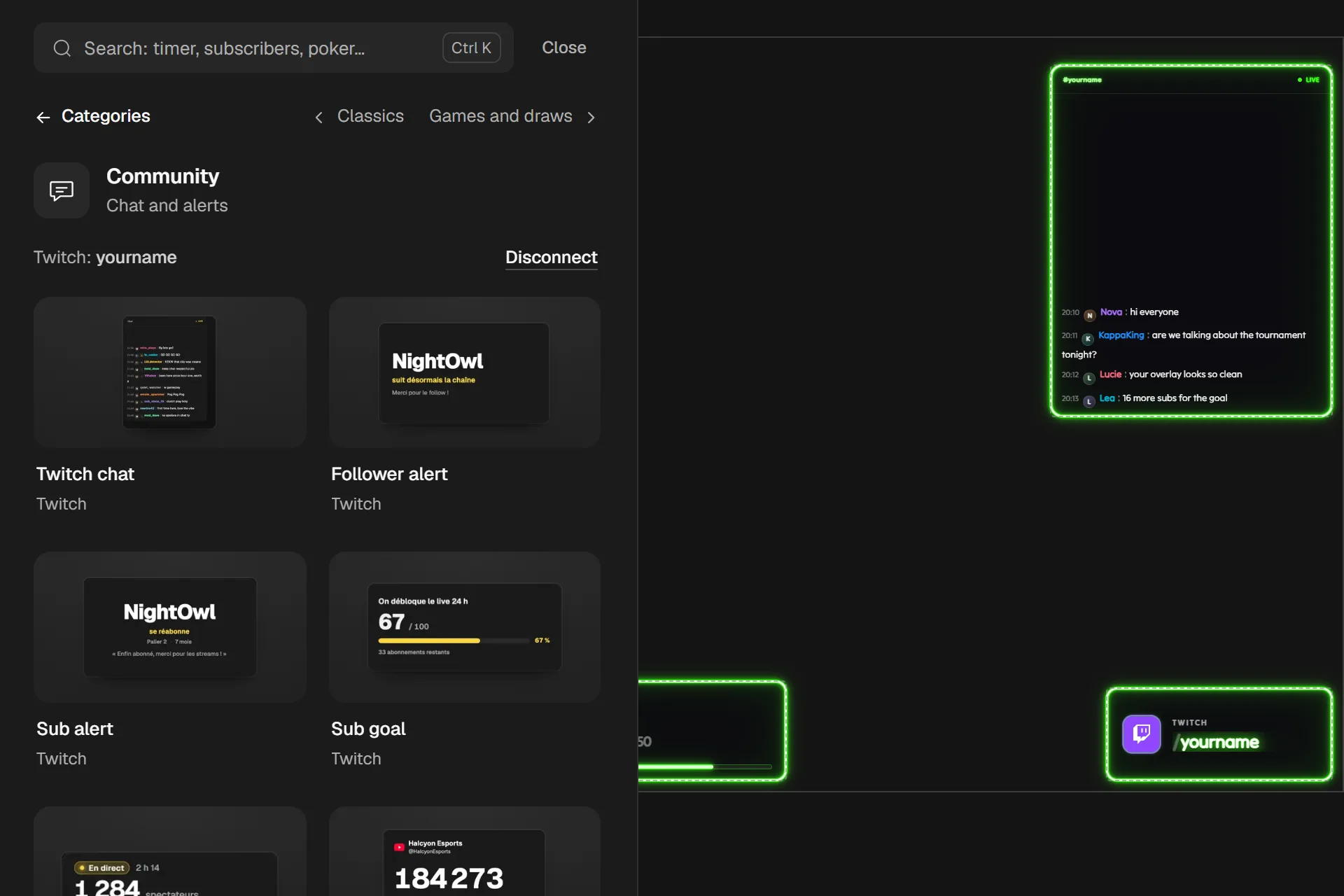
Account connected: the drawer names the channel and offers "Disconnect", and the chat gets its messages. If the account line says "Twitch channel not found", disconnect and reconnect your account.
Disconnect
Click "Disconnect", in the drawer or in a panel's account line, then confirm. Alerts and chat stop, and your channel's messages leave the air. To switch to another channel, disconnect here, then also sign out of twitch.tv in this browser, or switch to the other account on Twitch: otherwise Twitch gives its consent again for the account already signed in there. Then connect Twitch again.
"Disconnect" clears the connection kept by your browser. The authorization you gave Twools on Twitch is not removed.
Tips
- The connection is kept by the browser where you made it. In another browser, on your phone for example, the Control Room shows a "Connect Twitch" banner if your scene has a widget that depends on Twitch.
- If you signed up with "Continue with Twitch", your Twitch account may already be connected: the drawer says so.
Frequently asked questions
Do I need to connect OBS to Twitch?
No. Your overlay reads your channel's chat by its name, with no account, and gets the alerts from the editor or the Control Room. You connect Twitch once, in Twools.
Why do my Twitch alerts not show in OBS?
They go out from the editor or the Control Room, open in a browser where your Twitch account is connected: with everything closed, nothing goes out. Also check that the widget is on air. If the Control Room shows "Twitch alerts inactive", click "Reconnect Twitch".
Can Twools post in my Twitch chat?
No. The four permissions it asks for are read-only: your email address, your subscribers, your followers and your chat. Twools reads your channel, it writes nothing on it.
Can I show the chat of a channel other than mine?
No. There is no channel name to type: Twools reads the channel of the account that gives its consent on the Twitch page. To change it, disconnect your account, also sign out of twitch.tv in this browser or switch to the other account there, then connect Twitch again.
What's next
Reference page: Build your Twitch overlay, widget by widget.
Useful widgets for this guide
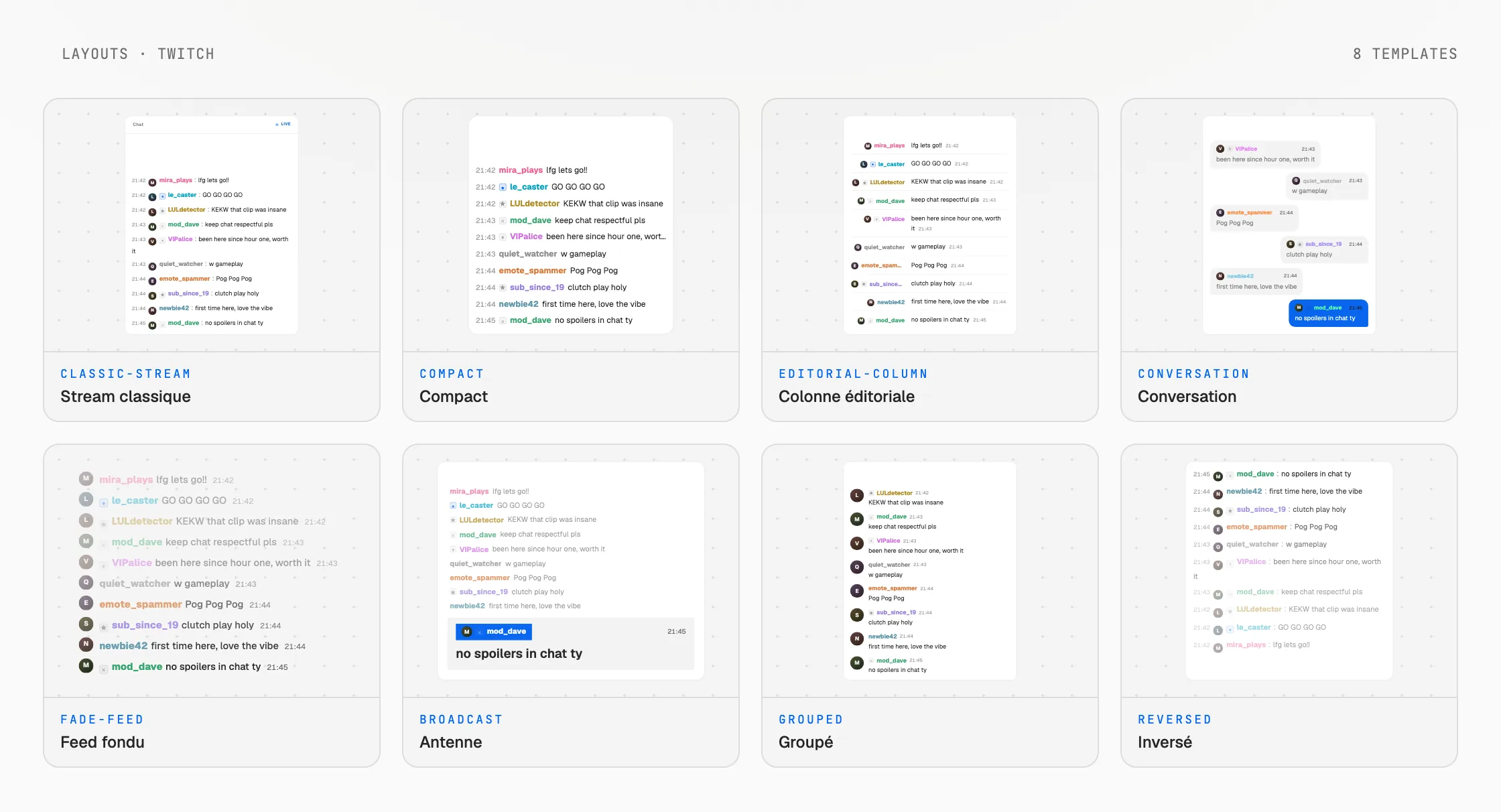
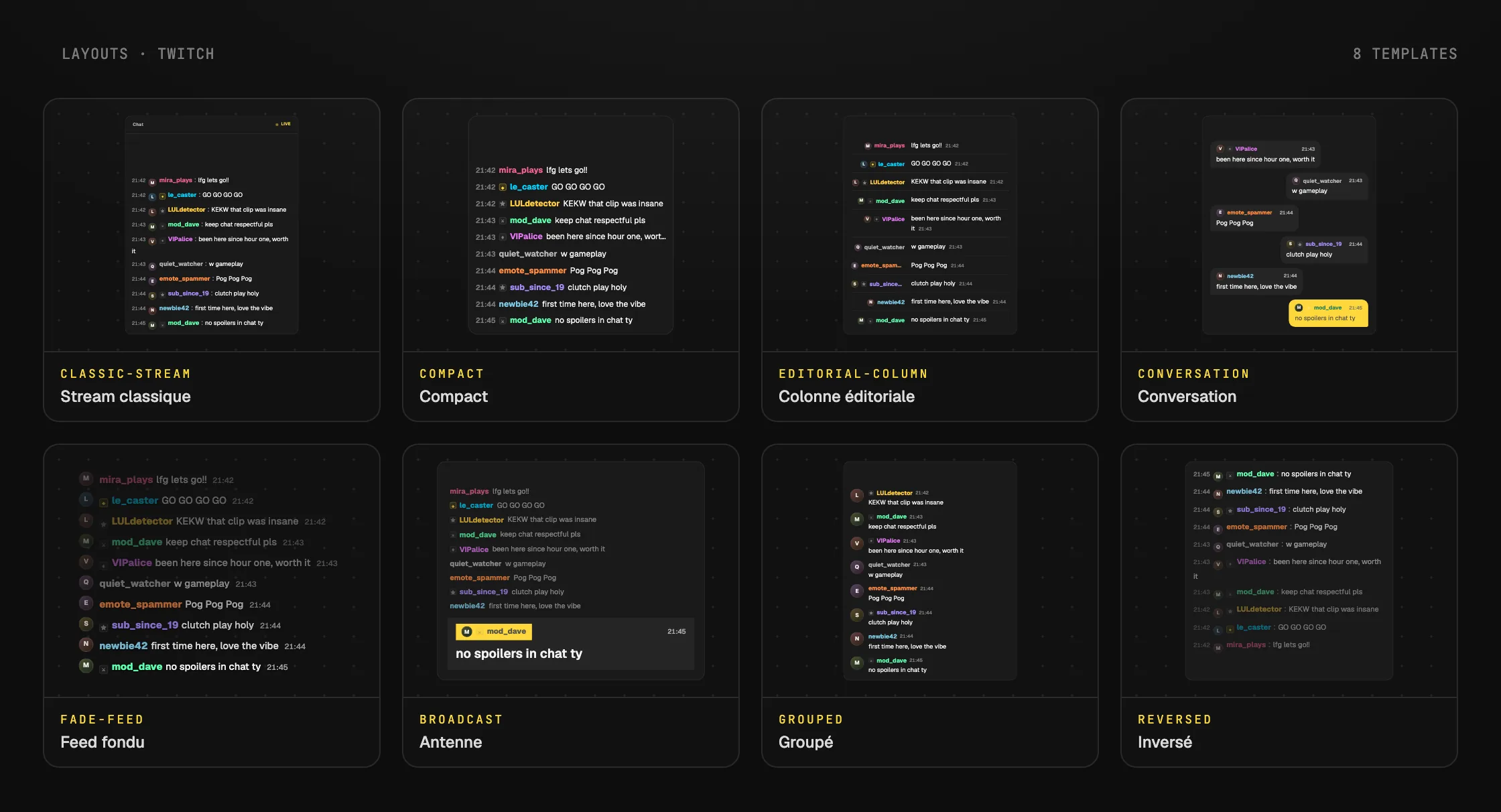
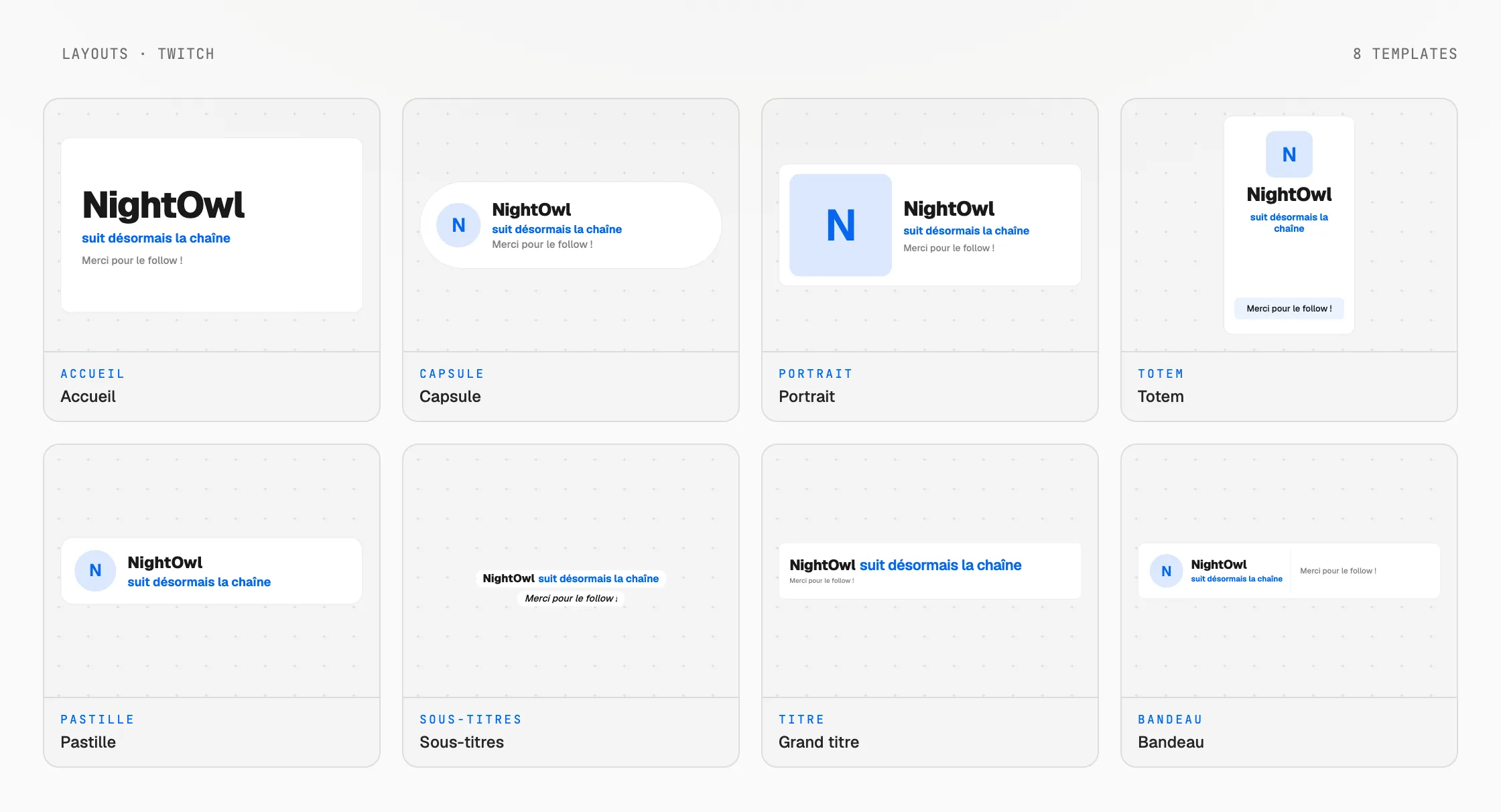
Connect your Twitch account
One sentence to create, one link to go live, your phone to run it.
Free plan · No credit card