Choose a look
Style · 4 min read
Setting a widget's color, font, border and effects one by one takes time, and your widgets rarely end up in the same style. In Twools, a look sets all of that in one click: a complete identity, which you try on hover before applying it, then adjust.
On this page
Before you start
- An overlay with at least one widget, open in the editor on a computer
- That widget's panel open: hover it and click the pencil in its small bar, or double-click it
The steps
Open the looks gallery
In the widget's panel, click "Looks" in the column of screens. At the top, a line says which look is active, for example "Active: Neon", or "No active look". Below, a search field, where you type a material, a color or a mood (gold, neon, paper, checks…), then the 64 looks, sorted into ten universes: Understated, TV studio, Glass, Neon, Retro tech, Gaming, Pop & street, Soft, Paper & ink and Luxury. Clicking a universe scrolls the list to it. Each tile is a sample of the look, with its material and its font.
Try a look on hover
Move the mouse over a tile: the live preview, on the left of the panel, shows your widget in that look, and a caption gives its name, its mood and what the click will do. It is only a try: nothing is written, not on the canvas, not in the Control Room, not in your overlay. Move the mouse away and the preview goes back to your current look. With the keyboard, a tile that gets the focus gives the same try.
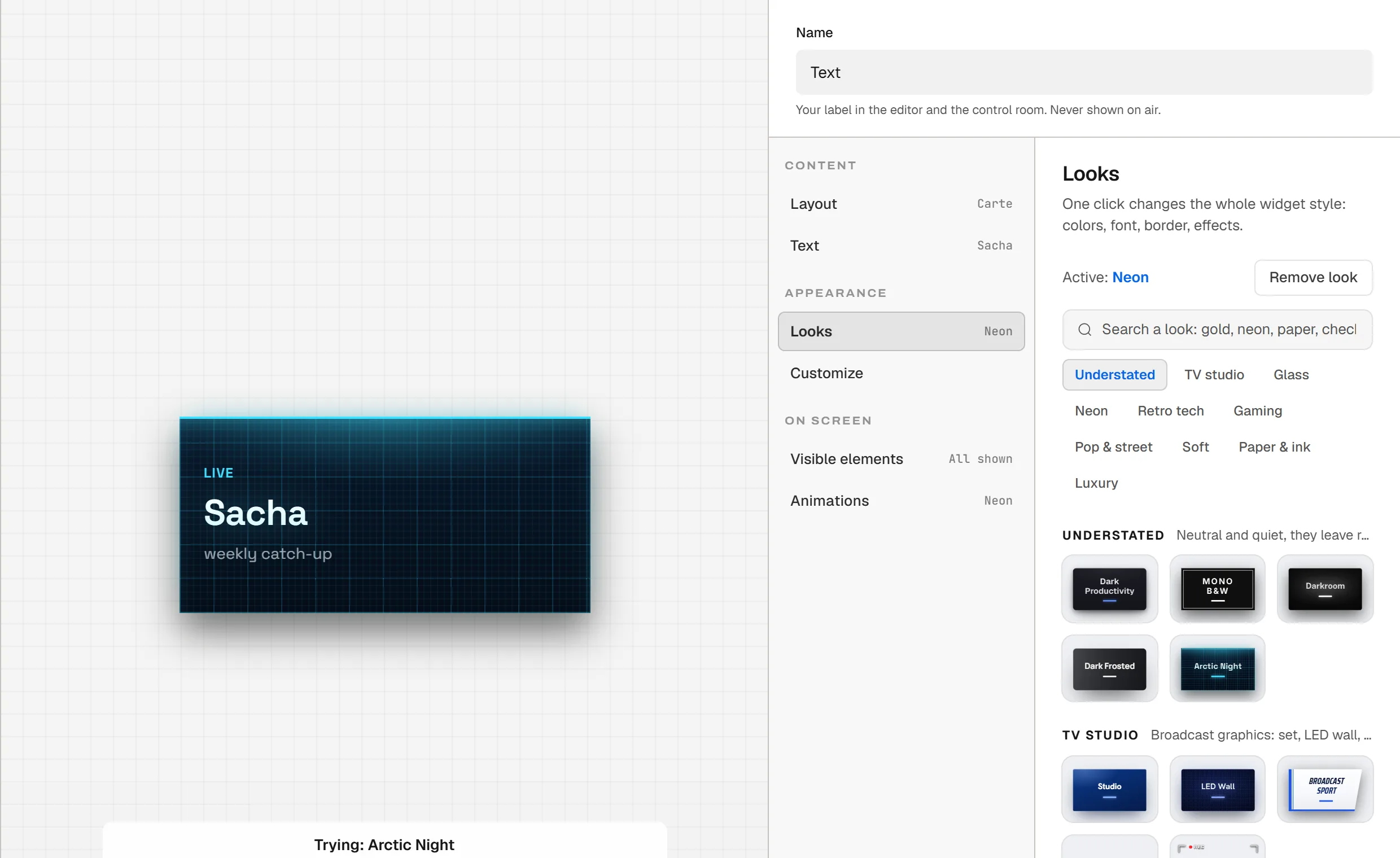
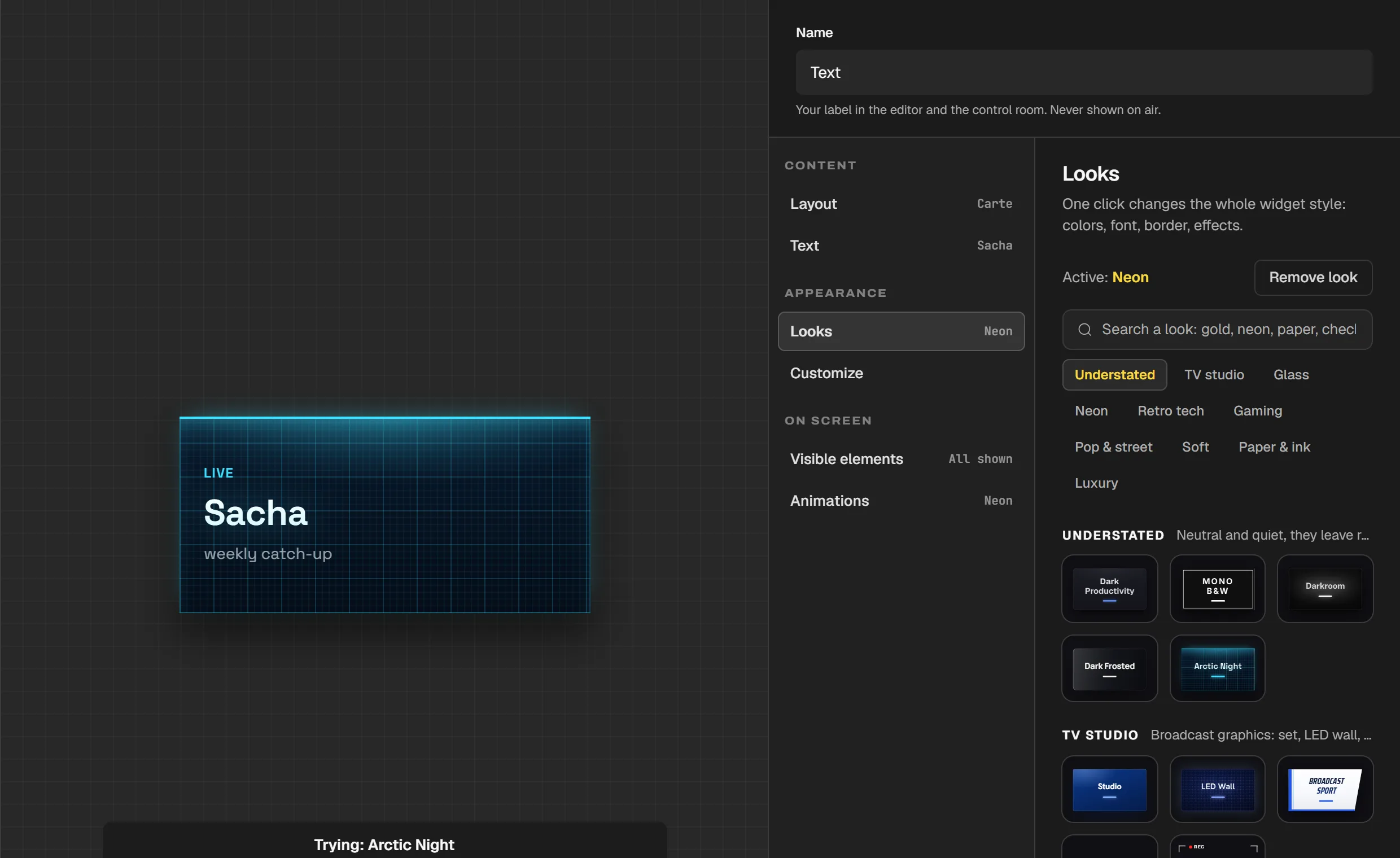
The Arctic Night look tried on hover: the preview shows the widget in that style, the caption says "Trying: Arctic Night", and the gallery keeps Neon active. The try shows in the live preview. If the preview is hidden, the panel-shaped button at the top of the panel, next to the cross ("Show preview" on hover), brings it back. On a screen less than 1024 pixels wide, the preview starts hidden.
Apply the look, or remove it
Click the tile: the look applies to the widget, the top line says "Active:" followed by its name, and the tile shows "Active". The caption in the preview confirms it. The look only applies to this widget: each widget has its own. "Remove look", on the same line, gives the widget back the Twools base style: colors, font, border, gradient and effects. Hover that button to try the base style first.
Change its colors and its font
A look can be adjusted. Open "Customize" and pick "Whole widget": the background, frame and effects of the whole widget. With some looks (Neon, Gold Luxury, Moonveil, and others), the border swatch is called "Main color" and says what it colors: the tube, the metal, the moonlight. It is the color that leads the widget. When you open a color swatch, "From the look" keeps the look's colors at hand. Once the background or the border has changed, the gallery line says, for example, "Active: Neon, modified". The font is set on the element that carries the text, for example "Message" on the Text widget: the guide "Customize a single element" covers it.
Undo your changes
"Undo", at the bottom of the panel, reverts your changes one by one since the panel opened, looks included. Its tooltip says how many steps are left, and Ctrl+Z does the same while the panel is open. When the panel closes, that history starts again from zero: to get an earlier look back, reopen the gallery and click its tile.
Tips
- In the search field, "light", "dark" and "no background" filter by the real background color, not by names.
- In the light theme, these looks show and apply in a light version: Glassmorphism, Liquid Glass, Prism, Neon Cyber and Arena.
- On Air and Viewfinder have no background: the text holds with a thick black outline. Judge them in your streaming software, over your game.
Frequently asked questions
How many looks does Twools offer?
Twools offers 64 of them, sorted into ten universes, from the quietest to the boldest. They are all open, on the free plan as well as on Pro.
Can I apply a look to all my widgets at once?
In the panel, a look is picked widget by widget, and its "Ask AI" button only touches up that widget. For the whole scene at once, when the AI service is open, use "Ask the AI · whole scene", under the canvas, at the bottom right unless you moved it: one touch-up can style several widgets in a single request. The widgets of a starting base or of a scene composed by the AI arrive already styled together.
What does "modified" next to the active look mean?
The widget's colors are no longer exactly the look's, because you changed the background or the border, for example. Hover its tile: the preview shows the look without your edits. One click reapplies it as is and replaces your edits.
Why does nothing change in the preview when I hover a tile?
The try shows in the live preview, on the left of the panel: if it is hidden, bring it back with the panel-shaped button at the top of the panel ("Show preview" on hover). On the tile of the look that is already active, the caption only says it is active. With a finger, on a tablet, a tile cannot be hovered: a tap applies the look straight away.
What's next
Reference page: An overlay editor, and a control room to run it live.
Useful widgets for this guide
Style your overlay
One sentence to create, one link to go live, your phone to run it.
Free plan · No credit card