
Customize a single element
Style · 5 min read
A look sets the whole widget at once. But sometimes you want your name in your own color, a bigger message, or one line less, without touching the rest. In Twools, you click the element in the preview and set it on its own; what you do not want on screen can be hidden.
On this page
Before you start
- A widget on your overlay, in the editor on a computer
- That widget's panel open: the pencil in its small bar, or a double-click on it
- A look already applied, if you like: your edits go on top of it
The steps
Click the element in the preview
In the live preview, on the left of the panel, move the mouse over the widget: the element under your mouse gets outlined, and the line under "Live preview" gives its name and what the click will do. Click: the panel switches to the "Customize" screen with that element picked, and its name shows above the widget. It works from any screen of the panel.
Or pick it in the grid
The "Customize" screen opens on "Pick what to edit" and the "Widget elements" grid. "Whole widget" sets the background, frame and effects of the whole widget; then come its elements, for example Message, Kicker, Secondary text and Meta on the Text widget. A grayed-out element does not exist with what you wrote or at this size, like an empty kicker: its tooltip says so. Those of other layouts are tucked under "Other layouts". Click the picked element again, or press Escape, to deselect it.
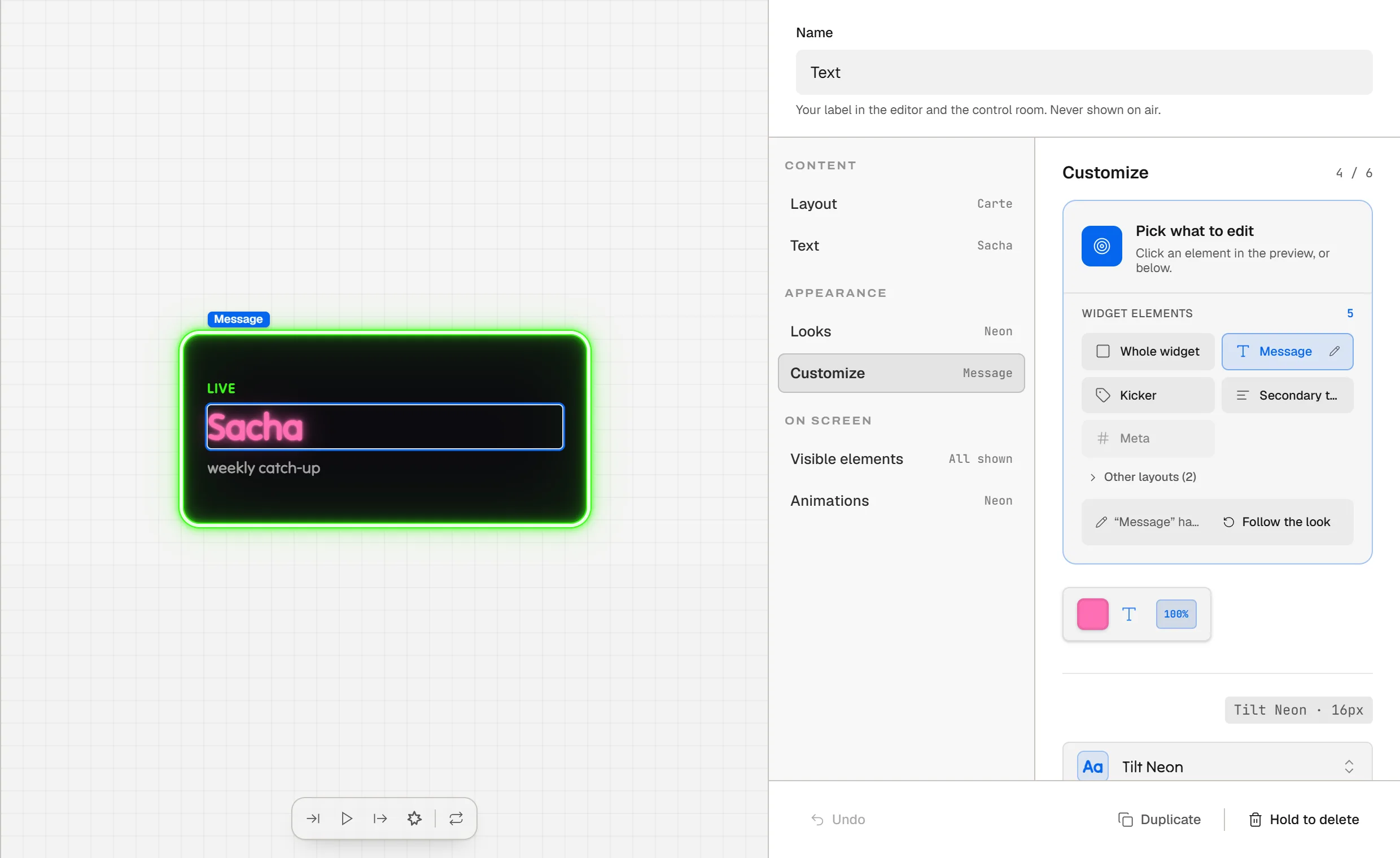
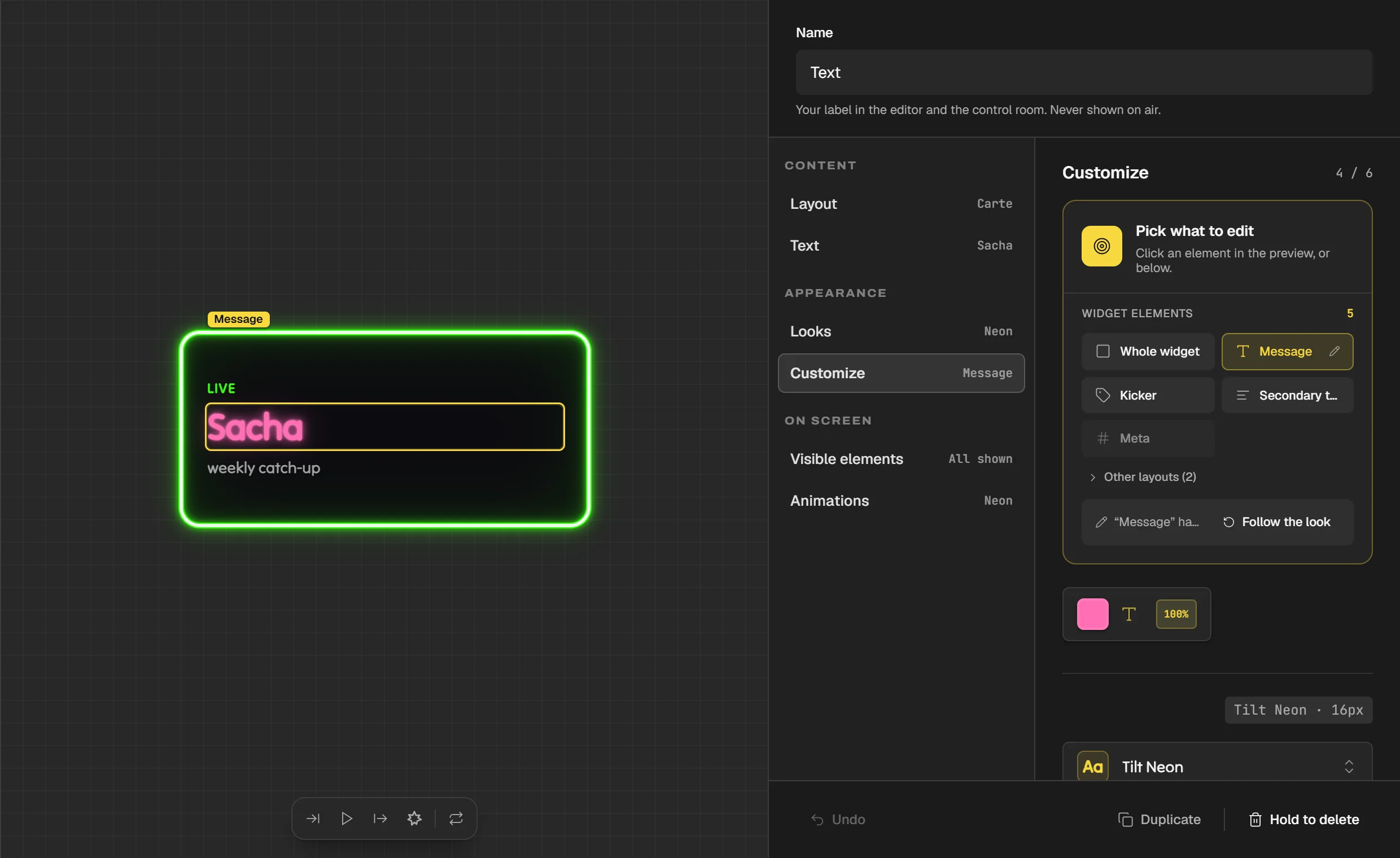
The "Customize" screen: the message is picked, outlined in the preview with its name above the widget. The pencil and the "Follow the look" line show it has its own settings. Set its color, typography and effects
Under the grid, the settings only apply to the picked element, and they change with it. On the Text widget's message: its color, its typography (font, size, bold, italic, underline, capitals, line spacing and letter spacing) and its text effects, ready-made styles such as Soft shadow, Outline, Neon or Metal, with their color and intensity. When you scroll down through the settings, an "Editing: Message" bar stays at the top of the screen; its cross deselects the element.
Spot a customized element
An element with its own settings carries a small pencil in the grid, and hovering the pencil shows "Customized: this element ignores the look". Pick it: a line recalls that it has its own settings, with the "Follow the look" button, which removes them. The element then takes the style of the widget's look again.
Change looks without losing your edits
A look never touches an element's own settings: what you set on it stays, everything else follows the new look. A message whose color you changed keeps your color and takes the new look's font, for example. Twools says so when you apply, in the "Look applied" message: how many customized elements kept their settings, with "Reapply to all" so they follow the new look entirely. The background, border and shadow set on "Whole widget", on the other hand, are part of the widget's style: a new look replaces them.
Hide what you do not want to see
Open the "Visible elements" screen. It lists what the chosen layout draws, with each element's value and its place in the widget. Each row has its switch, "Shown" or "Hidden"; hover a row to see the element in the preview, even when hidden. What makes the widget stays under "Always there", with no switch, and its reason. "Show everything" turns everything back on in one click. In "Customize", a picked element that can be hidden offers "Where to hide it?", which opens this screen.
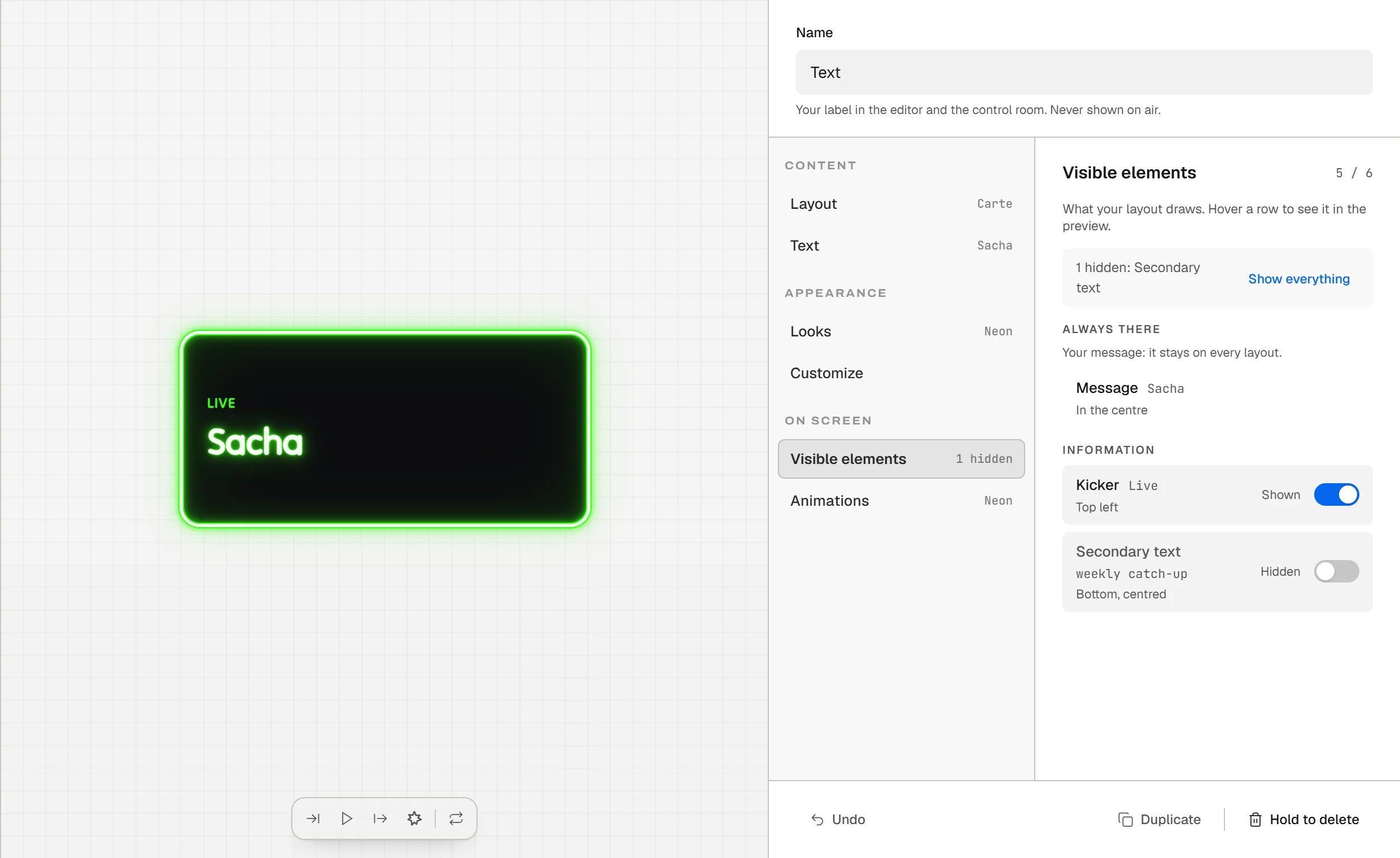
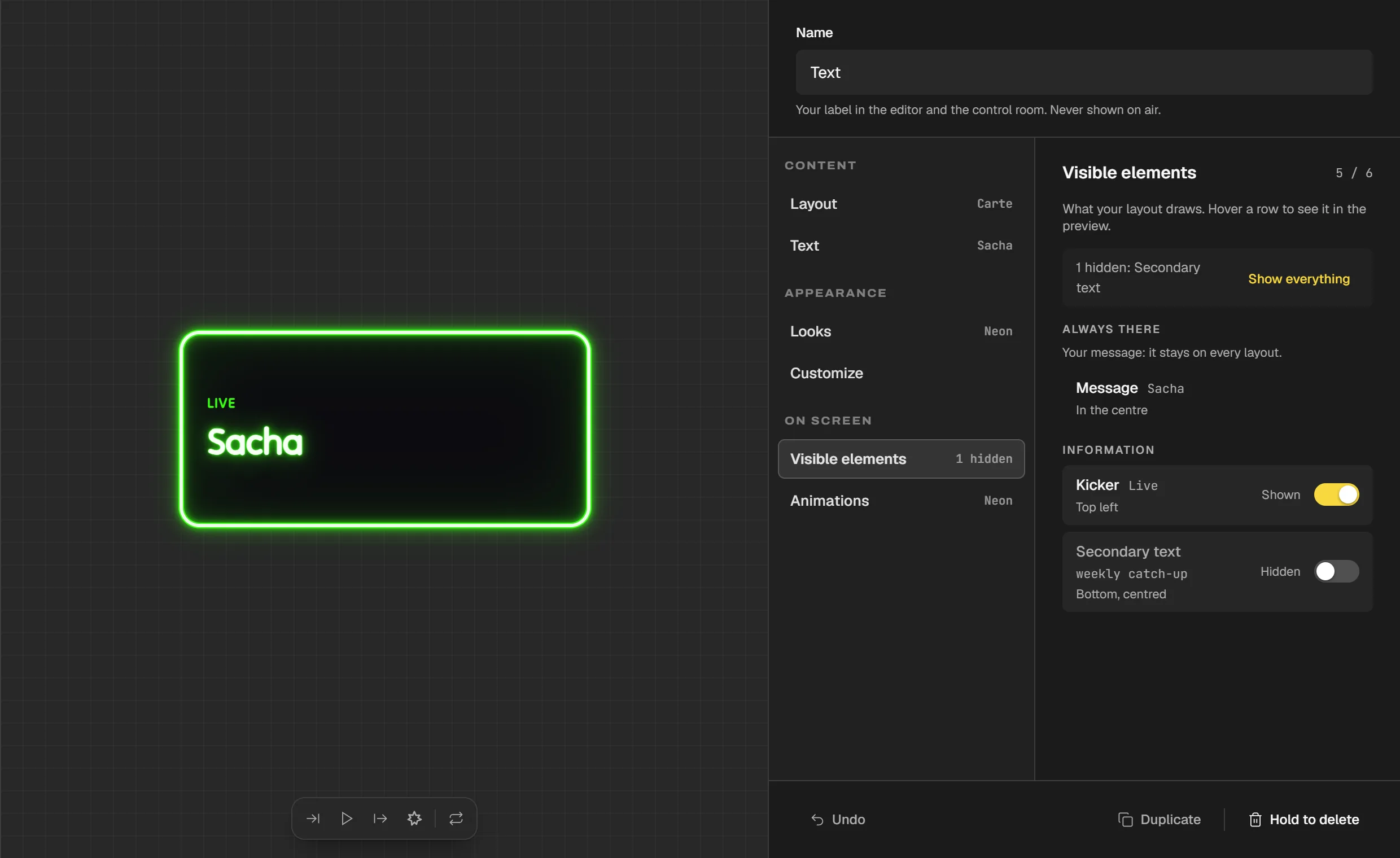
The "Visible elements" screen: the secondary text is hidden, the summary says so and offers "Show everything". The message stays under "Always there".
Tips
- Click in the preview rather than searching the grid: hover first, the line under "Live preview" names the element under your mouse.
- A hidden element can still be set: in the grid it is struck through with a closed eye. Pick it, and "Show" turns it back on in place.
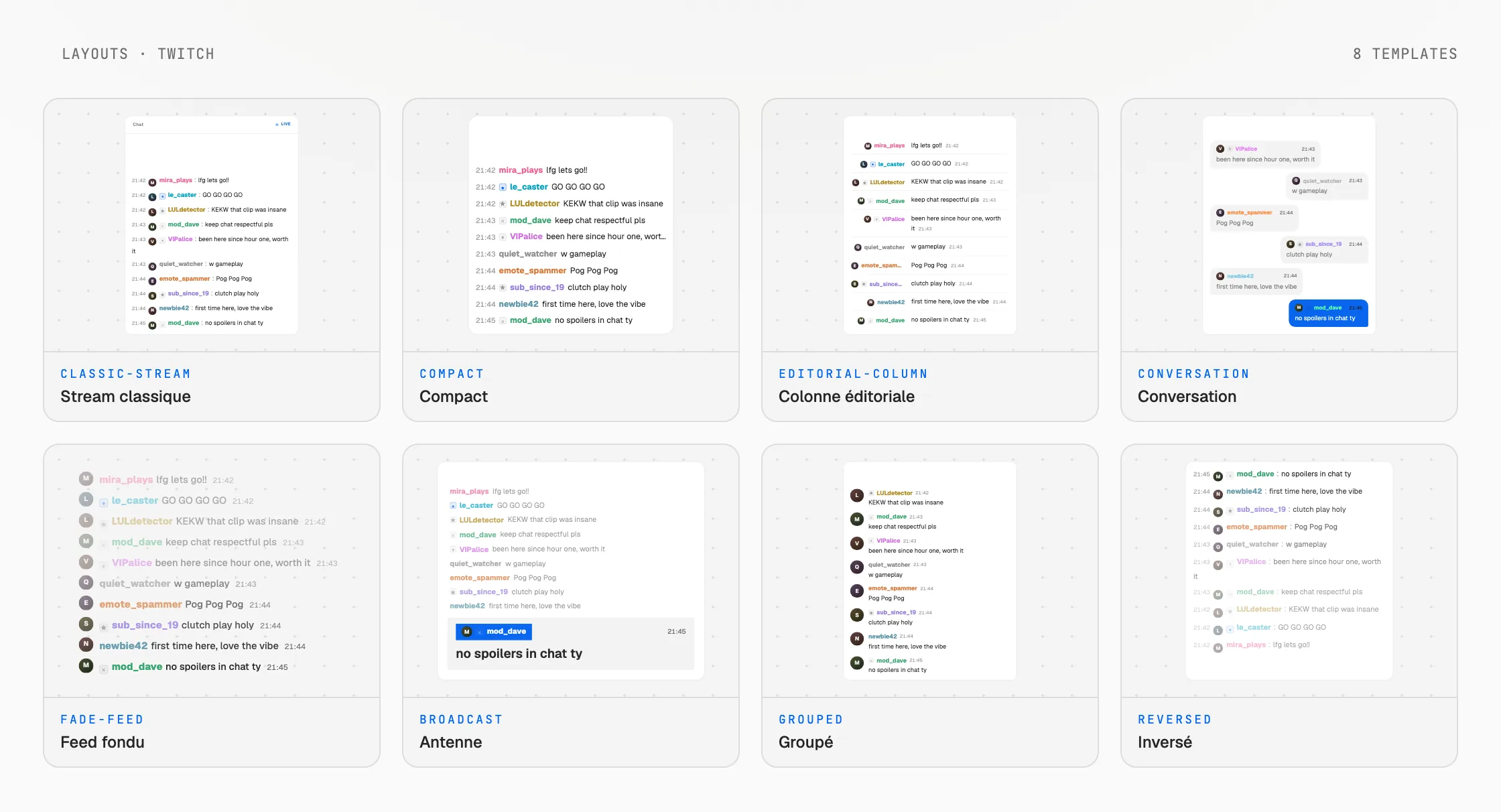
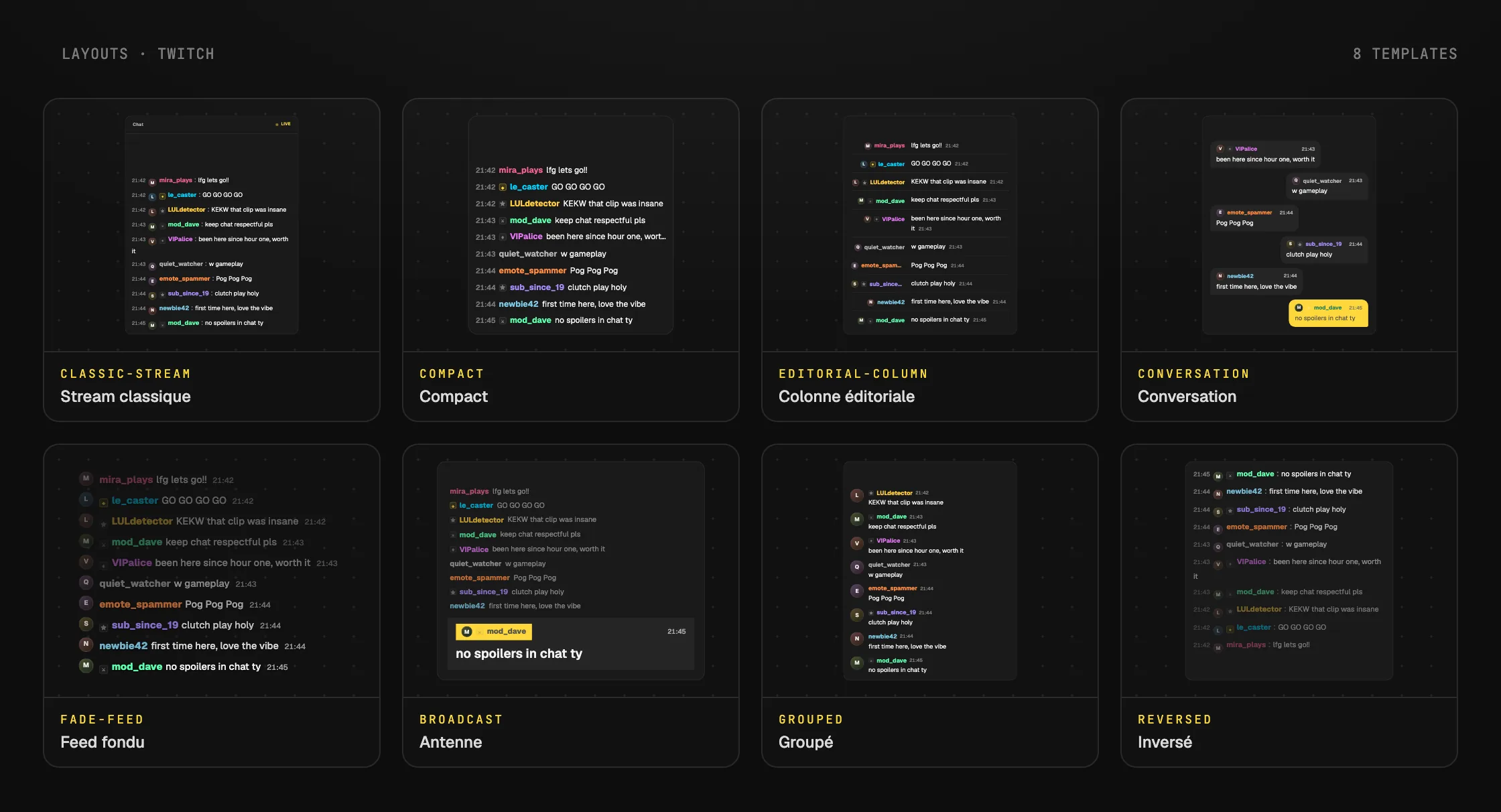
- On the Twitch chat, avatars, badges and time are hidden in "Visible elements".
Frequently asked questions
Why does an element not fully follow the look I apply?
It has its own settings, and a look never touches them: what you set on it stays, everything else follows the look. The pencil marks it in the "Customize" grid. Pick it and click "Follow the look", or click "Reapply to all" in the message that shows when you apply it.
Does a hidden element also disappear from my overlay?
Yes. Hiding an element takes it off air, in your streaming software, not only in the editor. To bring it back, turn its switch back on in "Visible elements", or pick it in "Customize" and click "Show".
Can I hide the message or the number of a widget?
No. What makes the widget, like the message of a Text widget or the number of a counter, sits under "Always there", with no switch: it stays on every layout.
Why is an element grayed out in the grid?
It has nothing to show with what you wrote or at this size, like an empty kicker: its tooltip says so. Fill it in on the content screen and it can be picked. Elements of another layout are tucked under "Other layouts".
What's next
Reference page: An overlay editor, and a control room to run it live.
Useful widgets for this guide
Customize your overlay
One sentence to create, one link to go live, your phone to run it.
Free plan · No credit card