
Add the Quiz widget to OBS
On a computer, open the Twools editor, add the Quiz widget and pick one of the eight layouts.
In "Questions", connect your Twitch account: that is how the quiz finds your channel. Then write your questions and tick the right answer for each.
Click "Overlay link", copy your link and paste it into a Browser Source in your streaming software, sized to your canvas.
On your phone, open the Control Room: the Quiz card starts the vote, adds time, stops the round, reveals the answer and moves to the next question.
Features
- Vote by letter, number or text in Twitch chat, one vote per viewer
- Up to 30 prepared questions, run one after another from the Control Room
- From 2 to 10 answers depending on the layout, including a two-option duel
- Timer up to 10 minutes, extendable by 10 or 30 seconds during the round
- Right answer revealed when the timer ends or when you decide
The settings
| Setting | What it changes |
|---|---|
| Layout | Eight designs: Vertical stack, Banner, TV set, Split panel, Versus, Reveal, Podium desk and Poster. |
| Statement | The question asked to chat, one per question in the list, up to 30. The Control Room starts them in list order, unless you put another one on air. |
| Answers | At least two, up to what the layout shows: 2 with Versus, 4 with Podium desk and Poster, 6 with Banner, 8 with TV set, 10 elsewhere. Tick the right one. |
| Answer time | From 5 s to 10 minutes, in 5 s steps, or unlimited: the round then lasts until "Stop". It applies to every question. |
| Reveal the correct answer automatically | On, the solution is marked as soon as results show. Off, you reveal it yourself from the Control Room. |
| Visible elements | Remove what you do not show: the header with its question number, the timer, percentages, progress bars, participant count. Answer boxes stay. Reveal and Split panel also write a few words on air, such as "Correct answer" or "Chat is voting", in the widget's on-air language. |
From the Control Room
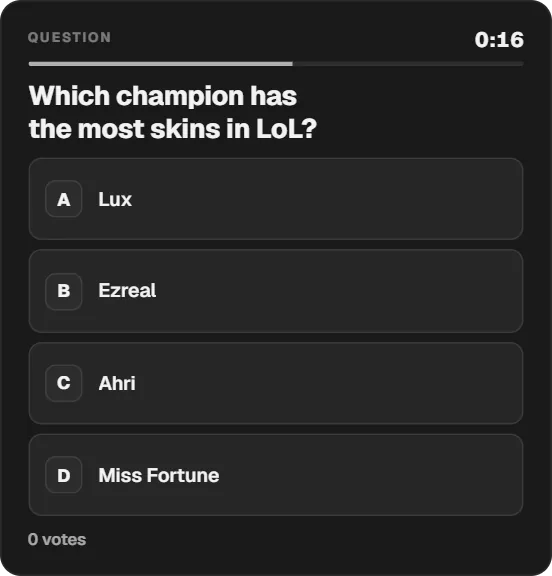
On your phone, the Quiz card runs down your list: questions already played with their most voted answer and its percentage, the question on air with its answers, then "Start" on the next one. "Start the vote" opens the round and brings the Quiz back on air if it was hidden. During the round, the card counts votes, "+ 10 s" and "+ 30 s" extend the timer and "Stop" closes the vote; when the timer ends, the results show on their own. "Reveal the answer" marks the right answer, "Hide the answer" removes it, and the reset clears the round's votes after a confirmation. "Edit questions" opens the list, the duration of each question and "Restart the quiz". Layout and style stay in the editor.
Ways to use it
A quiz night
Up to thirty questions, prepared before the stream and started one by one from the Control Room. The card keeps the result of every question played; "Restart the quiz" goes back to the first one for a new game.
A true or false mid-game
The Versus layout puts two answers face to face, with a tug-of-war bar. A short question, a fifteen-second timer, and chat settles it without you leaving the game.
Suspense before the answer
Turn off the automatic reveal: when the timer ends, chat sees its percentages without the solution. You comment on the votes, then "Reveal the answer" marks it on air.
Compared with the most common method
A question asked out loud, counted by hand in chat
| Aspect | With Twools | The other method |
|---|---|---|
| Setup | Questions prepared in the editor, an overlay link in a Browser Source. | Nothing to prepare: you read the question into your mic. |
| Counting votes | Every chat vote is counted, one per viewer: their last one. | You watch chat scroll by and estimate the most common answer. |
| What viewers see | The question, the answers, the timer, then the percentages and the right answer. | What you say, and chat scrolling by. |
| Several questions | Up to 30, started one by one from the Control Room, with the results of past questions. | Your list on paper or in a document, and the scores in your head. |
| Requirements | A Twools account, and streaming software that accepts a browser source (OBS, for example). | A mic, and chat open in front of you. |
When the other method makes sense
For a question asked on the fly, with no preparation, asking it out loud stays simpler: nothing to write beforehand, no account to connect. The Quiz widget helps when you prepare a series, with a timer chat can see and exact percentages on screen.
Quiz: frequently asked questions
How do I set up a Twitch quiz in OBS?
Add the Quiz widget, connect your Twitch account in the editor's "Questions" screen and prepare your questions and answers. Paste your overlay link into an OBS browser source, then start the first round from the Control Room.
How do viewers answer the quiz?
In Twitch chat, by typing the answer's letter, its number or its exact text; a leading exclamation mark works too. Each viewer gets one vote: if they change their mind, their last message counts.
Do I need to connect my Twitch account for the quiz?
Yes, once, in the editor. That is how Twools finds your channel: without a connected account, the quiz starts but counts no votes. The overlay then reads your public chat, including inside OBS.
Does the quiz work with YouTube chat?
No. Votes come from Twitch chat only. The overlay itself displays in any streaming software that accepts a browser source.
Can I test the quiz before going live?
Yes, off air. Hide the Quiz with the eye in the Control Room, then tap "Preview a result": sample votes fill the current question, with no audience. The button stays greyed out while the Quiz is on air, and the reset button (circular arrow) then clears that result.
Do percentages show while chat is voting?
No. During the round, the quiz shows the timer and the vote count; bars and percentages come with the results, when the timer ends or when you stop the vote. Only the Split panel layout shows, during the round, the latest voters and their letter.
Can I keep the suspense before the right answer?
Yes. Turn off "Reveal the correct answer automatically" in the editor: results show without marking the solution. You reveal it when you want with "Reveal the answer" in the Control Room, and "Hide the answer" takes it away.