
Add the Twitch chat widget to OBS
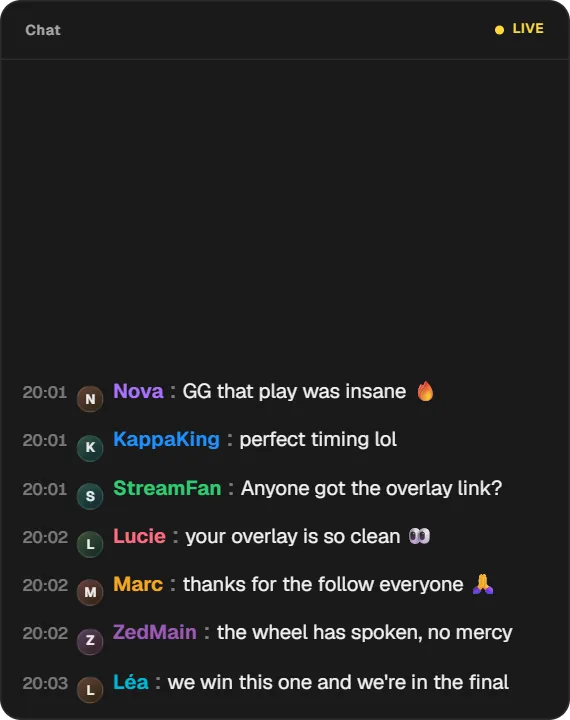
On a computer, open the Twools editor, add the Twitch chat widget and pick one of the six layouts.
In "Messages", click "Connect Twitch", then choose who can appear and how many messages stay on screen.
Click "Overlay link", copy your link and paste it into a Browser Source in your streaming software, sized to your canvas.
On your phone, open the Control Room: the chat card freezes the feed, pulls a message, clears the screen and changes the filter live.
Features
- Six layouts, from a classic list to conversation bubbles
- Role filter: everyone, moderators, subscribers, VIPs or badge holders
- Chat commands such as !so or !clip hidden by default
- Freeze the feed and pull a message from the Control Room, feature one with Broadcast
- Broadcaster, moderator, VIP, subscriber, partner and staff badges
The settings
| Setting | What it changes |
|---|---|
| Layout | Six designs: Classic, Compact, Editorial column, Conversation, Fade and Broadcast. Each can put the newest message at the top; Editorial column can group messages from the same author. |
| Who can appear | All, Moderators, Subscribers, VIPs or With a badge. Your own messages always get through. |
| Hide commands | On by default: messages starting with an exclamation mark, such as !discord or !uptime, do not show; your bot's replies still go through. |
| Messages on screen | As many as fit, the latest 10, 5 or 3, or a single one. Each message always shows whole. |
| Username colors | On, each username keeps its Twitch colour, lightened or darkened if it reads poorly on your background; off, they all take the text colour. |
| Visible elements | Badges can be hidden. Time and avatars (the username's initial) can be added if you want them; with Classic, the header with the LIVE dot too. |
| Spacing | The list margin and the gap between messages, to tighten or loosen the chat. |
From the Control Room
On your phone, the chat card shows the channel being read and the six latest messages received. On each one, a button pulls it off the air; with Broadcast, a pin puts it in the spotlight. "Restore" brings pulled messages back. The All, Mods, Subs, VIPs and Badges filters, and the button that hides commands, change what goes through, even on messages already shown. Freeze stops the feed everywhere, Resume restarts it, and Clear wipes the screen after a confirmation. When chat on that device is cut, Reconnect restarts it; your browser source has its own connection. The eye shows or hides the widget. Layout, style and the number of messages are changed in the editor.
Ways to use it
Chat over the gameplay
The Fade layout lays frameless lines over your game that fade as they age. With "Messages on screen" set to 5 or 3, the chat stays discreet in a corner.
Reading a message out loud
With Broadcast, you pin the message you are reading from the Control Room: it stays large on screen until you remove it from the spotlight.
Subscriber-only questions
The Subscribers filter only lets their messages and yours through, and the commands button keeps !commands out. You switch it from the Control Room, mid-stream.
Compared with the most common method
Twitch's chat popout in a Browser Source, with custom CSS
| Aspect | With Twools | The other method |
|---|---|---|
| Setup | A widget in the editor, your Twitch account connected, an overlay link in a Browser Source. | Your channel's chat popout address in a Browser Source, and a stylesheet to write or copy. |
| Style | Six layouts, style presets, colours, fonts and animations, without writing code. | Whatever your stylesheet can do; it depends on the internal names of Twitch's page. |
| Filters | By role (moderators, subscribers, VIPs, badge holders) and hidden commands. | Limited to what a stylesheet can hide: it does not read the text of messages. |
| Control during the stream | Freeze, pull a message, clear the screen or change the filter from the Control Room, on your phone. | No on-air controls: the popout shows chat the way Twitch displays it. |
| Requirements | A Twools account, and streaming software that accepts a browser source (OBS, for example). For the chat: your Twitch account connected, used to find your channel. | Streaming software that accepts a browser source; no account to connect. |
When the other method makes sense
If you want chat exactly as Twitch draws it, with its badges and no account to connect, the chat popout and a stylesheet are enough. The Twitch chat widget becomes useful when you want a style without code, role filters and a chat you control from your phone.
Twitch chat: frequently asked questions
How do I add a Twitch chat overlay to OBS?
Add the Twitch chat widget to your overlay, connect your Twitch account in the editor, then paste your overlay link into an OBS browser source. Chat shows up with the rest of your overlay.
Do I need to invite a bot to my channel?
No. You connect your Twitch account once so Twools can find your channel. The overlay then reads public chat, with no bot and no token to paste.
Can I pull an unwanted message off the stream?
Yes. From the Control Room you pull a specific message, freeze the feed or clear the displayed chat. A message deleted by your moderators on Twitch also leaves the overlay.
Do Twitch emotes show as images?
Yes. Emotes Twitch recognises in a message, your channel's included, show as images at text height, animated when they are. An emote added by a browser extension stays written as text.
Does chat display with a transparent background?
With the Fade layout, yes: messages float over your game with no frame. The other layouts have a background and a border you adjust in the editor.
Does chat still show if I close the editor and the Control Room?
Yes. Your browser source joins your channel's chat by itself, read-only, as long as your Twitch account stays connected to Twools. The Control Room is only there to act on what goes on air: freeze, pull, clear or filter.
How many messages does the chat show at once?
By default, as many as the widget's height holds, always whole. In "Messages", you can keep only the latest 10, 5 or 3, or a single one. Messages are not saved: a reloaded source starts from an empty chat.
Does a chat freeze carry over to the next stream?
Yes. The freeze is saved with your overlay: until you press Resume, no new message shows, even after OBS restarts. The editor flags it in "Messages", and messages written during the freeze do not come back.
How do I feature a chat message on the overlay?
Pick the Broadcast layout: the latest message shows large, earlier ones small above it. In the Control Room, pinning a message puts it in the spotlight until you remove it. The other layouts do not show the featured message.