

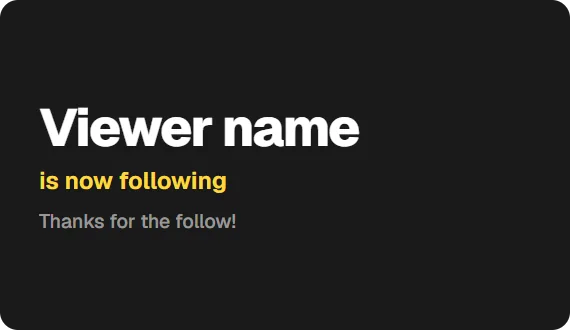
Add the Follower alert widget to OBS
On a computer, open the Twools editor, add the Follower alert widget and pick one of the eight layouts.
In "Alert", click "Connect Twitch", then write the sentence after the username and your message, and set the display duration.
Click "Overlay link", copy your link and paste it into a Browser Source in your streaming software, sized to your canvas.
During the stream, keep the editor or the Control Room open with your account: that page receives the follows and sends them to your browser source.
Before going live, "Test" in the Control Room puts a sample alert in your name on air.
Features
- Eight layouts, from a large name with no avatar to a "Latest follow" label that stays on air
- The follower's Twitch profile picture, or their initial
- Display time from 1 to 30 seconds, 5 by default
- Queue of five alerts when follows arrive in a burst
- Test, Cut the alert and Disable in the Control Room, with the latest alert shown
The settings
| Setting | What it changes |
|---|---|
| Layout | Eight designs: Welcome, Portrait, Totem, Pill, Subtitles, Headline, Banner and Label, the only one that stays on air. |
| After the name | The sentence written after the username, "is now following" by default. The defaults follow the language the editor was in when you added the widget; "On-air language", in the Display screen, switches them. |
| Your message | The same for every follow, under the sentence; the default is a thank-you. Pill writes it only with "Write your message" turned on; Pill and Subtitles only on a tall enough widget. |
| Display duration | From 1 to 30 seconds, 5 by default: each alert stays on air that long, then leaves. |
| Image source | Twitch picture, the real profile picture, or Monogram, the initial. Only with Portrait, Totem, Pill and Banner; Portrait and Totem draw the picture only, never the initial. |
| Visible elements | The sentence, the avatar and your message can be hidden; the username always shows. |
| Spacing | The margins and the gap between lines, to tighten or loosen the alert. |
From the Control Room
On your phone, the card tells you what is on air. During an alert, it shows the username, "New follow" and the time left, with "Cut the alert", which ends it without hiding the widget. At rest, it recalls the latest alert and when it played. "Test" plays a sample alert in your name, replacing the current one. "Disable" stops alerts until "Enable", even on the next stream, and the eye hides the whole widget. The card keeps no list of past follows; text, duration and layout are changed in the editor.
Ways to use it
Welcoming a raid
Twenty follows land at once: six alerts play, the first one then the last five, each for the duration you chose. Shorten the duration so the wave goes by faster.
A discreet in-game alert
The Pill layout fits in a corner with the photo, username and sentence; Subtitles lays one or two frameless lines over your game.
A moment not to interrupt
During a cutscene or a tense moment, "Disable" pauses alerts from your phone. Remember to press "Enable" afterwards: follows from that moment do not come back.
Compared with the most common method
A generic alert service added as a Browser Source
| Aspect | With Twools | The other method |
|---|---|---|
| Setup | A widget in the editor, your Twitch account connected, an overlay link in a Browser Source. | An account on the service, your Twitch channel linked, and its alert address in a Browser Source. |
| Receiving follows | Through the editor or the Control Room open with your account: your browser source shows what that page receives. | Often through the service's servers, with no tab to keep open. |
| Sound | None: the alert is visual. | Usually one sound per alert, which you pick. |
| Style | Eight layouts, plus your overlay's style presets, colours, fonts and animations. | The service's templates and options, sometimes CSS to write. |
| Control during the stream | Test, cut or disable from the Control Room, on your phone. | From the service's dashboard. |
| Requirements | A Twools account, and streaming software that accepts a browser source (OBS, for example). For the alerts: your Twitch account connected. | An account on the service, linked to your Twitch channel. |
When the other method makes sense
If you want a sound for every follow, or alerts that arrive with no page open, an alert service does what Twools does not. The Follower alert widget becomes useful when the alert must carry your overlay's style and be run from the same Control Room as your other widgets.
Follower alert: frequently asked questions
How do I add a Twitch follower alert to OBS?
Add the widget to your overlay, connect your Twitch account in the editor, then paste your overlay link into an OBS browser source. The "Test" button in the Control Room checks the result before you go live.
Why is my follower alert not showing?
Check four things: your Twitch account is connected, the alert is enabled in the Control Room, the widget is on air, and the editor or the Control Room stays open during the stream. With no tab open, no follow reaches your browser source, and it does not come back later.
Does the follower alert play a sound?
No. The alert is visual: username, text, profile picture and entry and exit animations.
What happens when several people follow at the same time?
Alerts play one after another. The queue keeps five waiting; beyond that, the oldest are skipped. During a raid of twenty follows, six alerts play: the first one in and the last five.
Can I change the follower alert text?
Yes. In "Alert", you rewrite the sentence after the username, "is now following" by default, and your message, the same for every follow. Both defaults follow the language the editor was in when you added the widget. An empty field shows nothing, and the Pill layout does not write your message.
How long does the follower alert stay on screen?
5 seconds by default, from 1 to 30 seconds in "Alert". In the Control Room, "Cut the alert" ends it early without hiding the widget.
Does the follower alert work outside Twitch?
No. It only receives follows of the connected Twitch channel. The widget shows in any streaming software that accepts a browser source, but it reads no other platform.
How do I pause follower alerts during part of the stream?
In the Control Room, "Disable" stops alerts until you press "Enable", even on the next stream. Follows received in the meantime do not come back. The eye, on the other hand, hides the whole widget.
Can I show my latest follow permanently?
Yes, with the Label layout: "Latest follow" above the name, in a corner. It stays on air and, on each follow, a wipe in your accent colour writes the new one. When your account connects, Twools reads your most recent follow from Twitch; "Test" in the Control Room plays the wipe.