

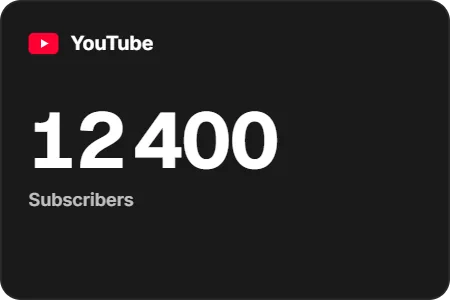
Add the YouTube counter widget to OBS
On a computer, open the Twools editor, add the YouTube counter widget and pick one of the eight layouts.
In "Channel", paste your channel's handle or link, click "Verify", then pick Subscribers, Total views or Video count.
Click "Overlay link", copy your link and paste it into a Browser Source in your streaming software, sized to your canvas.
Put the widget on air and keep the Control Room open during the stream: its card reads the figure and counts the gain since the session started.
Features
- Subscribers, views or videos: you choose the figure shown
- Reloads every 5 to 60 minutes, 15 by default
- Subscribers gained since the start of the session
- Progress bar toward the subscriber goal you set
- Eight layouts, including Edition, which gathers all three figures
The settings
| Setting | What it changes |
|---|---|
| Layout | Eight designs: Signature, Minimal, Cap, Cartouche, Edition, Trend, Plaque and Odometer. |
| Your YouTube channel | The handle after the @, the channel link or its ID. "Verify" shows the channel found and its three figures; "Change" connects another one. |
| What should it show? | Subscribers, Total views or Video count. Cap and Plaque always show subscribers, Edition shows all three. |
| Subscriber goal | With Cap, the goal the bar fills up to. At 0, the widget aims for the next round number on its own. |
| On-air words | The words written on air. Left empty, the overlay writes the defaults: "Subscribers", "Next milestone", "today" on a widget added with the editor in English, their French versions with the editor in French. |
| Update | One reading every 5 to 60 minutes, in steps of 5, 15 by default. YouTube limits how many updates happen per day. |
| Visible elements | Removes the channel name, the gain, the YouTube icon, the Trend curve or the goal bar. Switches on what starts hidden: your count against the goal with Cap, the next milestone and its bar with Plaque. The count itself always stays. |
From the Control Room
On your phone, the counter card shows the channel name, how long ago the last reading was and the figure in very large type. For subscribers, it adds the gain since the session started ("≈ +40 since 20:12") and the starting count. "Refresh now" reads the figure without waiting for the next automatic reading, whose countdown the card shows, and "New session" resets the gain to zero after a confirmation. With Cap, tapping the goal lets you type another one. The eye shows or hides the widget, and the star plays the burst when the animation style has one. Channel, figure shown and interval are changed in the editor.
Ways to use it
A subscriber goal to reach
With Cap, the widget shows the subscribers left before your goal, 190,000 for example, with the bar. Once the goal is reached, one tap in the Control Room sets the next one.
The session gain
At the start of the stream, "New session" in the Control Room resets the gain to zero. Signature or Trend then show the gain, with the curve of the latest readings under Trend.
Your YouTube channel on a Twitch stream
You stream on Twitch and post videos on YouTube: the Cartouche, at the bottom of the screen, shows your channel name and subscribers while you mention it to chat.
Compared with the most common method
A third-party counter page pasted as a browser source
| Aspect | With Twools | The other method |
|---|---|---|
| Setup | A widget in the editor, your channel verified, an overlay link in a Browser Source. | The counter page's address, pasted into a Browser Source. |
| Figure shown | YouTube's public figure, rounded above 1,000 subscribers, read every 5 to 60 minutes. | The one the site publishes, sometimes an estimate between two YouTube roundings. |
| Style | Eight layouts, including an engraved plaque and an odometer, plus your overlay's style presets. | The site's options, if it has any: colours, font, background. |
| Goal and gain | The goal you aim for, the subscribers left and the gain since the session started. | Depends on what the site offers. |
| During the stream | The Control Room, on a phone, refreshes the figure, resets the gain and raises the goal. | Nothing to run: the page updates on its own, with no window to keep open. |
| Requirements | A Twools account, and streaming software that accepts a browser source (OBS, for example). | Streaming software that accepts a browser source, and your channel's address on the site. |
When the other method makes sense
If you want a figure that moves without keeping the editor or the Control Room open, a third-party counter page does the job, and some estimate the count between two roundings. The YouTube counter becomes useful when you want your overlay's style, a goal, a plaque or the session gain.
YouTube counter: frequently asked questions
How do I get a live YouTube subscriber counter on stream?
Add the YouTube counter widget to your overlay, paste your channel's link or handle and click "Verify". Then paste your overlay link into an OBS browser source and put the widget on air: off air, it does not refresh.
Is the YouTube counter updated in real time?
No. It refreshes every 5 to 60 minutes while the editor or the Control Room stays open: OBS on its own shows the last figure received. The "Refresh now" button in the Control Room forces an update. YouTube also rounds the subscriber count it publishes.
Do I need to connect my Google account?
No. The widget reads your channel's public figures. You only enter its link, its handle or its ID.
Can I show the channel's views?
Yes. You choose between subscribers, total views and the number of videos. The Edition layout shows all three at once.
Why does the subscriber count move in steps?
Because YouTube rounds the subscriber count it publishes to three digits above 1,000: a channel with 45,237 subscribers shows as 45,200. The gain therefore moves in steps of 10, 100 or more depending on the channel's size, and both the widget and the Control Room write it with "≈".
How do I show a subscriber goal on stream?
Pick the Cap layout: it shows your goal at the top, the subscribers left in large type and a bar; your count against the goal can be switched on in "Visible elements". Set the "Subscriber goal" in the editor; at 0, the widget aims for the next round number. In the Control Room, tapping the goal lets you type another one, once it is reached for example.
What does the YouTube counter's session gain count?
Subscribers gained since you verified your channel, or since your last tap on "New session" in the Control Room. The gain never starts from zero on its own: tap "New session" at the start of the stream. It counts subscribers only.
What if my channel hides its subscriber count?
The widget says so when you verify the channel and suggests showing total views or the video count instead: YouTube does not publish the subscribers of a channel that hides them.