Skip to content

An overlay editor, and a control room to run it live.

Twools is an online tool for Twitch and YouTube streamers. It combines an editor, where the overlay is built on a blank canvas, choosing from 29 widgets, and a Control Room, a web page that runs those widgets during the stream from a phone, a tablet or a second screen.

Create my overlay

Free plan · No credit card

On air
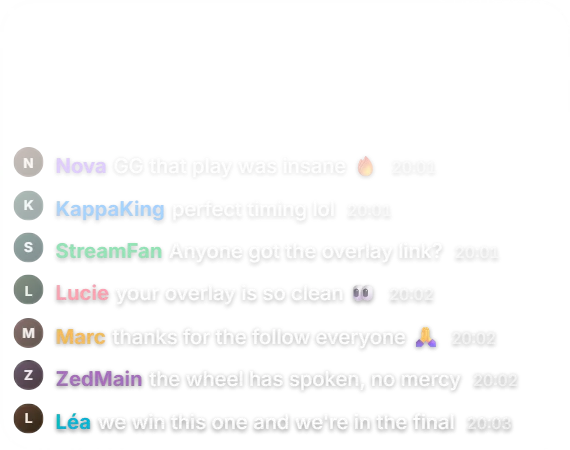
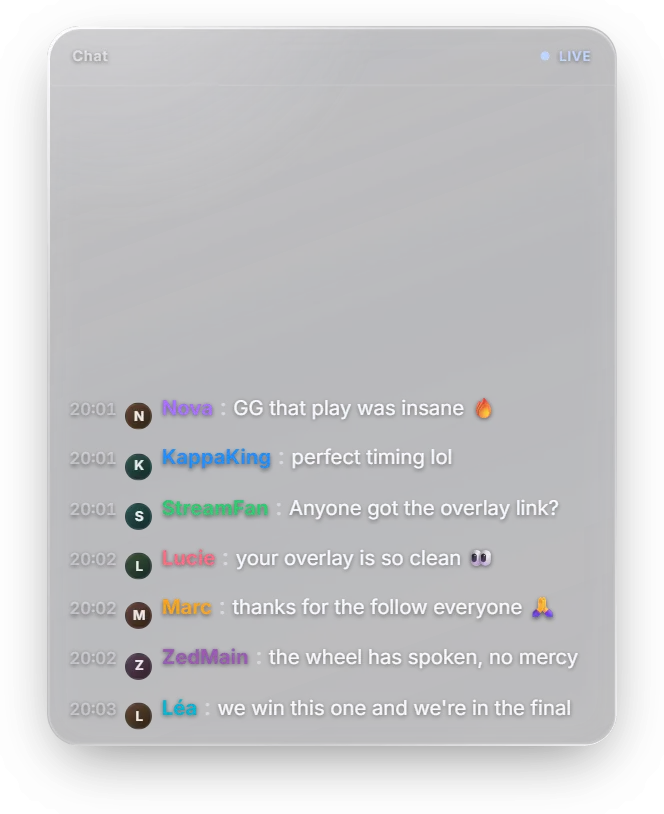
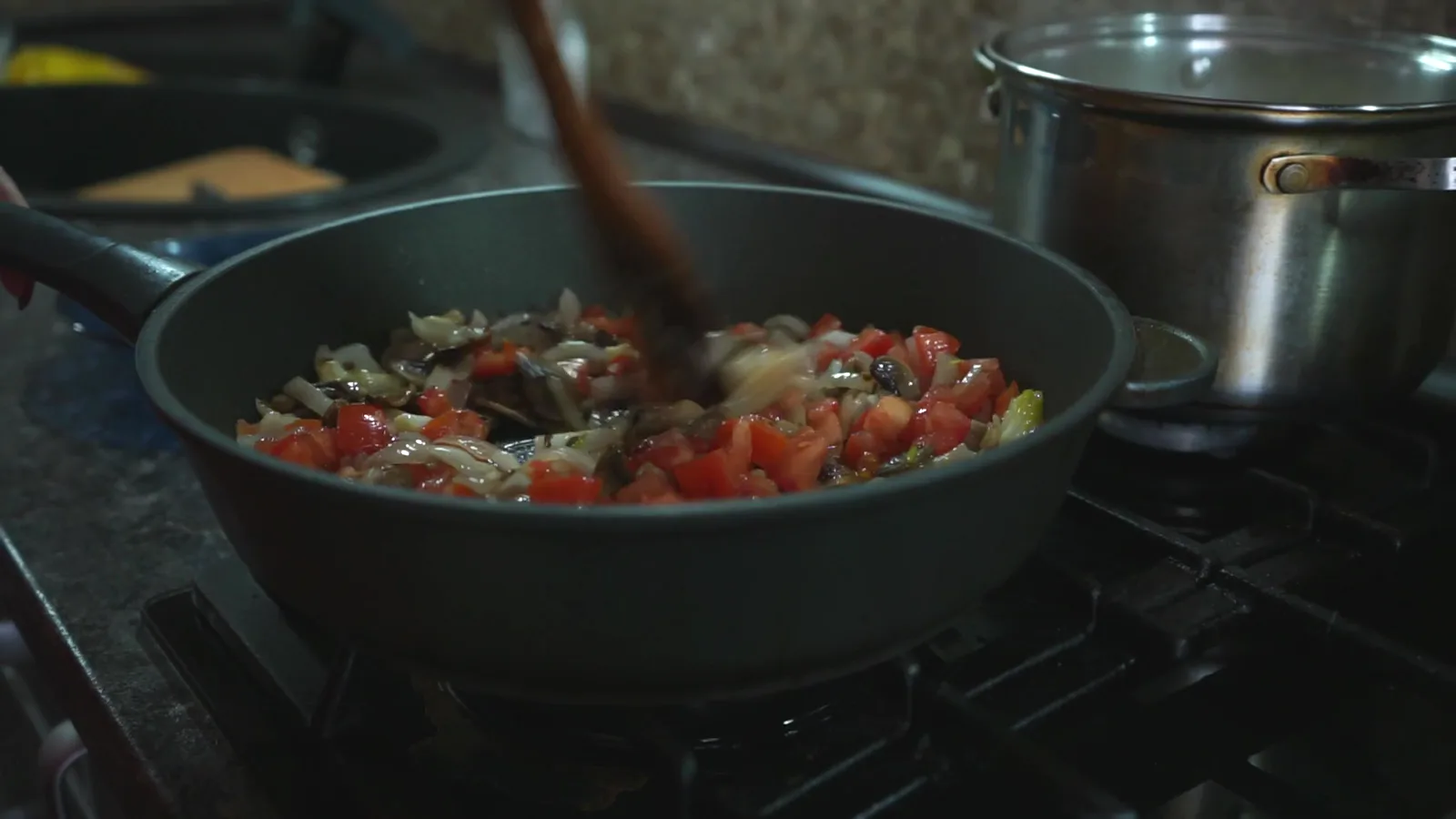
A Twitch chat, a counter and a timer, on air over a cooking stream.
How many widgets?
29 widgets, from Twitch chat to a match score.
Do I need to install anything?
No, except Buddy on Windows, for your music and Riot ranks.
Does it work with OBS?
Yes. Your overlay link goes into a Browser Source.
How much does it cost?
11 of 29 widgets are included in the free plan.

The editor, screen by screen

It opens in your browser, on a computer. Everything is set with the mouse, with no code.

1 of 5

Build on a canvas

Open the "Widgets" drawer and drag your widgets onto the stage, then move and resize them with the mouse. You can also start from a base and change it. Ctrl+Z undoes your last move.
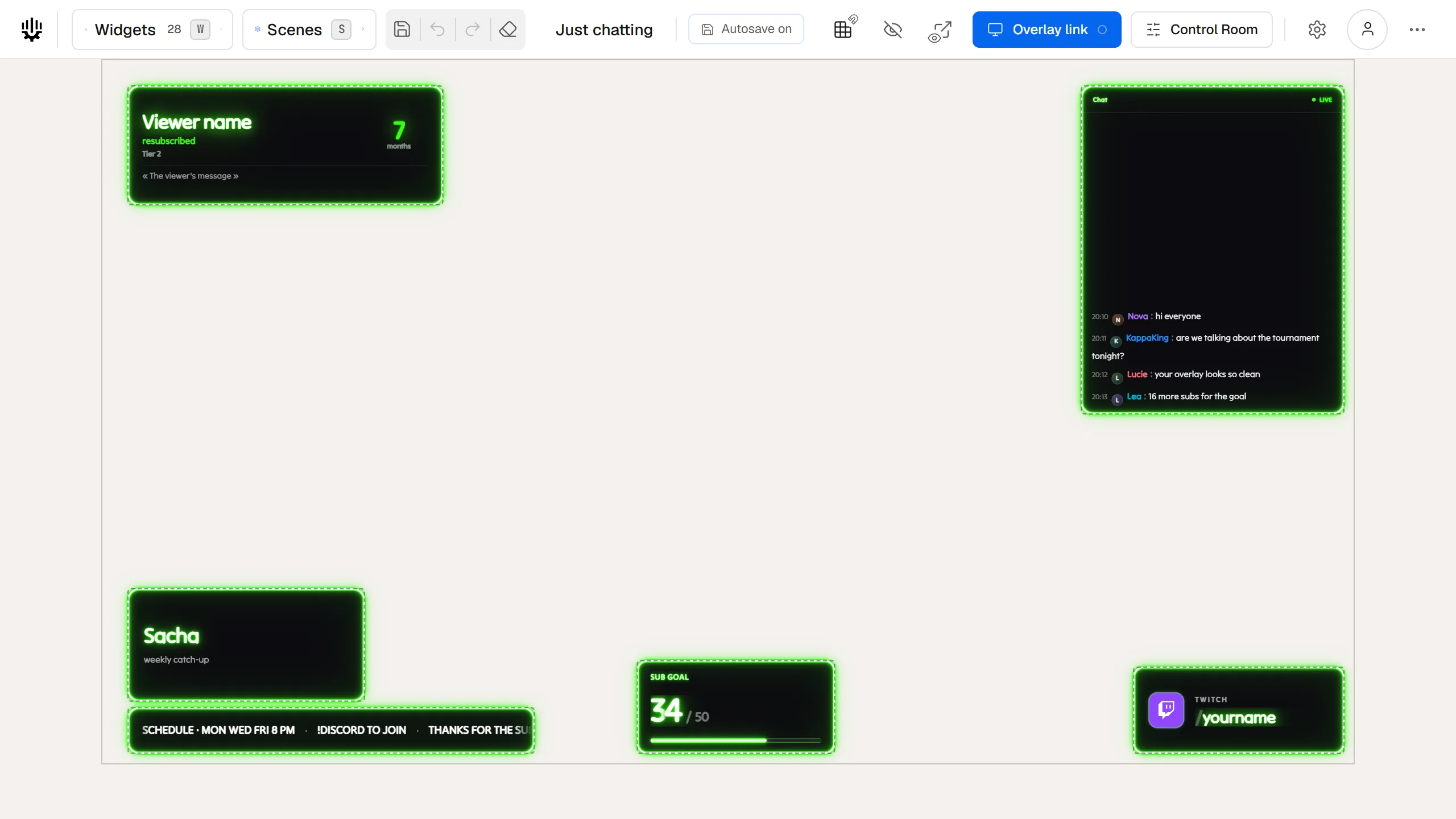
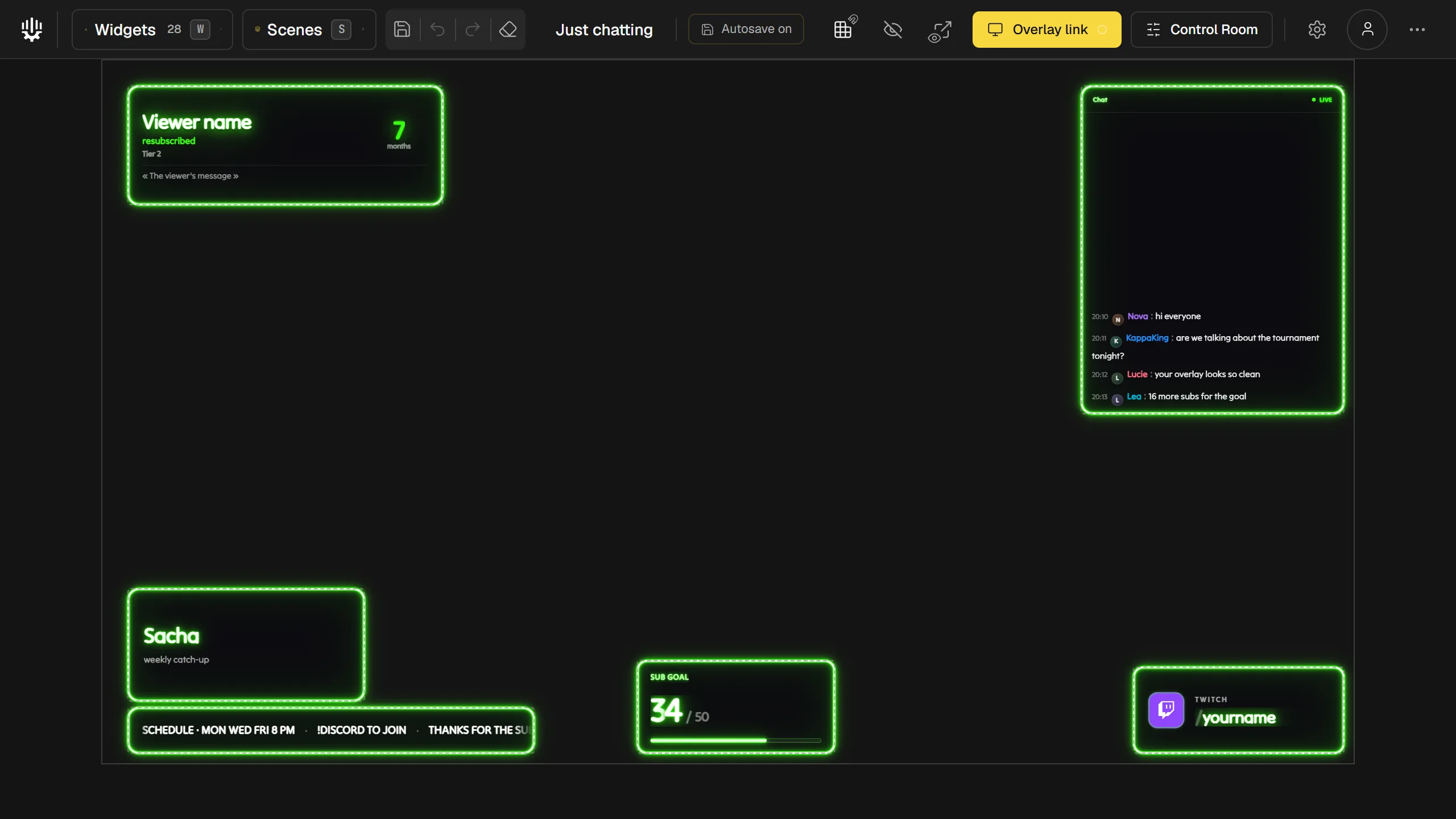
The Twools editor with its top bar, where the scene is named Just chatting, and, on the canvas, the six widgets of the Just chatting base in the Neon look.

2 of 5

Or describe your stream to the AI

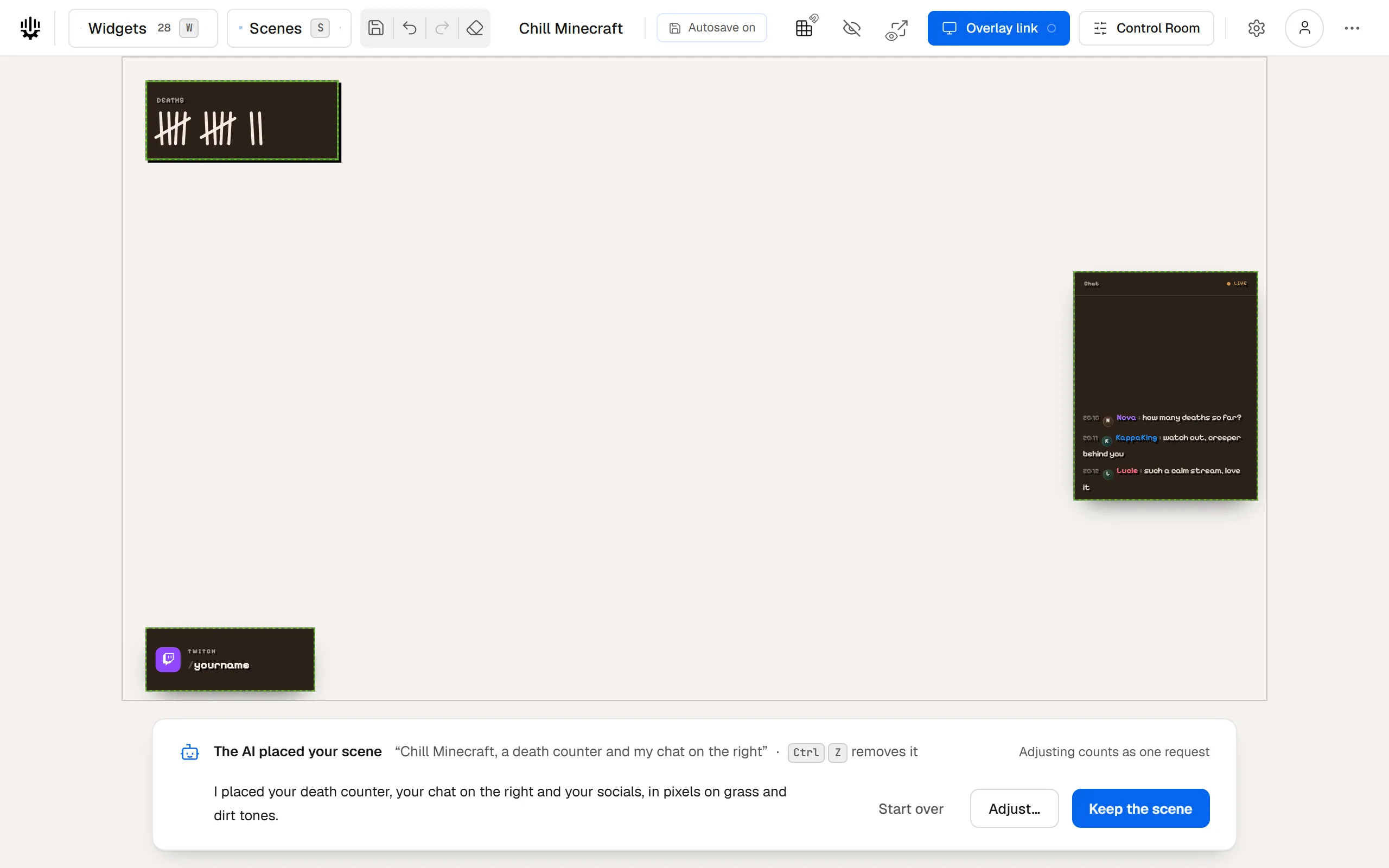
On an empty scene, describe your stream in one sentence. The AI picks the widgets, their place, a look and colours, then places the scene on your canvas. You keep it, adjust it or start over.
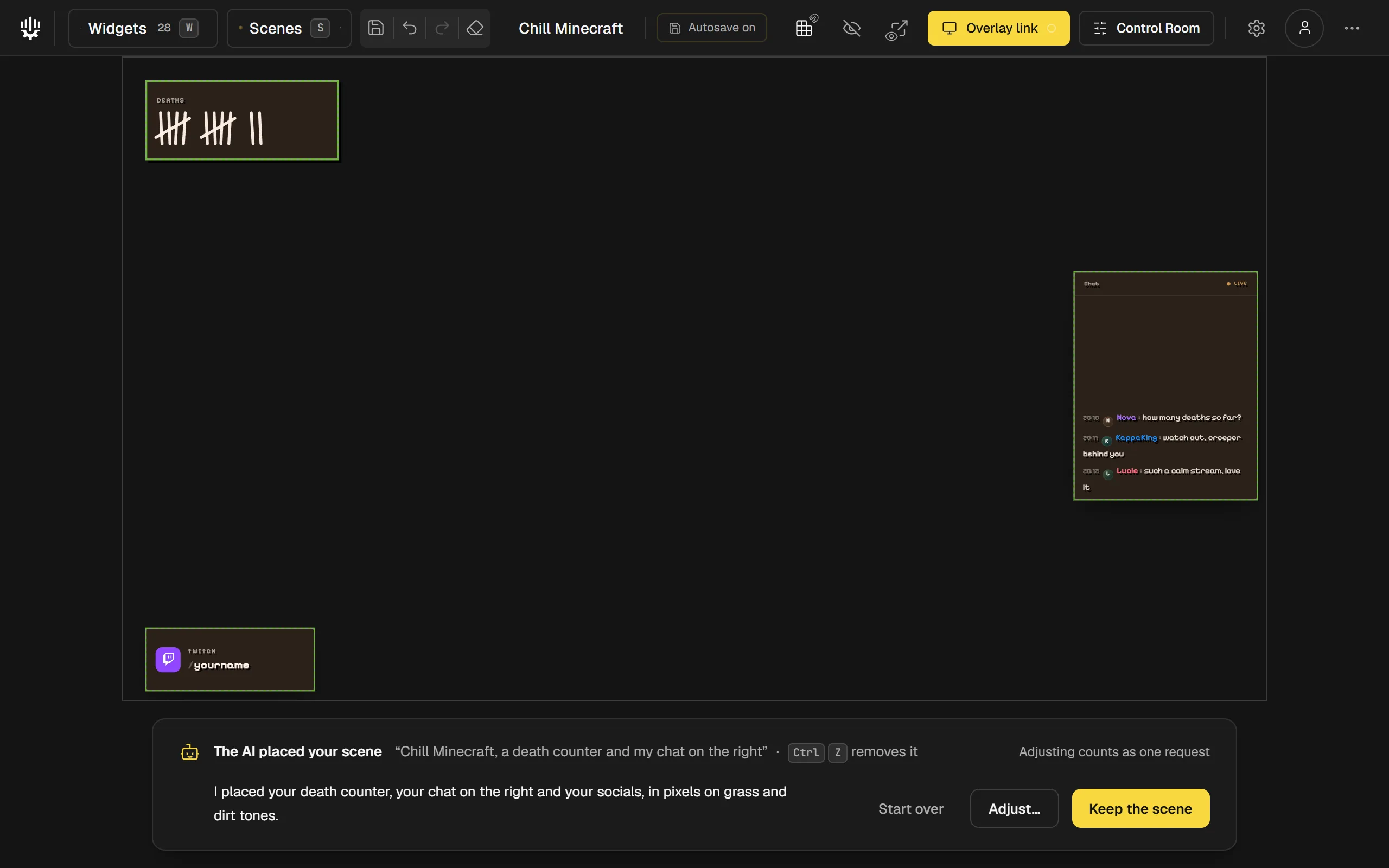
The guide "Compose a scene with AI"

The editor with a pixel-style Chill Minecraft scene (death counter, chat, social handle) and, at the bottom, the bar "The AI placed your scene" with Start over, Adjust… and Keep the scene.

3 of 5

A look in one click

"Looks" changes a widget's whole style: colours, font, border, effects. Hover one of the 68 looks to try it in the preview, click to apply it, then fine-tune what you want.
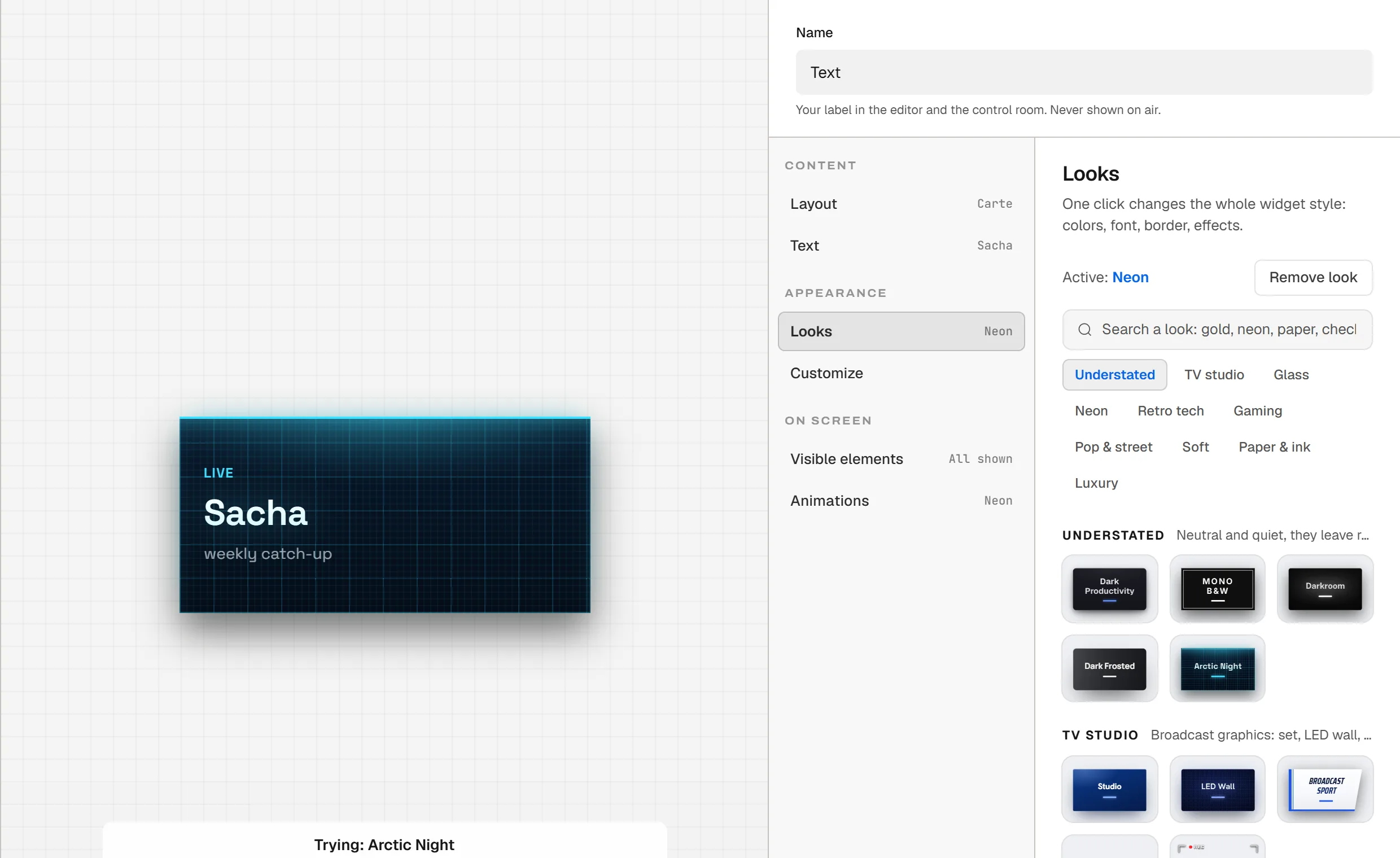
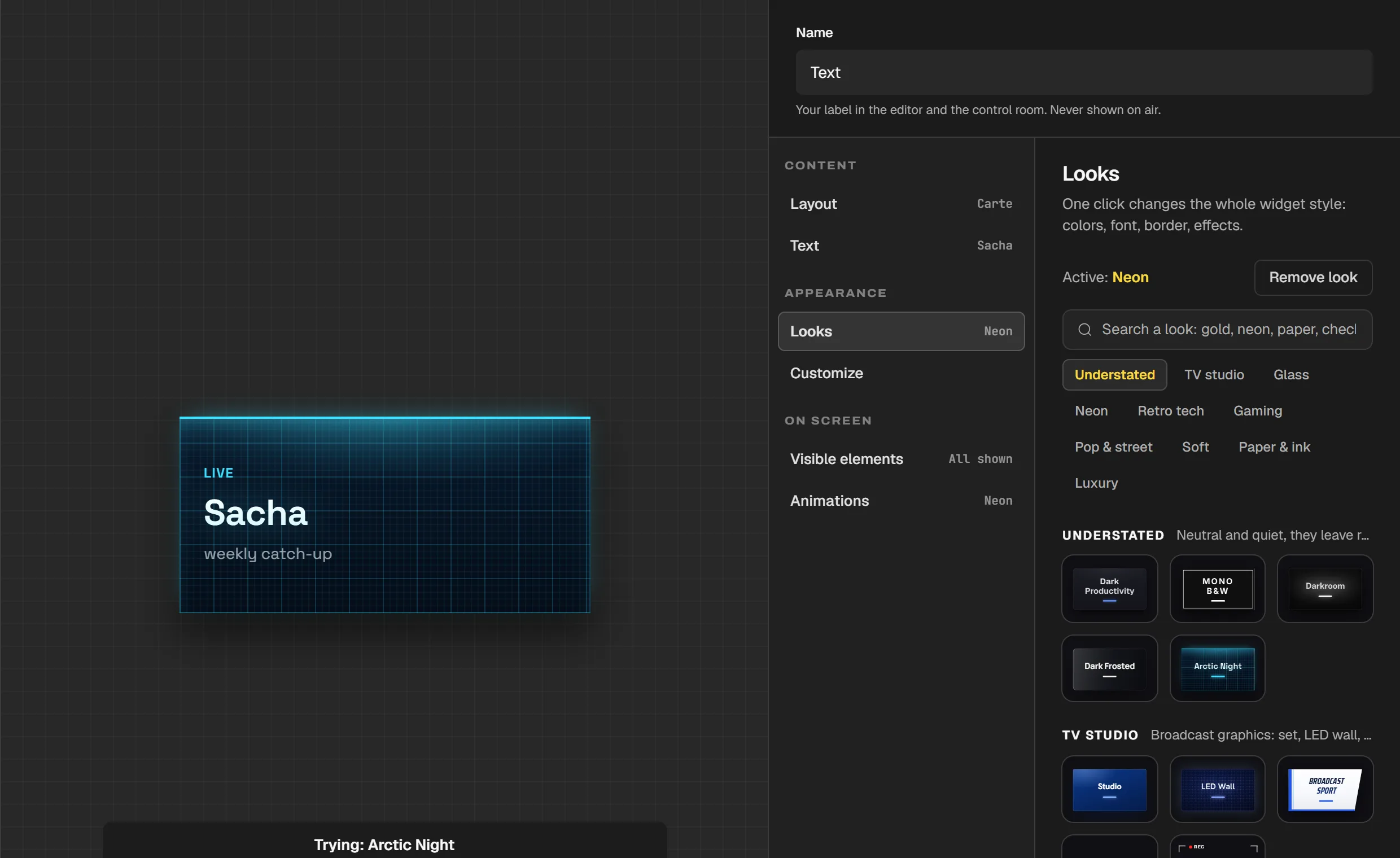
The guide "Choose a look"

The Text widget's panel on the Looks screen: on the left, the "Sacha" card tried in Arctic Night, with the caption "Trying: Arctic Night"; on the right, "Active: Neon", the search field, the universes and the look tiles.

4 of 5

One element, without touching the rest

In "Customize", click an element in the preview, for example a Text widget's message, and set its colour, font and effects. It keeps its settings when you switch looks.
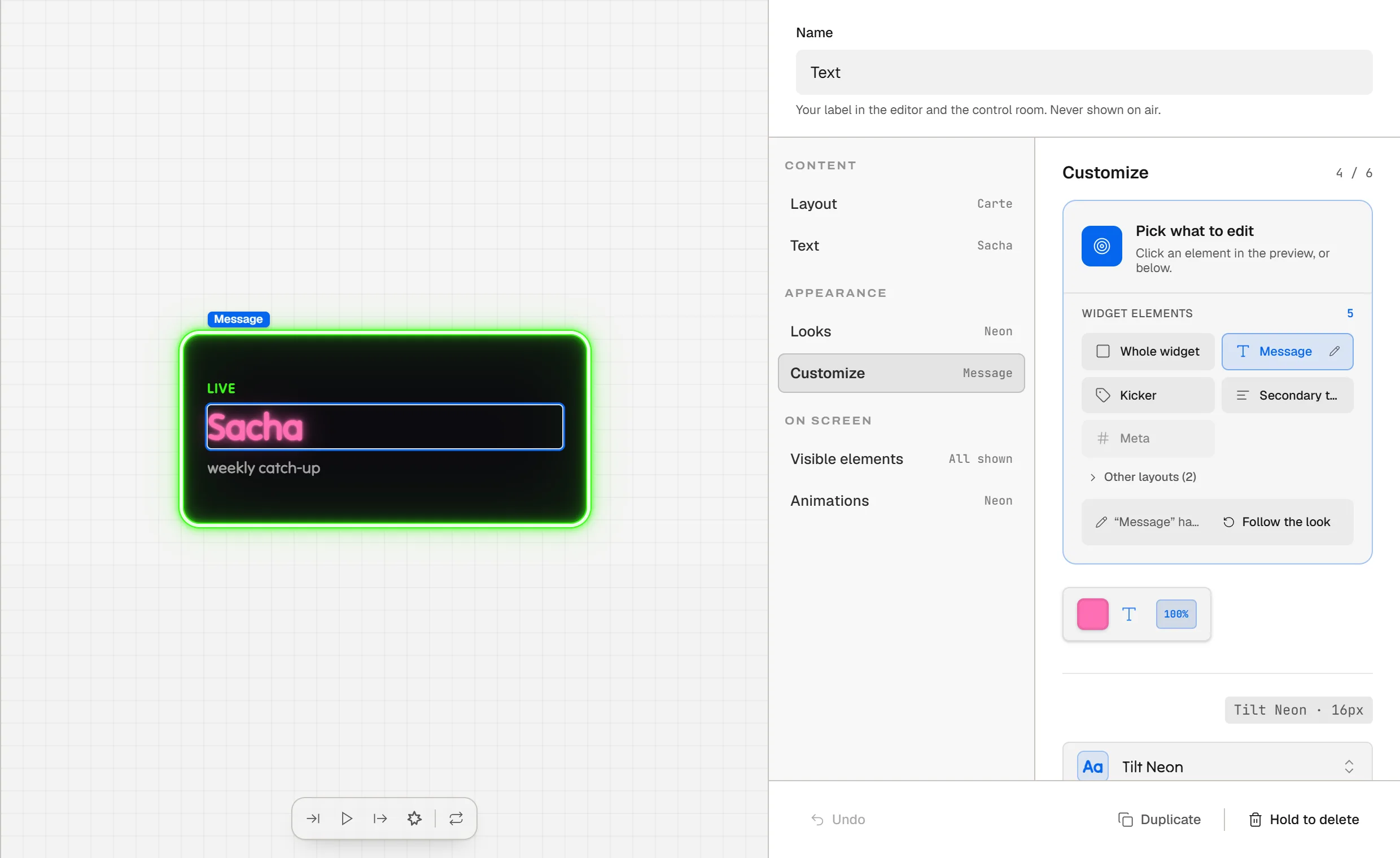
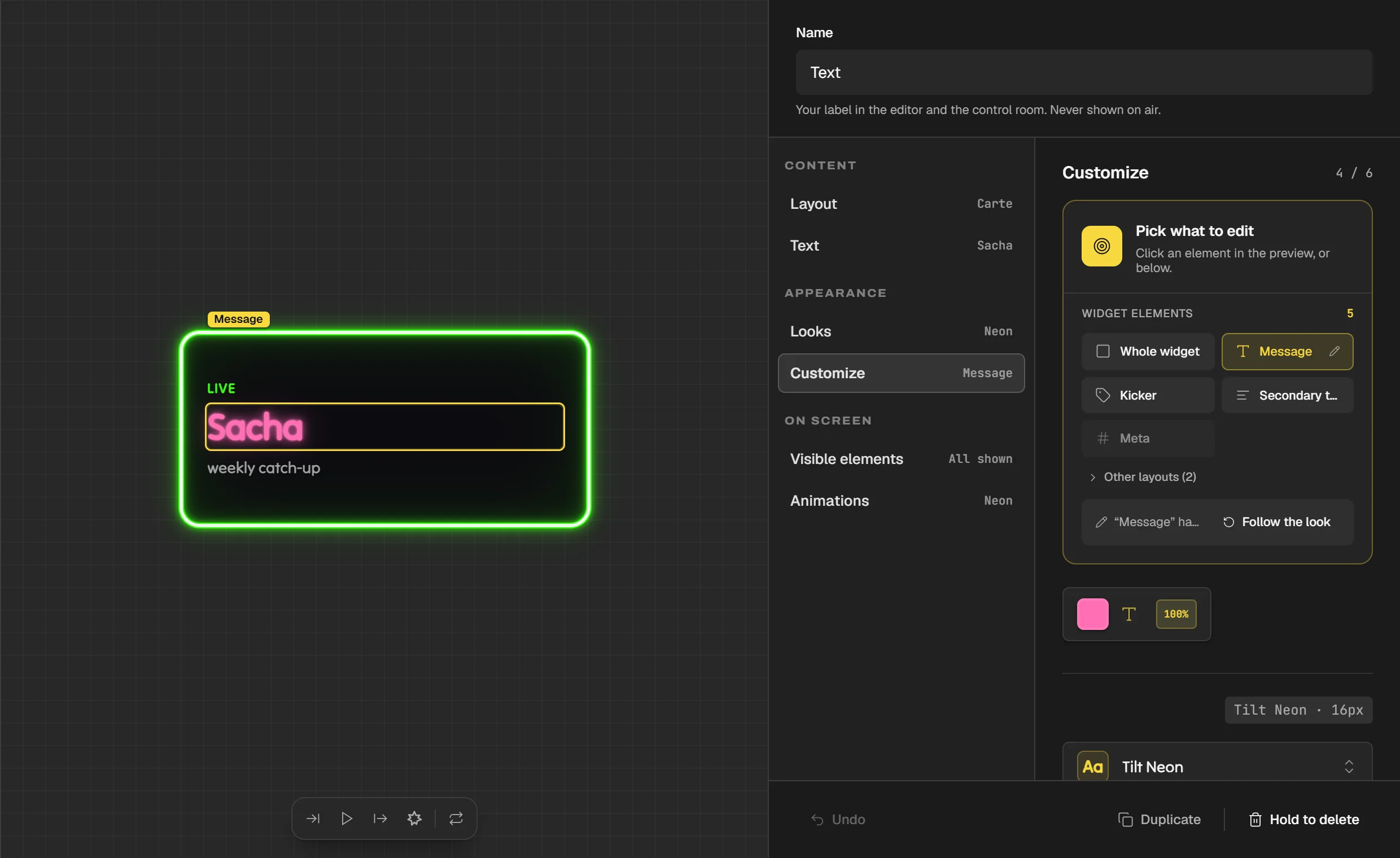
The guide "Customize a single element"

The Text widget's panel on the Customize screen: on the left, the "Sacha" card, the message outlined and labeled "Message"; on the right, the grid of elements, Message picked, then its colour and font.

5 of 5

Entrances, exits and bursts

The "Animations" screen sets a widget's entrance, change and exit in one click, with a motion style. You add a burst, to launch from the Control Room, content that lives on its own and a frame that moves.
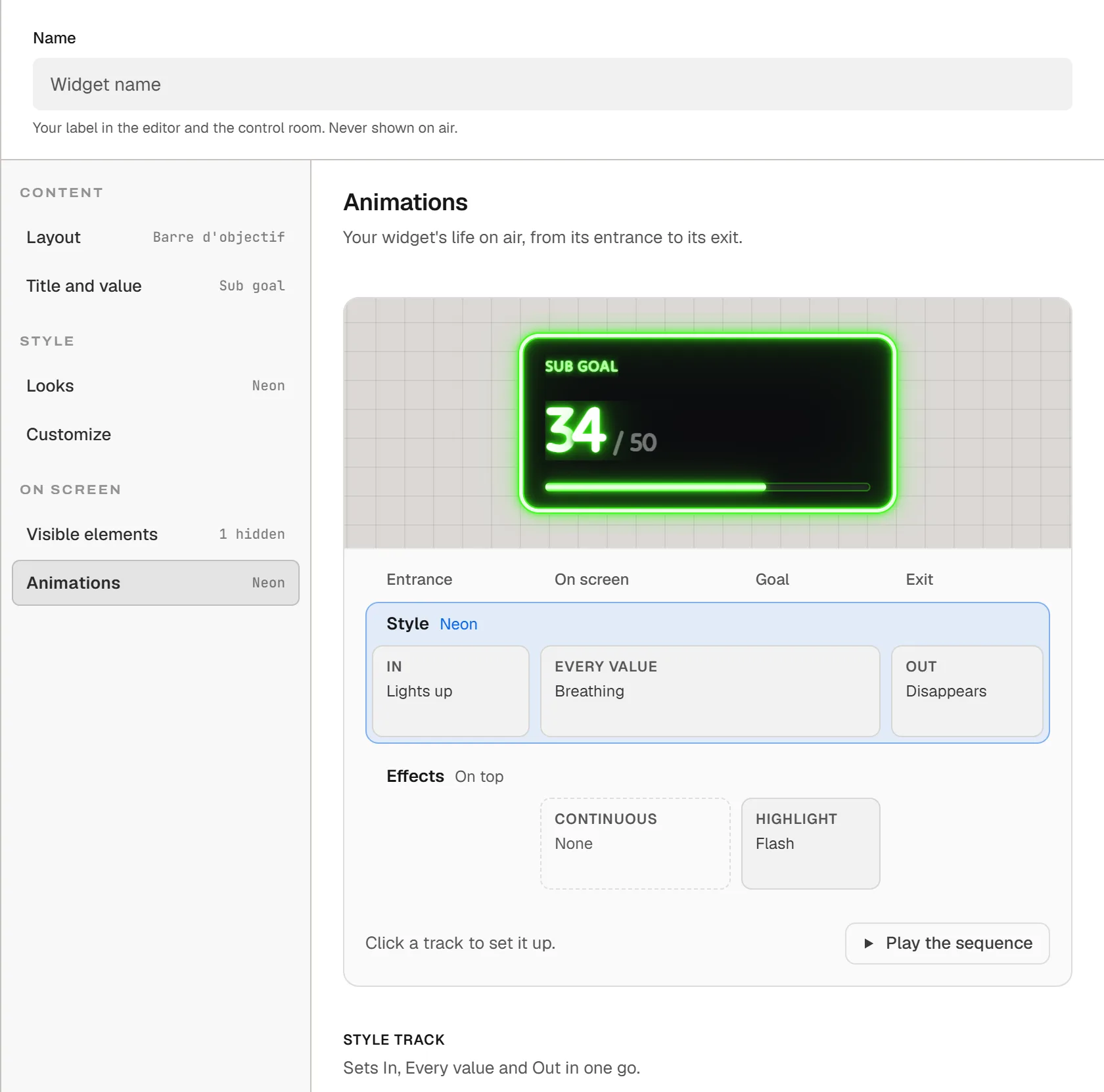
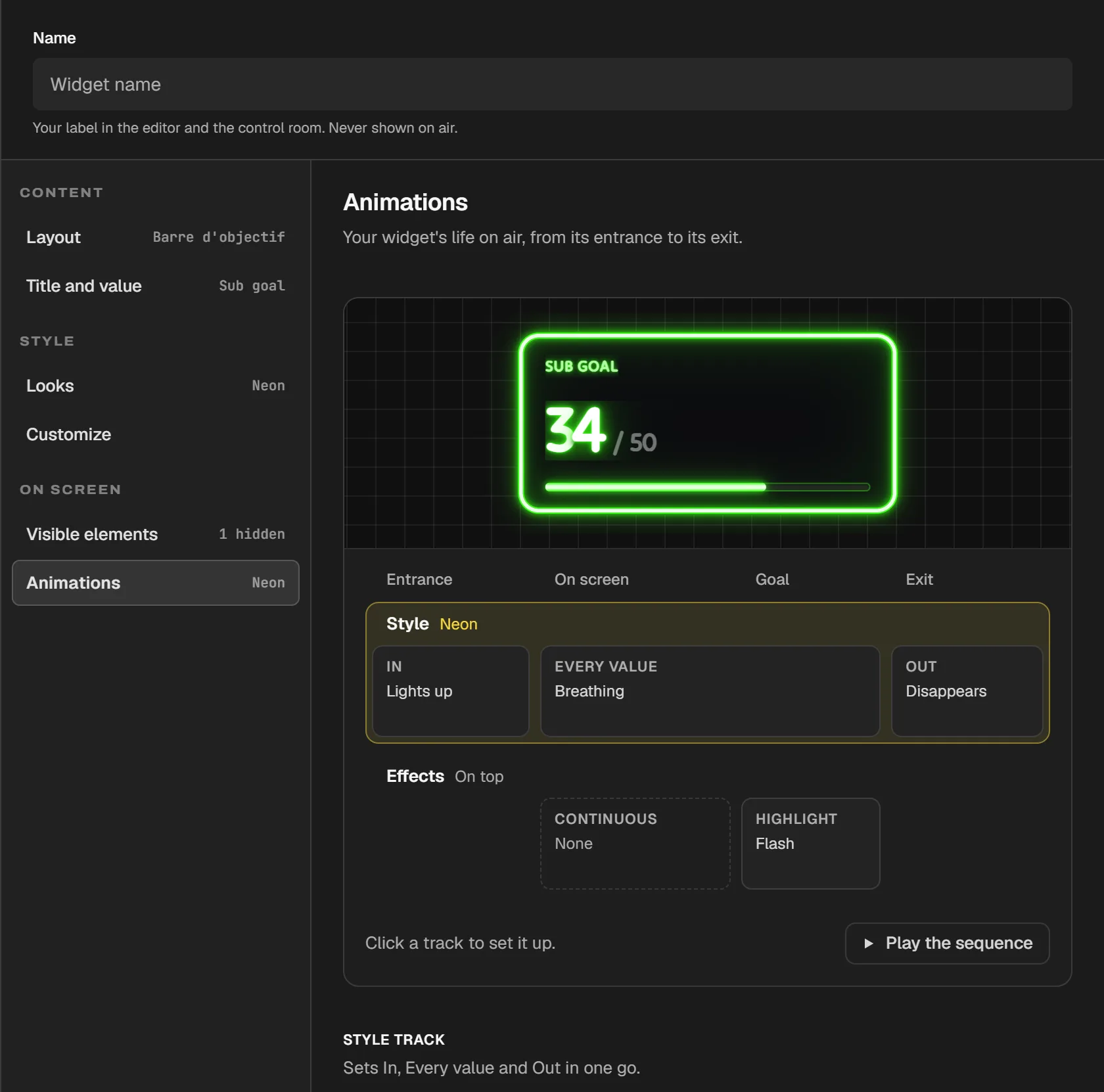
The guide "Animate your widgets"

A counter's panel on the Animations screen: the miniature of the sub goal, 34 out of 50, then the timeline: In Lights up, Out Disappears and, in between, When it changes, Burst, Living content, Living frame and Neon.

Live, from the Control Room

The Control Room is a web page. Open it on your phone, a tablet or a second screen.

1 of 2

One card per widget

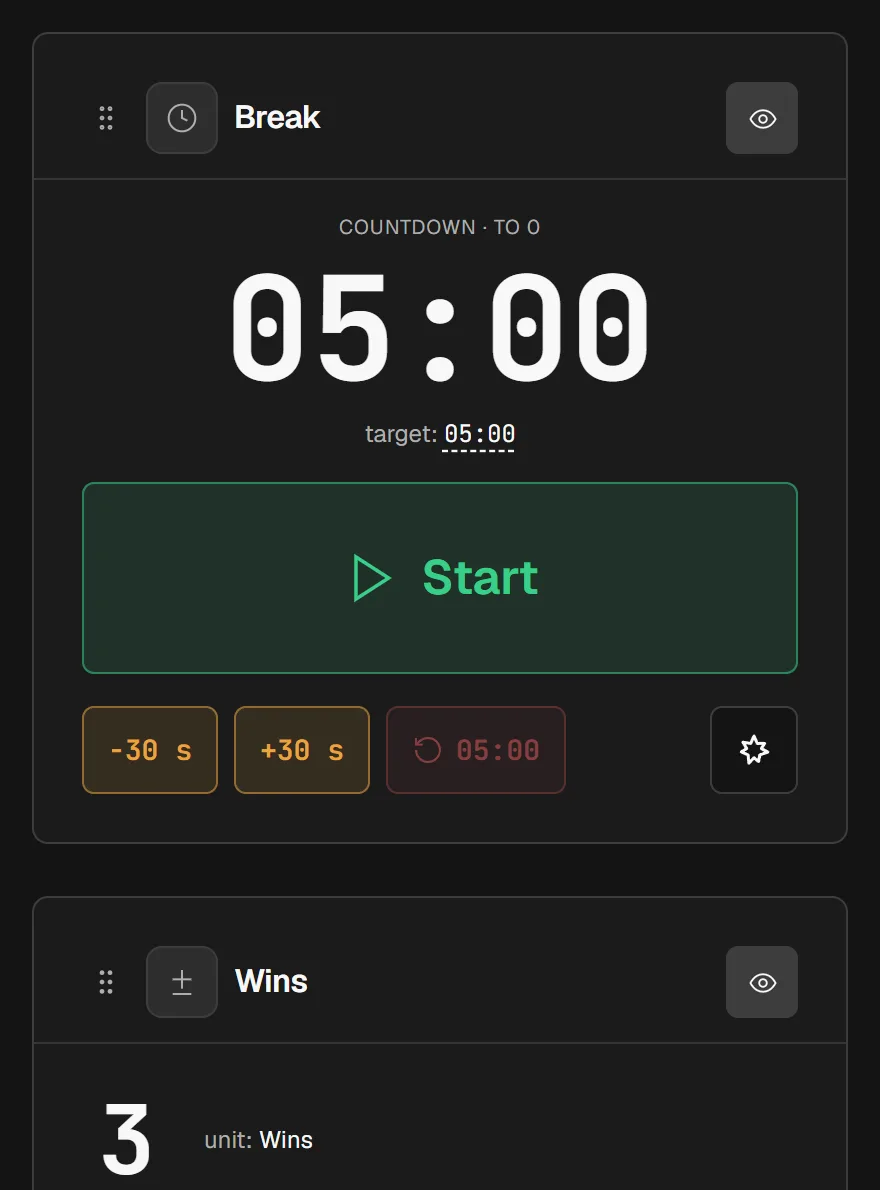
The Control Room shows one card per widget in your scene. You start a timer, add a point, show or hide a widget, from any device signed in to your account.
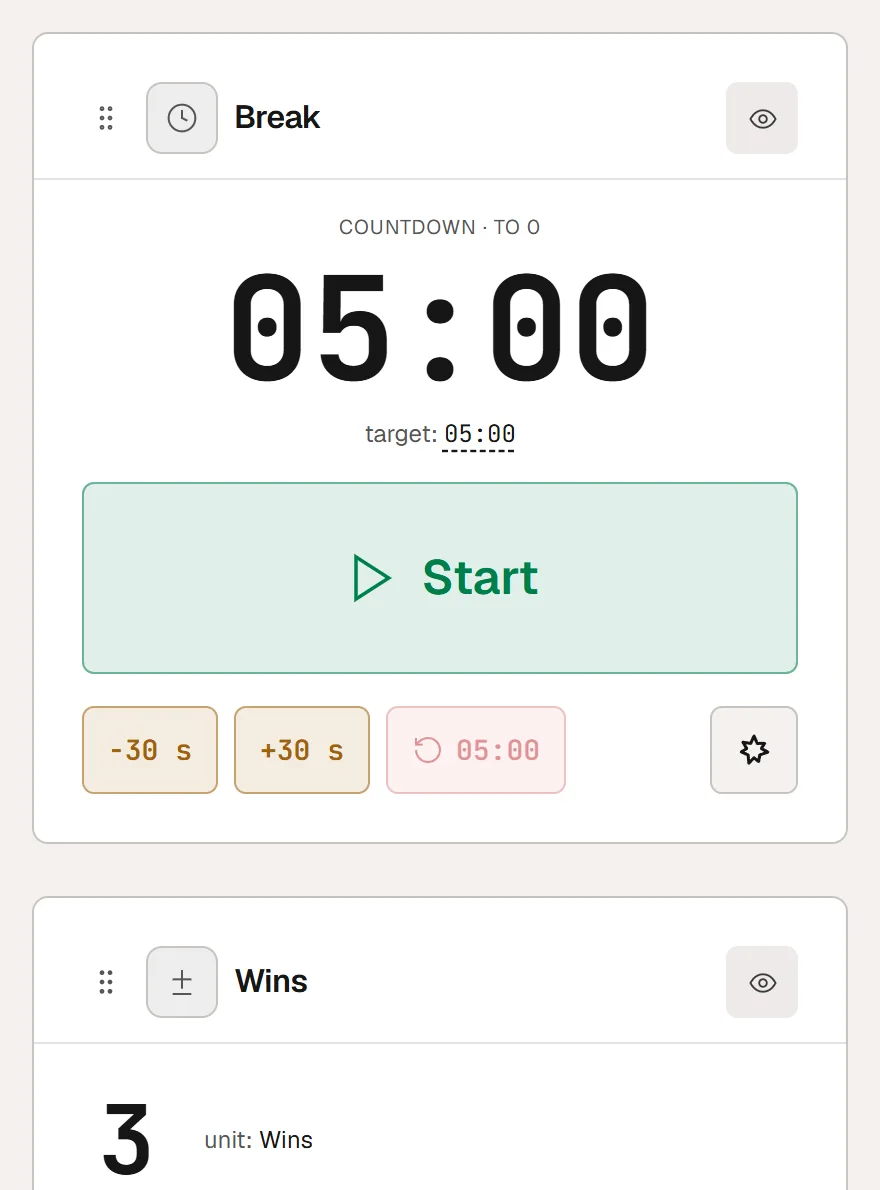
Discover the Control Room

The Control Room at phone width: the Break timer card, at 05:00, with "Start", -30 s, +30 s and the burst star; below, the top of the Wins counter card.

2 of 2

Your chat plays along

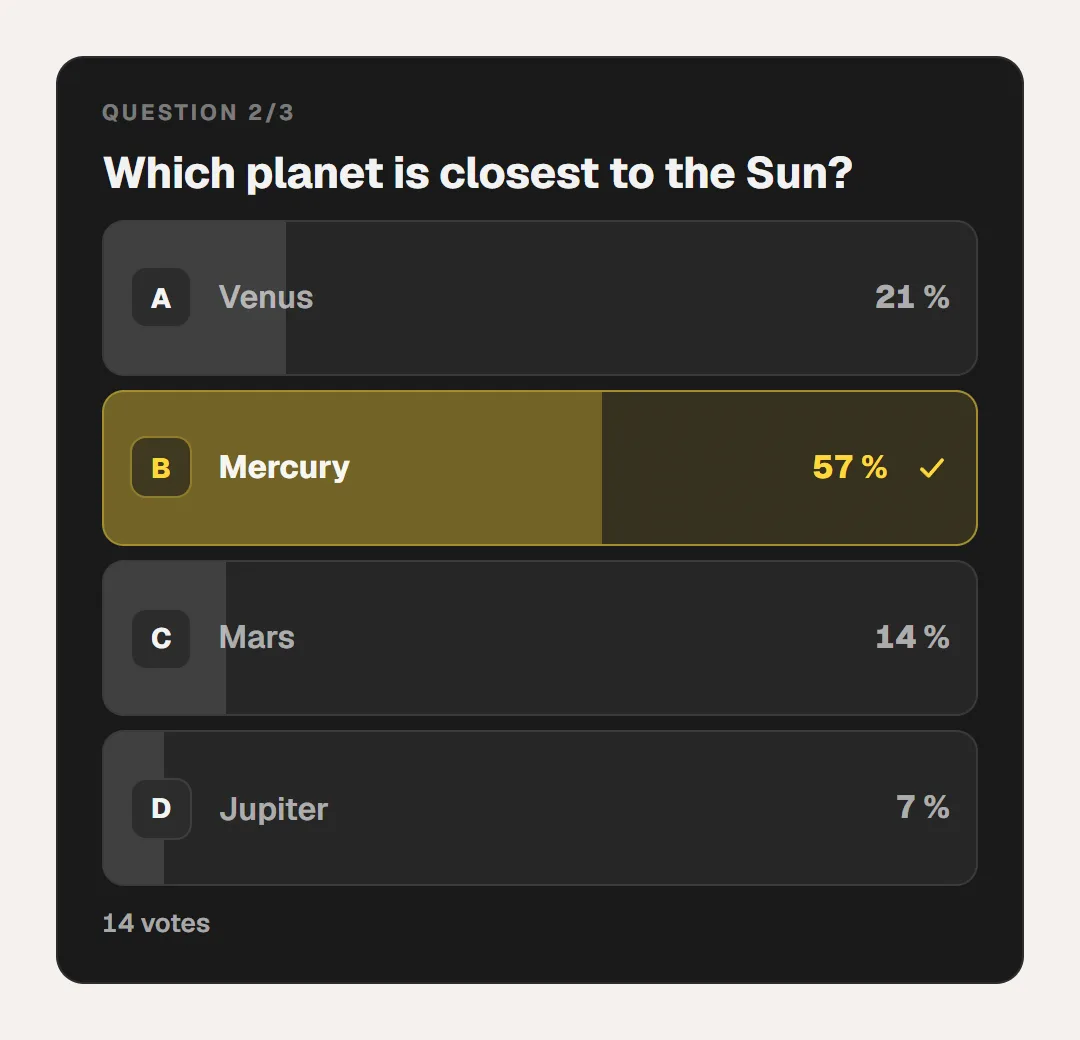
The quiz lets your Twitch chat vote: you launch the question from the Control Room, everyone votes by typing their answer, and the result shows on your overlay. "Guess the answers" collects what chat suggests, then it is your turn to find them.
The guide "Run a quiz with your chat"

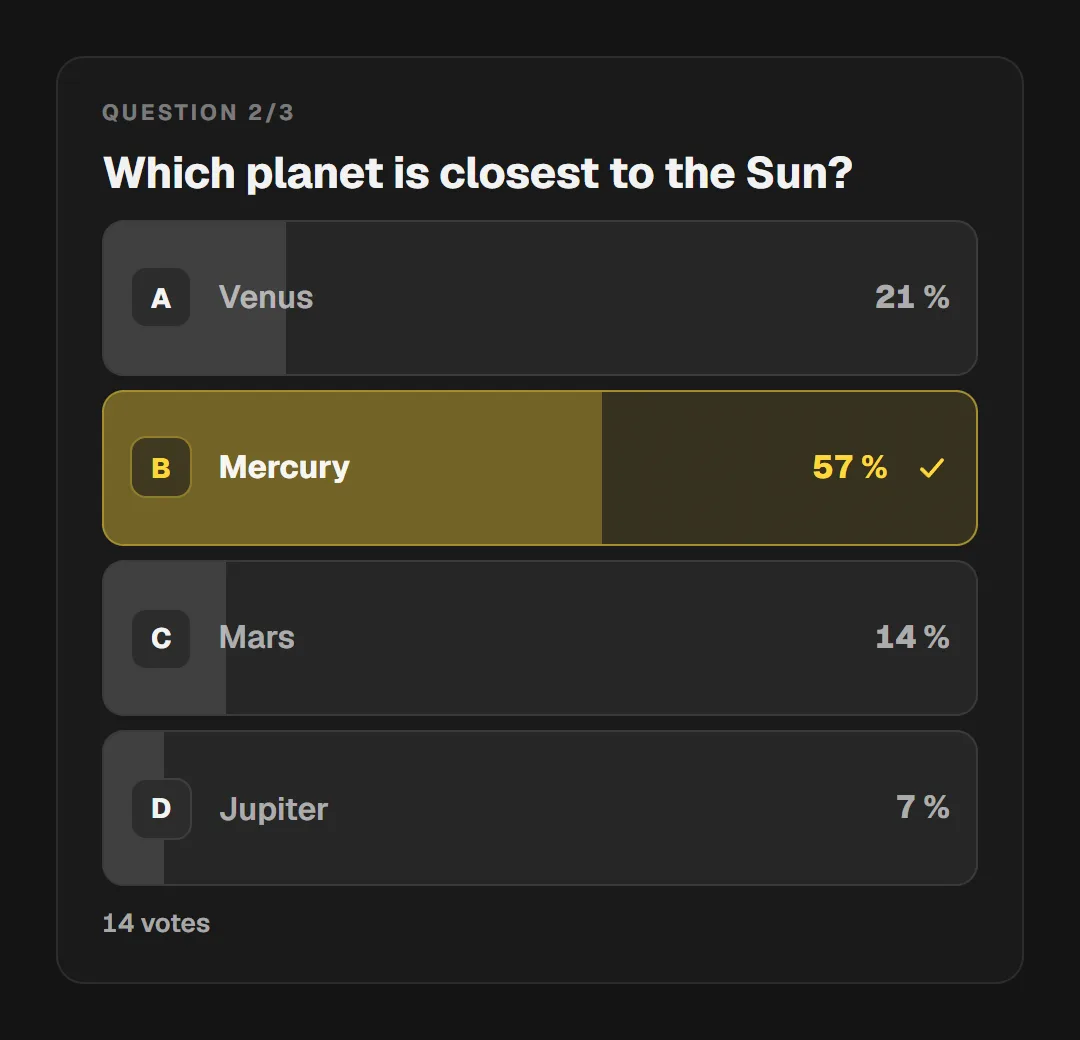
The Quiz widget on air: "Question 2/3", "Which planet is closest to the Sun?", Venus 21 %, Mercury 57 % highlighted with a check mark, Mars 14 %, Jupiter 7 %, and "14 votes".

A few widgets

Each one has its own page, with its layouts and looks.

The canvas format

Full HD
1920 × 1080, the default format. You change it in "Canvas settings", at the top of the editor.
Vertical
1080 × 1920, for a stream in TikTok or Reels format.
Square
1080 × 1080, the Instagram format.
Custom
The width and height of your choice, from 100 to 7680 pixels.
In your streaming software
Give your Browser Source the size of your scene. If it has another size, the scene scales to fit as a whole, without stretching.

Your overlay, from the editor to your stream.

Place your widgets, style them, then run them from the Control Room.

Free plan · No credit card