
All of Twools,
guide by guide.
Build your overlay in the editor or with AI, style it, add it to OBS, run it live and connect Twitch, Twools Buddy or YouTube.
No guide matches. Here are the guides to start with.
Where to start
Create, go live, run your stream: Twools in three moves.
Get started · 4 min
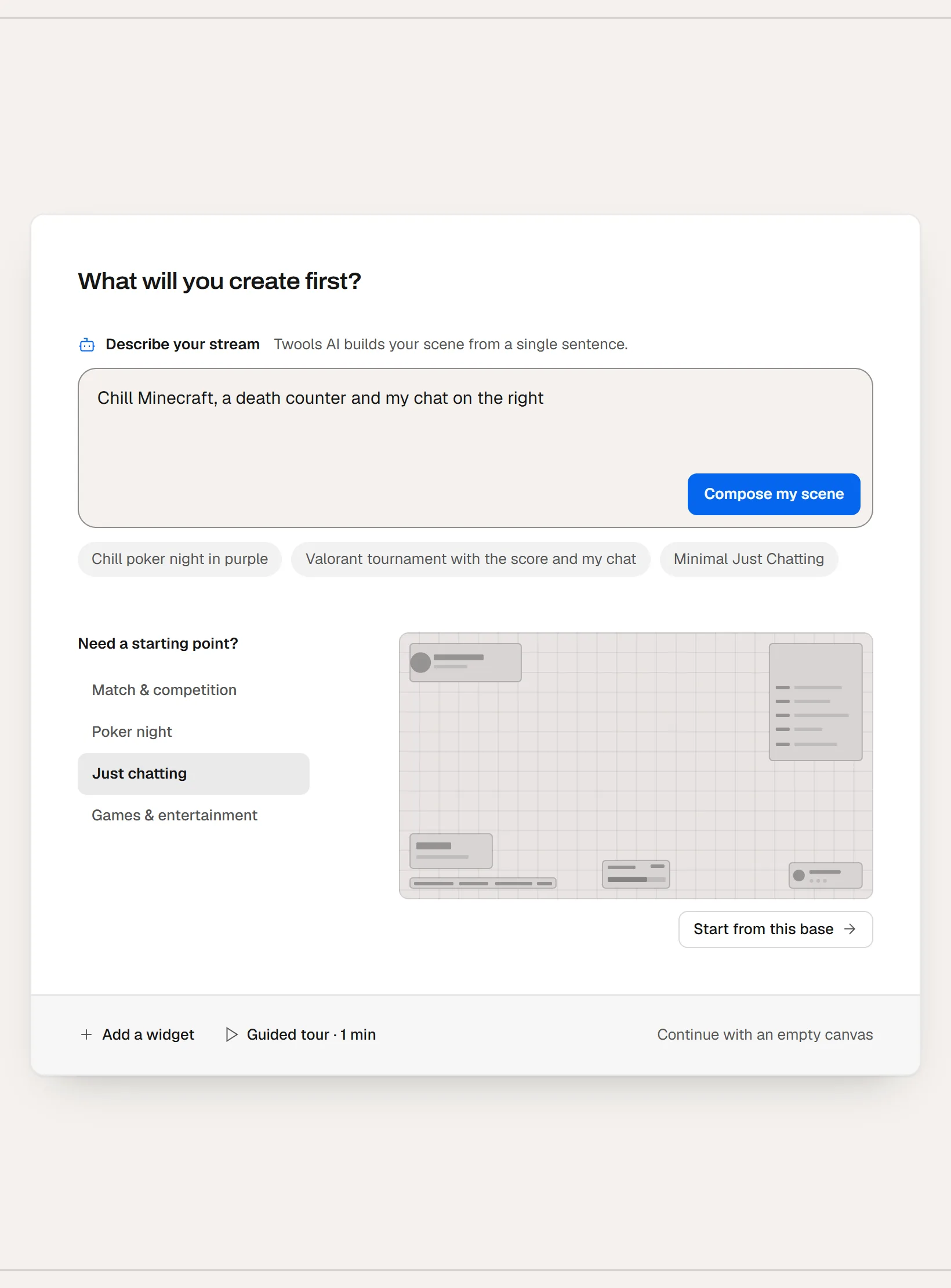
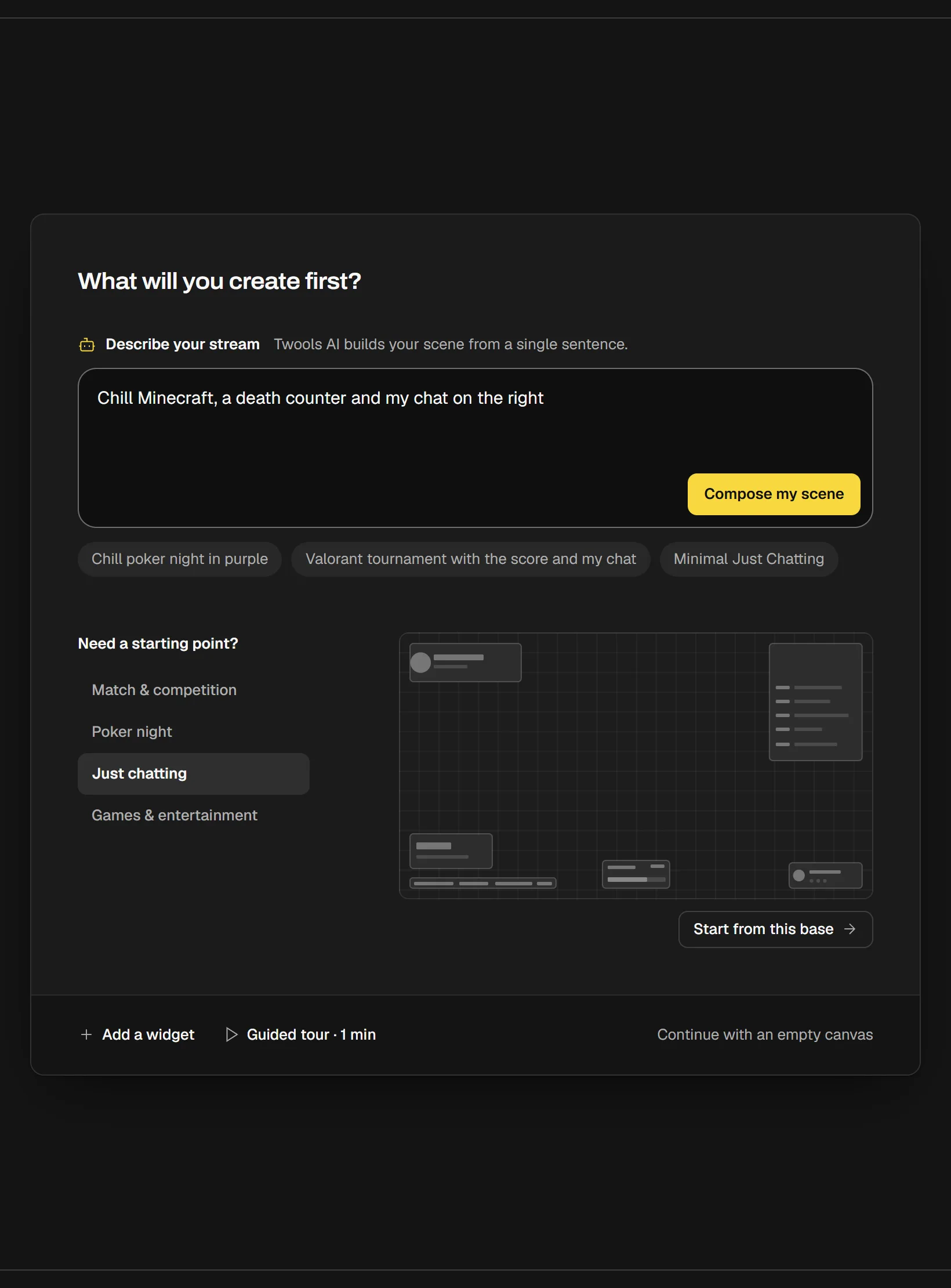
Compose a scene with AI
Describe your stream in one sentence and Twools AI composes your overlay scene: widgets, places, look. Keep it, adjust it or start over.
Go live · 5 min
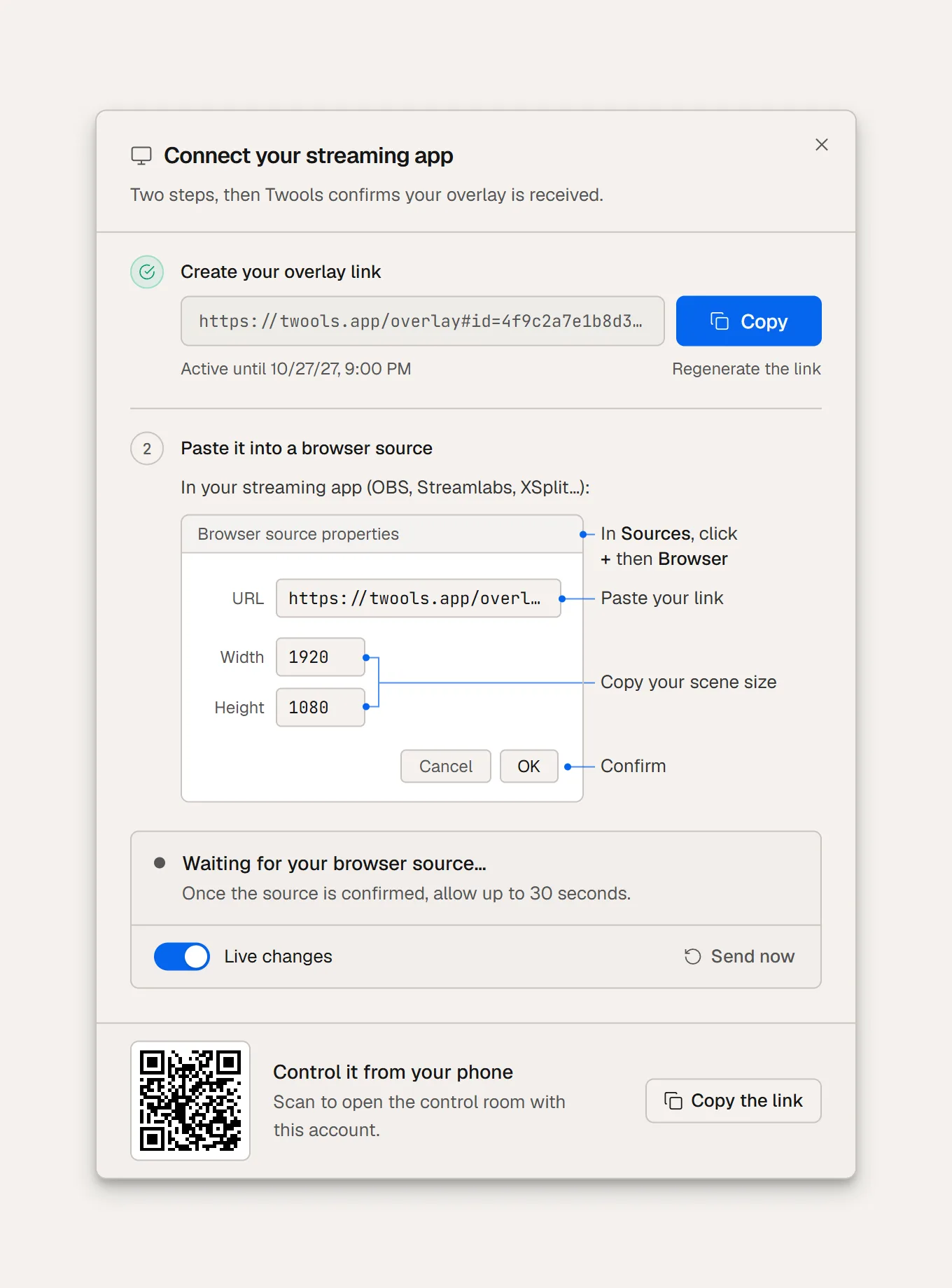
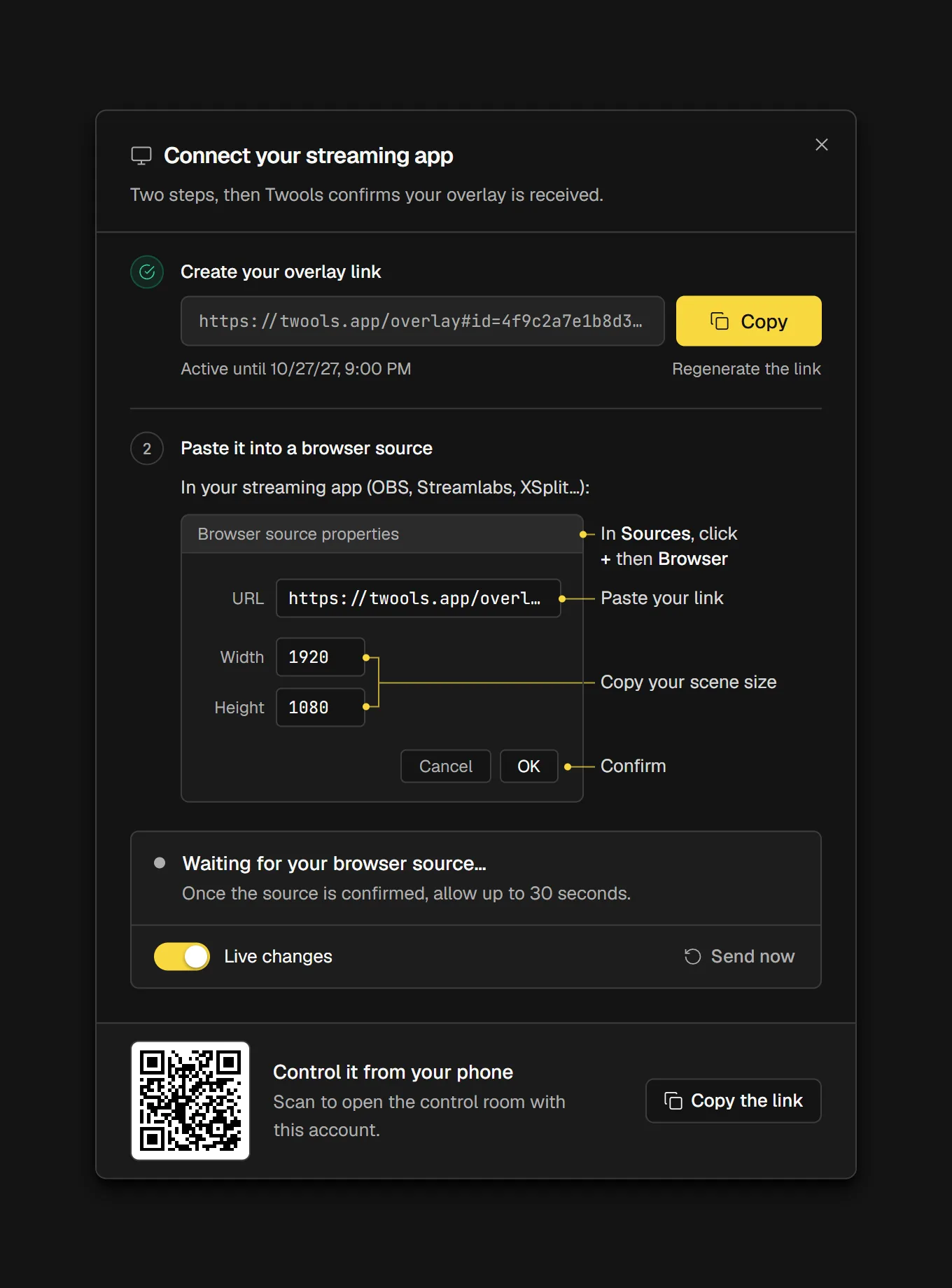
Add your overlay to OBS
Add your overlay to OBS with a Browser Source: create your overlay link, paste it, set the size, then check that your source is receiving it.
Run your stream · 5 min
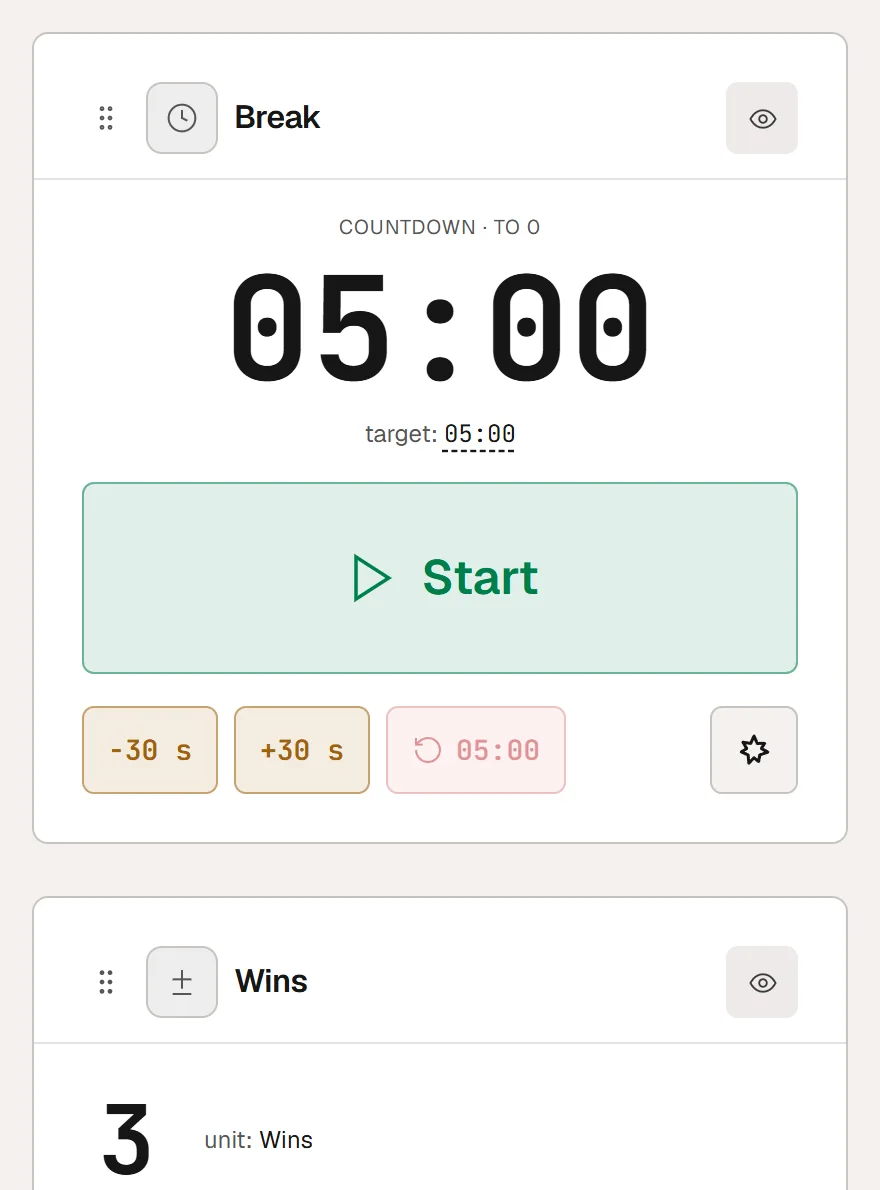
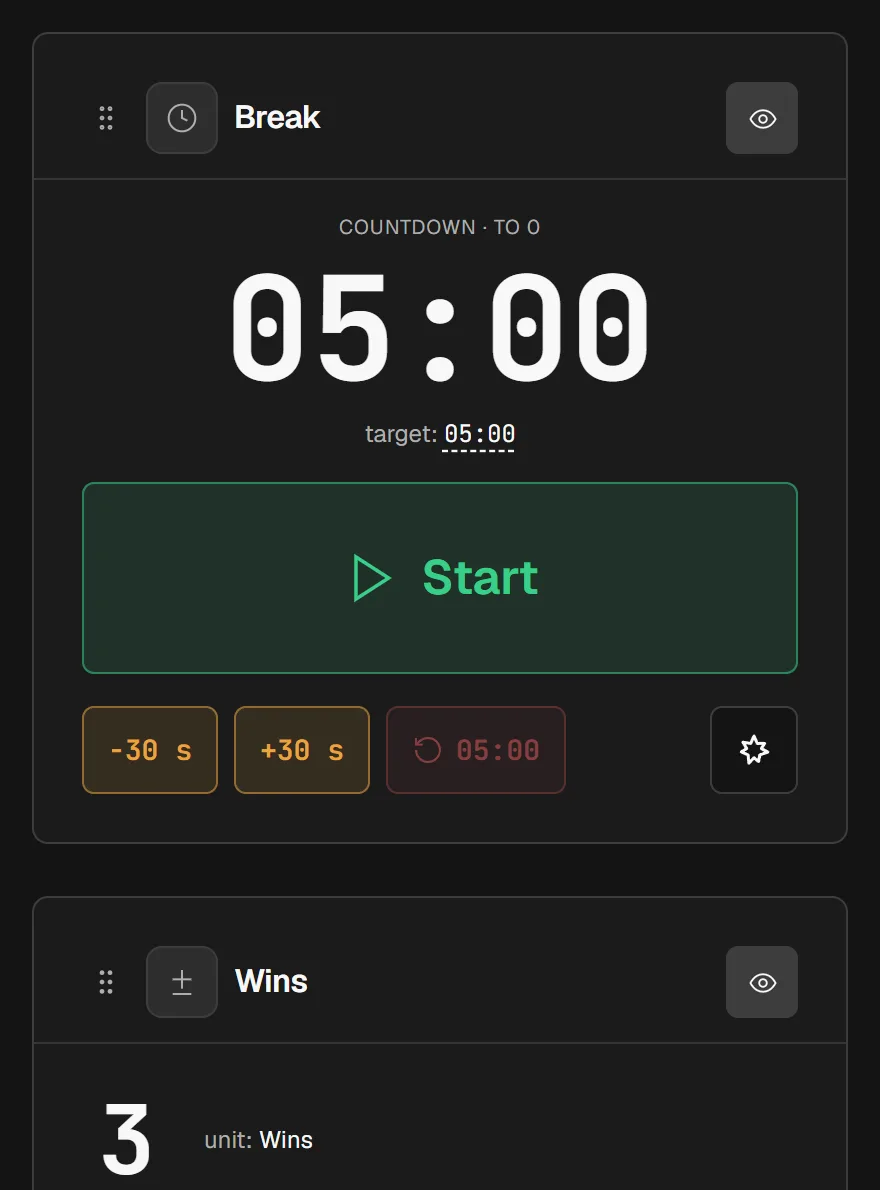
Run your stream from your phone
Open the Twools Control Room on your phone with a QR code: start a timer, add a point, hide a widget or play a burst, without touching OBS.
All guides
In the order you discover Twools.
Get started
Your first overlay, by hand or with AI, and what gets saved.
- Create your first overlayBuild your custom Twitch overlay in Twools: start from an empty scene or a starting base, add your widgets, place them and set them up. No code.6 min
- Compose a scene with AIDescribe your stream in one sentence and Twools AI composes your overlay scene: widgets, places, look. Keep it, adjust it or start over.4 min
- Your scenes and savingPrepare one scene per show, switch between them during the stream and find them again on another computer: every move is saved to your account.6 min
Style
Style presets, your colors, each element and the motion.
- Choose a lookChange a widget's whole style in one click: try a look on hover in the live preview, apply it, then adjust its colors and its font.4 min
- Customize a single elementClick one element of a widget in the preview to set its color, font and effects, which a new look leaves alone, and hide what you do not need.5 min
- Animate your widgetsChoose how your widgets come in, change and leave the screen, add a burst to play from the Control Room, content that lives on its own and a frame that moves.5 min
Go live
Your overlay in OBS, with a single link.
- Add your overlay to OBSAdd your overlay to OBS with a Browser Source: create your overlay link, paste it, set the size, then check that your source is receiving it.5 min
- Nothing shows up in OBSYour overlay stays invisible in OBS? Link not found or cut off, cache, source order, size, widget off air: the common causes and how to fix them.4 min
Run your stream
The Control Room, from your phone, during the stream.
- Run your stream from your phoneOpen the Twools Control Room on your phone with a QR code: start a timer, add a point, hide a widget or play a burst, without touching OBS.5 min
- Run a quiz with your chatPrepare your questions in the editor and start each round from the Control Room: Twitch chat votes by letter, number or text, then you reveal the answer.6 min
Connect
Twitch, YouTube, and Twools Buddy for your rank and your music.
- Connect your Twitch accountConnect your Twitch account once, in the Twools editor: your chat, your follow and sub alerts and your sub goal show up on your overlay.4 min
- Twools Buddy: your rank and your musicInstall Twools Buddy on your Windows PC and pair it with your account: your LoL or Valorant rank, your latest matches and your music show on your overlay.6 min
- Track your YouTube subscribersShow your YouTube subscribers, views or videos on your overlay: type your channel's handle, verify it and pick the number. No YouTube account to link.3 min
Reference pages
Ready to build your overlay?
One sentence to create, one link to go live, your phone to run it.
Free plan · No credit card